


01 / Installation
Install it. Open the workshop.
Mesh Works works inside Unreal Editor. This source package is intended for Unreal Engine 5.3.
- Close Unreal Editor. Extract the
MeshWorksfolder into your C++ project'sPluginsfolder. - Open the project and let Unreal build the plugin. The Unreal C++ development tools must be installed.
- Enable Mesh Works in
Edit → Plugins. Allow its Geometry Script dependency and restart if Unreal asks. - Open
Tools → Pautinka → Mesh Works. Choose the interface language near the top of the window.
The plugin includes English, German, French, Italian, Spanish, Simplified Chinese and Russian. This website also provides Ukrainian, Japanese and Hindi.
Geometry Script comes with Unreal Engine; no separately purchased plugin is needed.
Saved ordinary mesh assets can be used without Mesh Works. Keep the source assets until you have checked the saved result.
02 / Preview & controls
A workbench with room to compare.
Before holds the input. After holds the preview. Look at the silhouette as well as the wireframe; both have a story to tell.
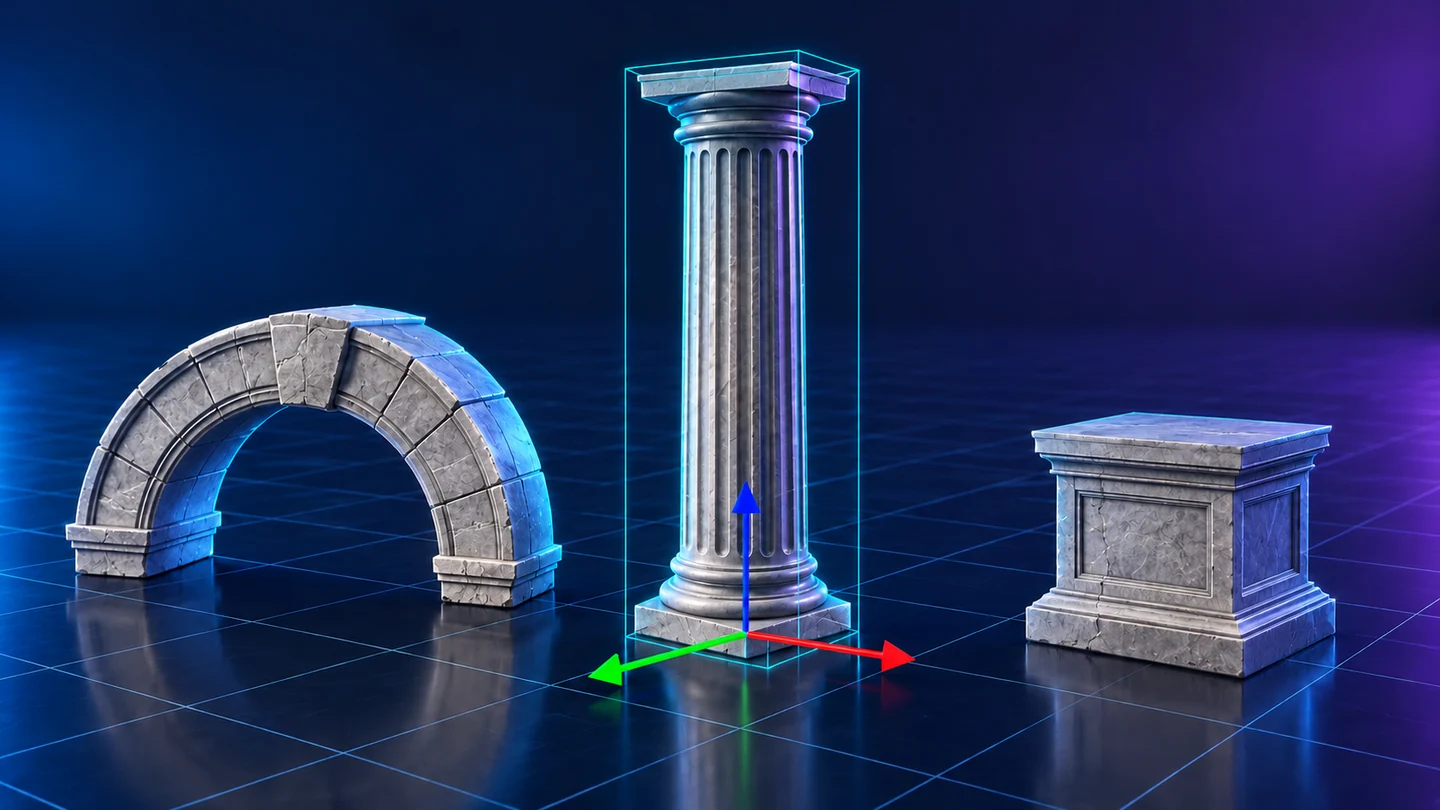
- Choose an asset in the picker, drag it from Content Browser, or use
From levelwith the intended object selected. - For tools with several inputs, check the source list and each part's placement before starting.
- Choose the tool and settings, then build its preview. Switch between shading, cell boundaries, UV views and available diagnostics.
- Check the result folder and asset name. Save when the preview is suitable.
Scene inputs can carry placement, material overrides and vertex colours into supported operations. Replacing an input can change what the next preview uses.
The protection brush marks details for supported geometry operations. Adjust the radius and inspect both sides of thin walls. Source or placement changes clear the marks.
Cancel is handled at cancellation points. A large calculation can take a moment to reach the next one.
03 / Automatic modes
Let the usual chores travel together.
Use Automatic for a preparation pass. Choose the steps you actually need before inviting a whole folder to the party.
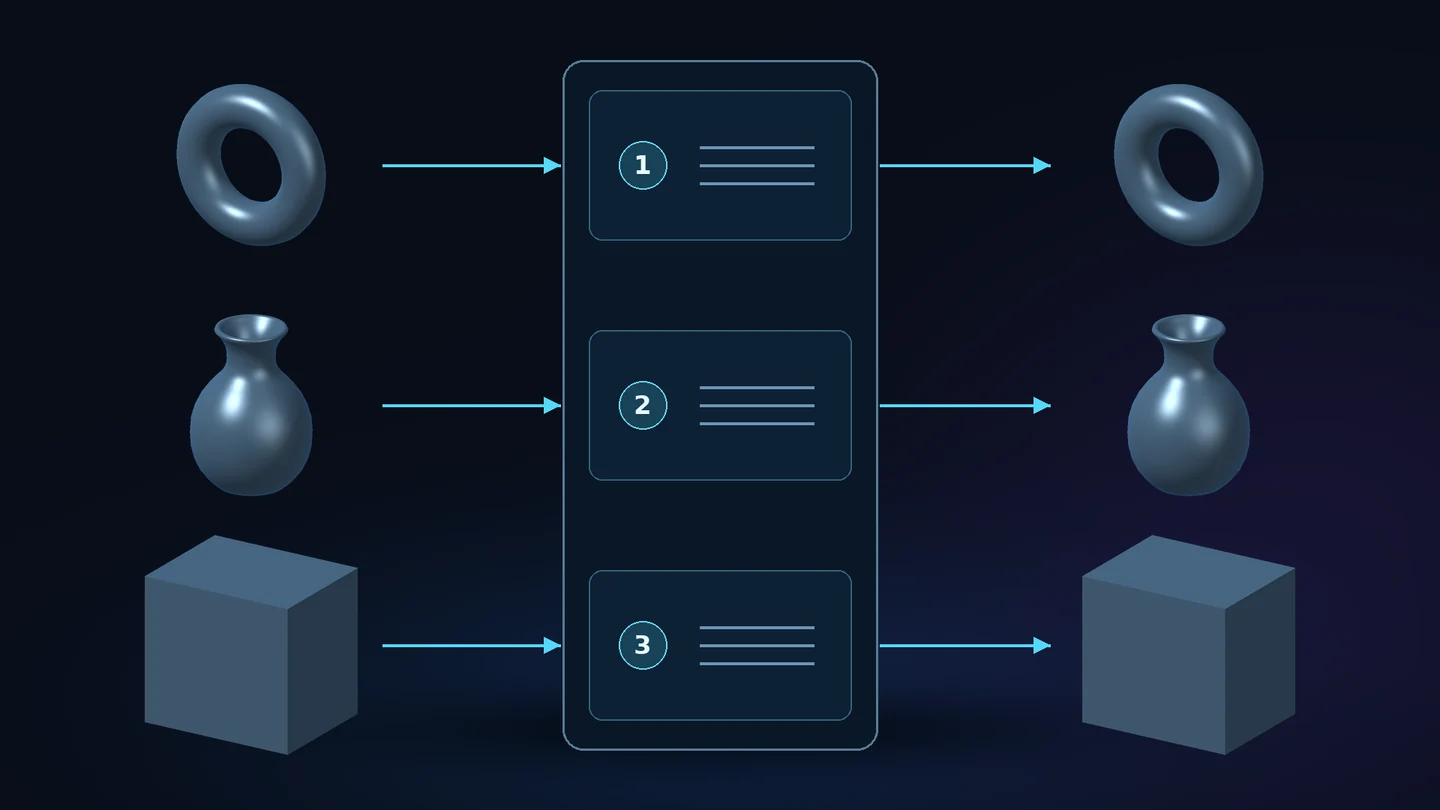
- Add one mesh or the inputs you want to combine. Choose the recommended optimisation or the fuller automatic workflow.
- Review repair, reduction, UVs, material handling and LOD options. Each dedicated tool keeps its own settings.
- Build a preview and compare geometry and materials. Check the report before saving or processing more assets.
Super automatic can repair and reduce geometry, remove enclosed parts when combining, create LOD0–LOD6, and bake a new shared material with the required maps.
Rebuild UVs controls the layout. Off uses suitable existing UVs; on requests a new layout.
Keep complex materials takes a different material route: copies of the existing materials and textures are kept instead of a shared appearance bake.
When the selected workflow includes retopology after reduction, it rebuilds the reduced working mesh. The separate Retopology tool does not require a simplification pass first.
04 / Simplify & remesh
Spend triangles where they help.
Ordinary simplification reduces an existing surface. Surface remeshing redistributes triangles. Choose according to the problem in front of you.
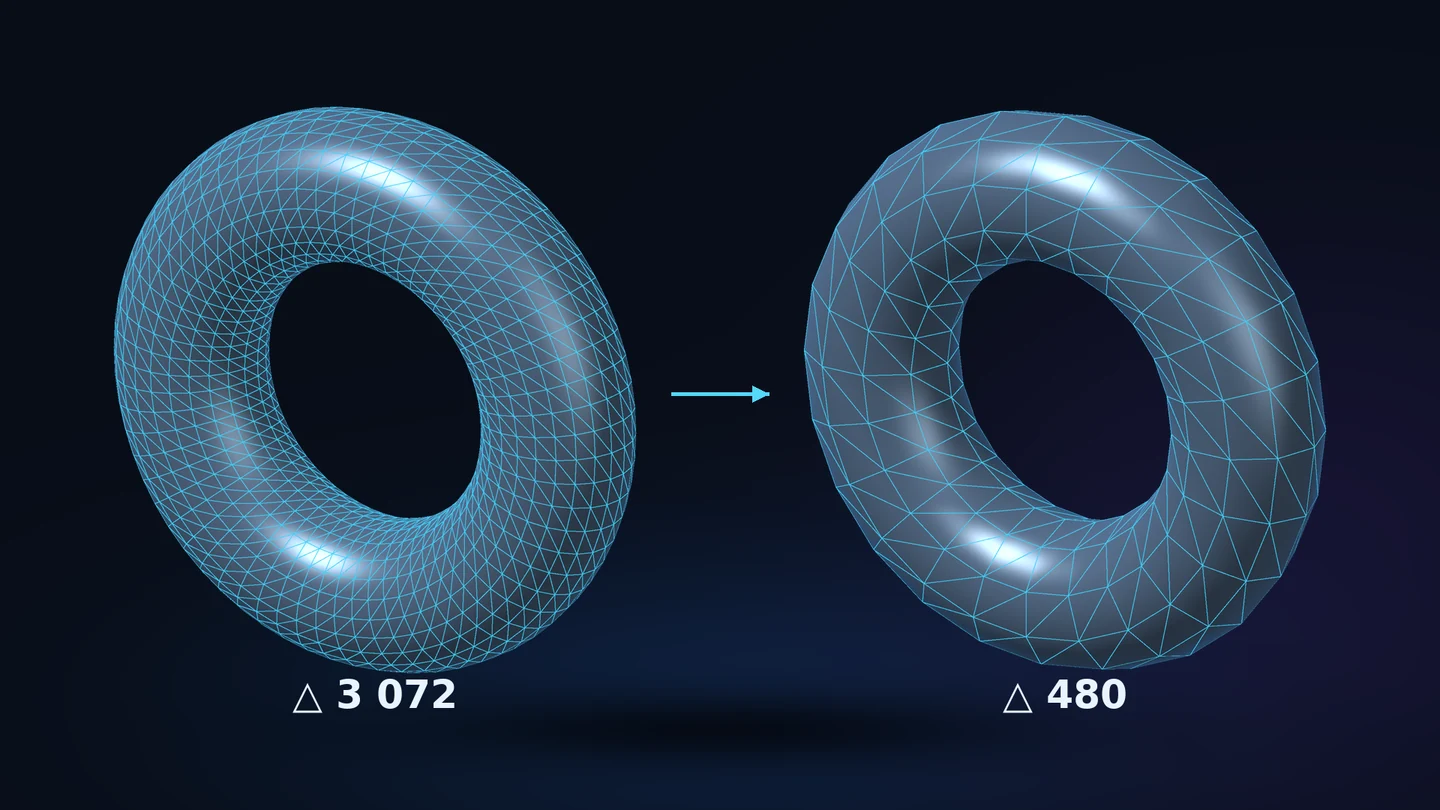
- Open
Static mesh remeshand choose simplification for reduction, or remesh for a new triangle distribution. - Request a triangle target, adjust reduction strength, or ask for a recommendation.
- Set protection for details that matter. Inspect edges, thin parts, holes and the outline in the preview.
- Compare the actual count and shape, then save a separate result.
Higher reduction strength asks for fewer triangles. It is a request, not a percentage of guaranteed visual improvement.
Recommendation suggests a starting point from the source and protection settings. It does not promise a fixed count or a particular frame-rate gain.
Protected boundaries, material seams and small parts can limit reduction. Texture size and triangle count are separate expenses; a smaller mesh can still wear very large textures.
05 / Retopology
Give the surface a new grid.
Retopology rebuilds the layout of the surface, mainly with quad cells. It has a different job from ordinary triangle reduction.
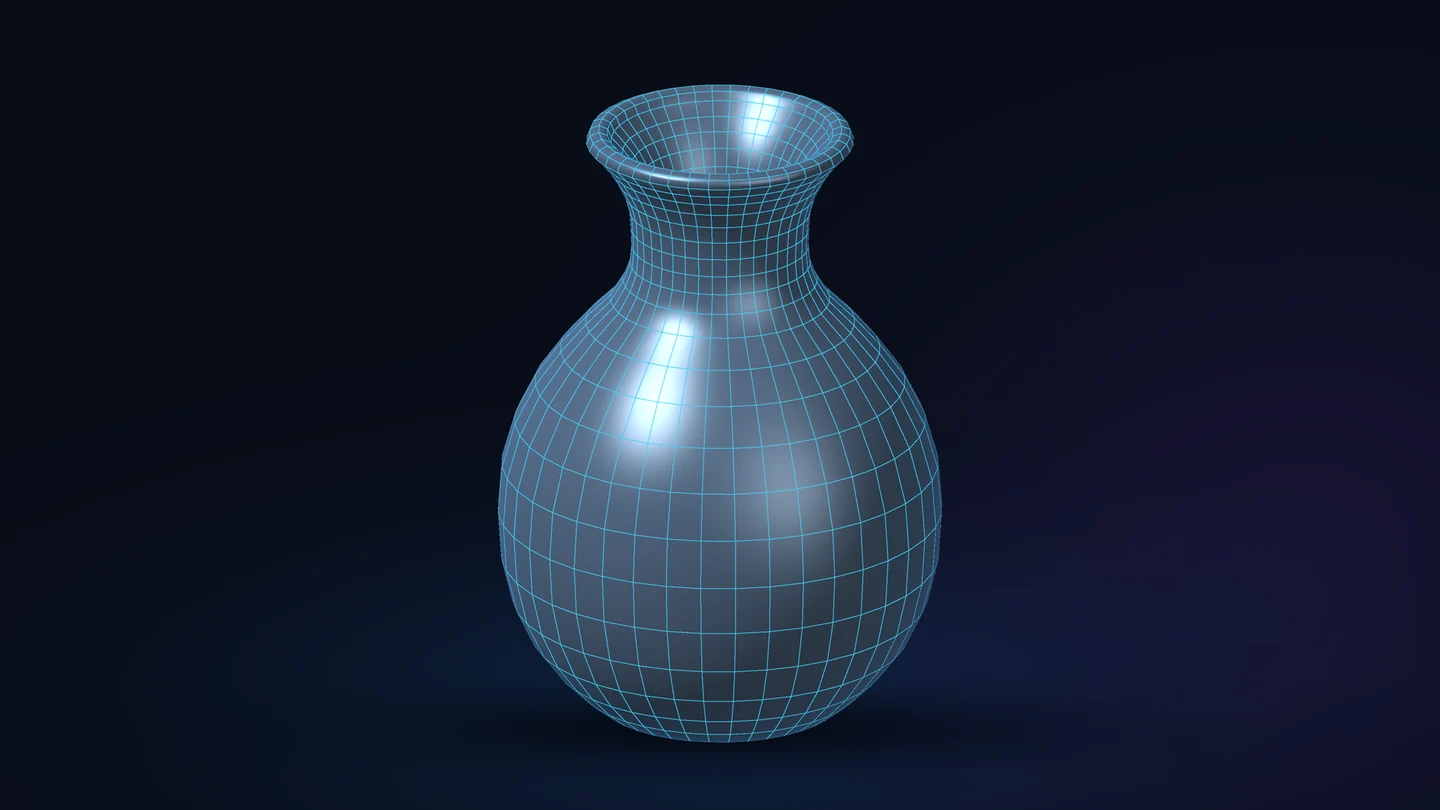
- Open
Retopology. Enter a target, apply a recommendation, or use input density as the guide. - Choose Simple, Accurate or Super accurate. Adjust adaptive detail and the available sharp-edge, boundary and projection settings for the model.
- Build the preview. Turn on the cell overlay and compare the shaded silhouette, openings, rims and small parts.
- Review the actual count and any reported differences before saving.
Input density uses the input triangle count as a guide and disables the manual target and reduction percentage. It does not request preliminary simplification.
Adaptive detail aims for larger cells on broad surfaces and smaller cells where the surface changes. More protected detail can require more cells.
Sharper-edge guidance uses the selected angle threshold; the supplied settings default to 30°. Increase protection thoughtfully on noisy scans.
Transition triangles or other polygons may remain where the grid needs them. Unreal stores the saved mesh as triangles, so ordinary wireframe also shows cell diagonals.
Accurate and Super accurate can take longer. A target and a surface tolerance are guides for reviewing the result, not guarantees of an exact count or an identical silhouette.
A smaller number is useful when the silhouette, openings and important details still do their job.
06 / Mesh recovery
Fix the loose floorboards first.
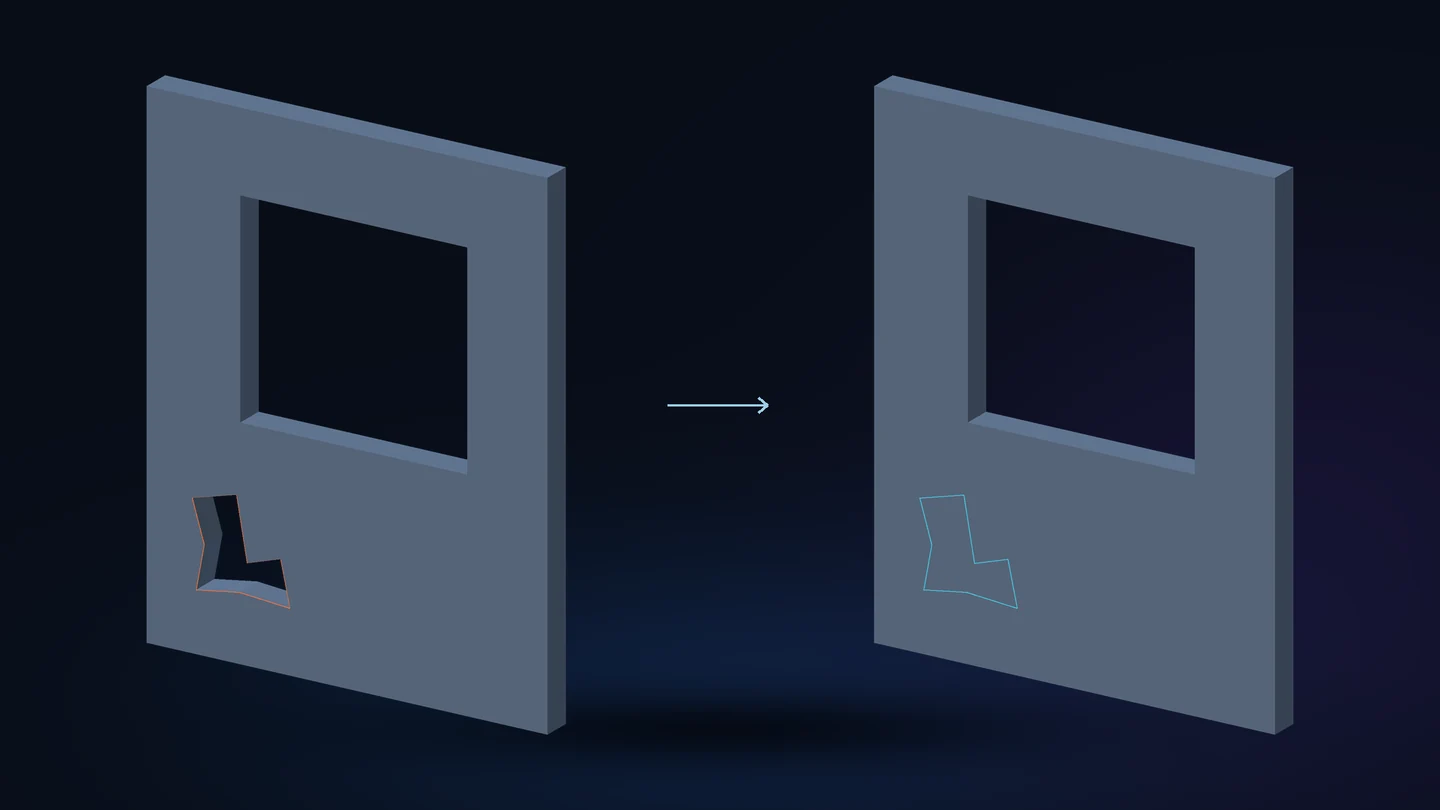
Mesh recovery deals with damaged faces, duplicates, unused points, broken connections and missing surface data.
- Open
Mesh recoveryand enable the repairs suited to the input. - Start with gentle settings. Preview the cleaned surface and inspect the affected area from both sides.
- Use
Close holeswhen the open boundaries really should be closed. - Check UVs, colours and the silhouette, then save the repaired copy.
Local cleanup can patch small defects. Close holes additionally attempts open boundaries across the mesh.
Windows, doorways and the mouth of a barrel may be deliberate openings. Inspect them before saving.
The shape-change limit can undo individual repairs that move the surface beyond its tolerance. Increase it only when that movement is acceptable.
07 / Combine & blending
Put the parts where they belong.
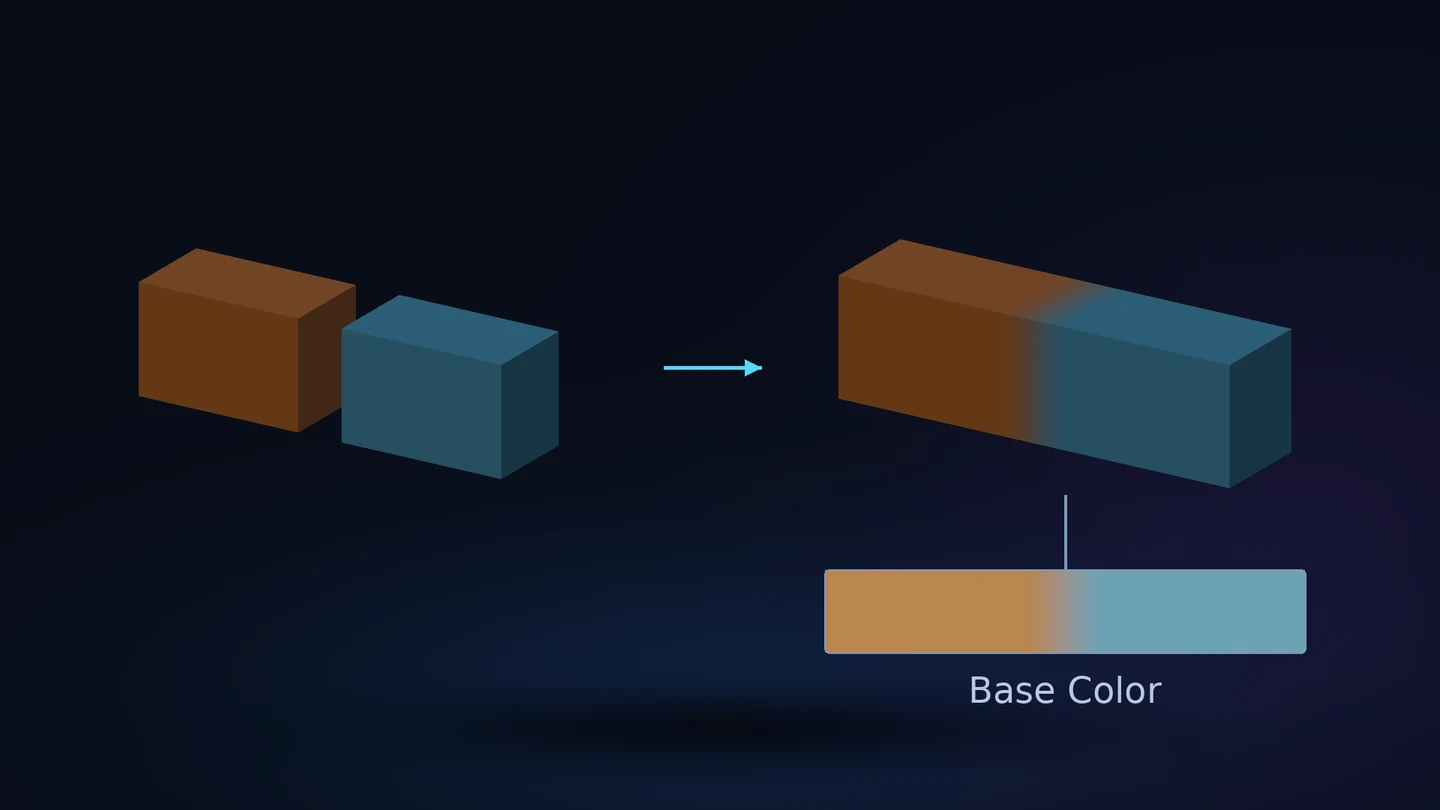
Assemble several Static Mesh inputs in the preview, or bring in their arrangement from the level.
- Add sources from Content Browser or the level. Check transforms and material overrides.
- Select a source and place it with the gizmo or numeric controls.
Wmoves,Erotates,Rscales, andFframes the arrangement. - Choose
Appendto keep the parts' surfaces, orUnionto combine intersecting solid parts. Review internal-surface removal separately. - For a softer material transition, enable blending and set its width and strength. Preview intersections and save the result.
The manual arrangement belongs to Mesh Works; scene actors are not required for this workflow.
Union works with solid inputs. Open shells, thin walls and difficult intersections need inspection and may need repair first. There is no separate subtraction tool in this version.
Blending creates UVs and bakes a shared material near the intersections. Width is in centimetres; strength controls the transition. It is saved into textures and does not add a runtime blend effect.
08 / UV layout
Give every island a sensible address.
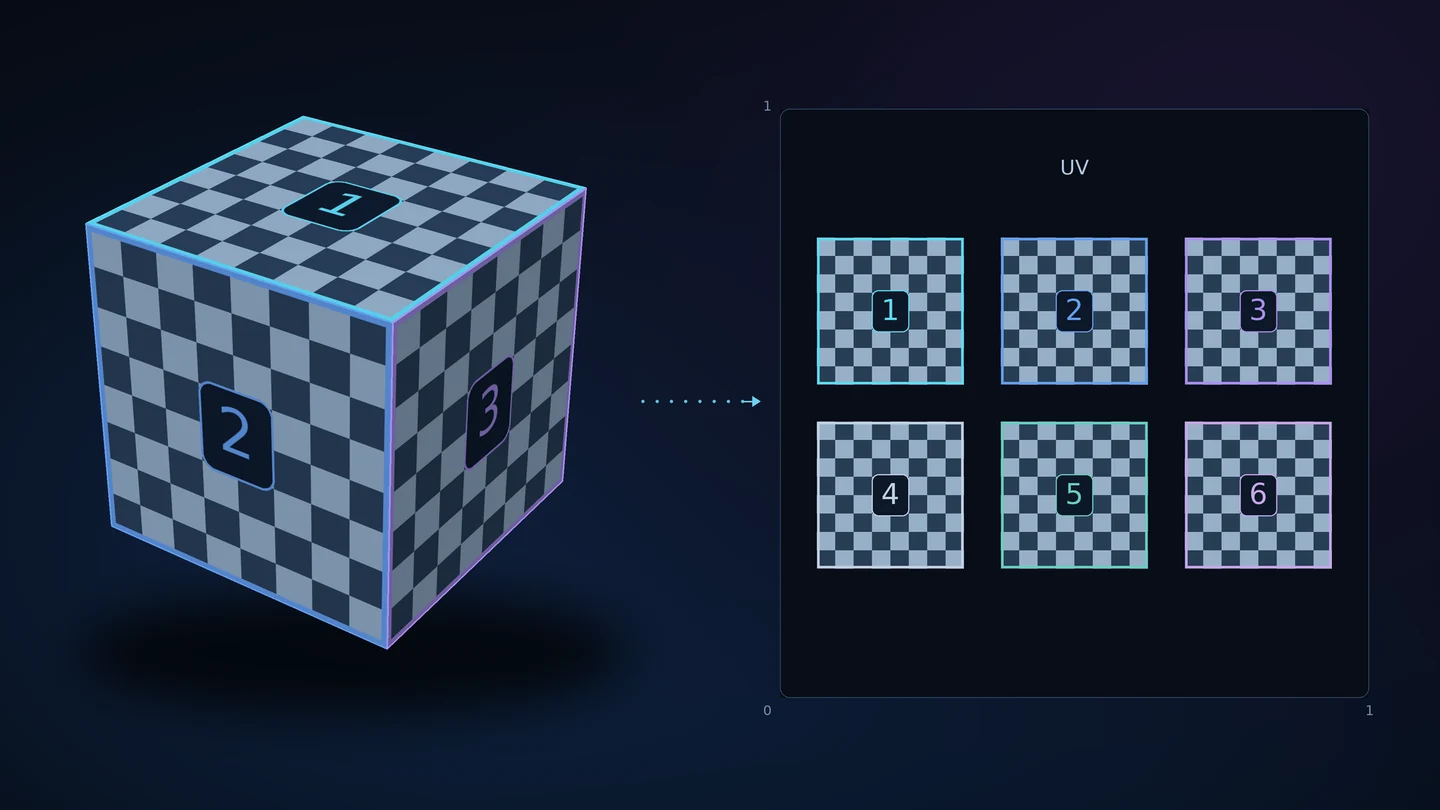
Create or rearrange UV islands, control their density and directions, and prepare a separate lightmap layout when needed.
- Open the UV tool and choose whether to keep, generate or repack the layout.
- Select the intended UV channel. Check island separation, packing and directional controls for the model.
- Use the UV view and diagnostic textures to inspect overlap, stretch and uneven detail density.
- If you replace the material UV layout, rebake the textures that use it.
Material UVs and lightmap UVs serve different purposes. Keep their channels distinct when the mesh needs both.
A new layout does not repaint the material by itself. Baking transfers the appearance to the prepared UVs.
Large empty gaps waste texture space; islands packed too tightly can bleed at smaller mip levels. Inspect more than the full-resolution image.
09 / Baking & materials
Keep the detail in the right place.
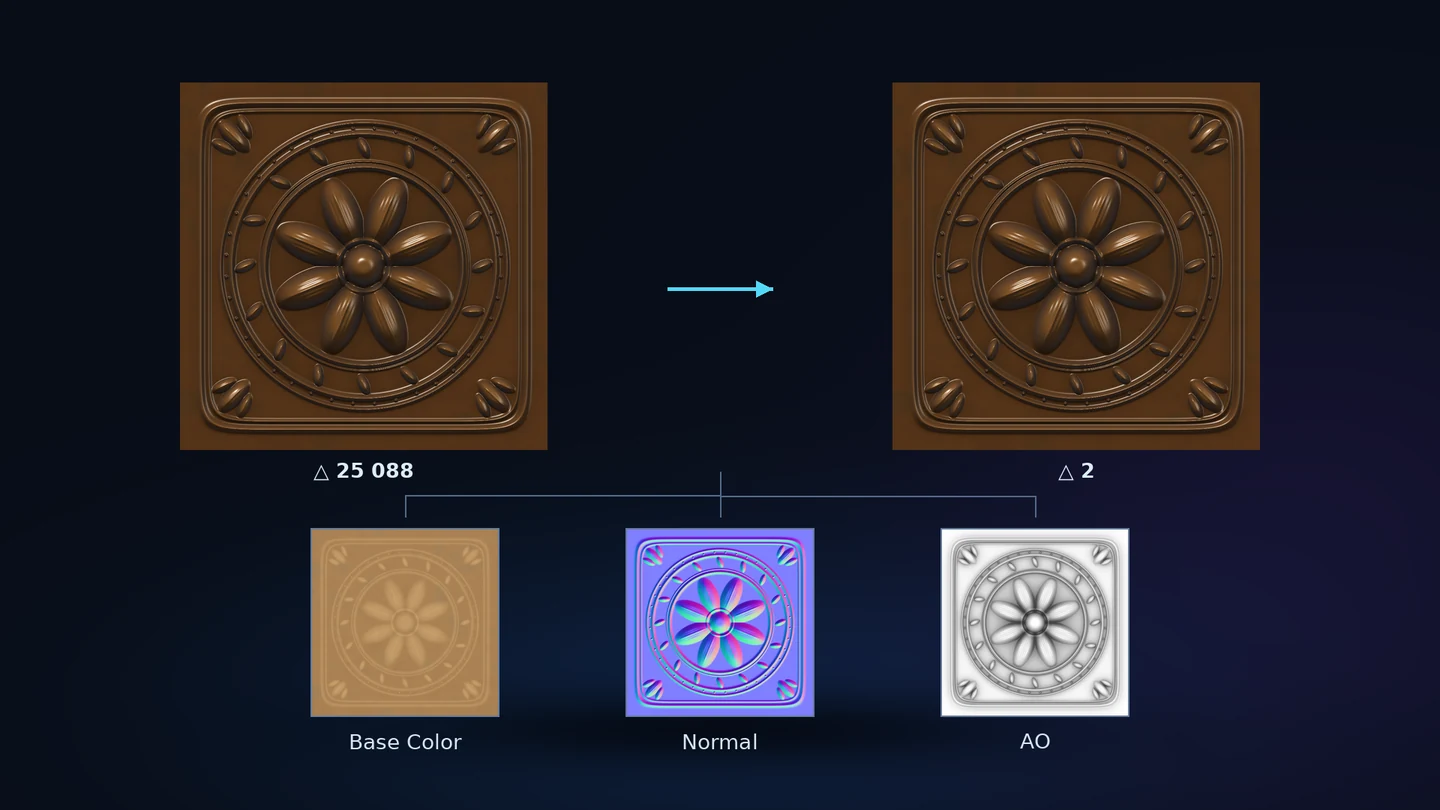
Bake supported appearance onto the prepared result, or create normal and ambient-occlusion maps. Baking does not simplify geometry.
- Prepare the result geometry and usable UVs. Keep the original available as the detailed source.
- Choose a shared-material bake or the normal/AO route, then set texture size and projection search distance.
- Bake and inspect the maps on the actual result, especially thin layers and neighbouring surfaces.
- Use
Bake againto retry maps on the prepared geometry and UVs without restarting the geometry operation.
The original stays available during preparation, so detail can be transferred to the final result. Fine texture detail cannot replace a missing silhouette or an opening.
A search distance that is too large can capture the neighbouring surface. Too small can miss detail. Fingers, lips and thin shells deserve a close look.
Shared-material capture is intended for Static Meshes. Animated, view-dependent or displaced materials can need Keep complex materials instead.
Check whether exported separate maps were assigned automatically; otherwise connect them to the intended material. Inspect transparency in the scene.
10 / Textures & materials
Lighten the textures without moving the islands.
Use this tool when the geometry and UVs are already suitable, but the texture set is heavier than the asset needs.
- Open
Textures and materialsand choose the texture-size limit. - Review the material-preservation options, especially masks and transparency.
- Build and inspect the copied materials with their texture copies on the result.
- Use the Baking tool when you want several material appearances captured into one shared material.
Smaller textures save memory at the cost of fine detail. Inspect the asset at its intended camera distance.
Some source formats or custom texture data cannot be resized safely. The report identifies resources that were kept.
Keeping existing materials preserves their behaviour more closely than a shared bake. The saved route uses its own resource copies, including suitable textures whose dimensions do not change.
11 / Skeletal meshes
Leave room for the next pose.
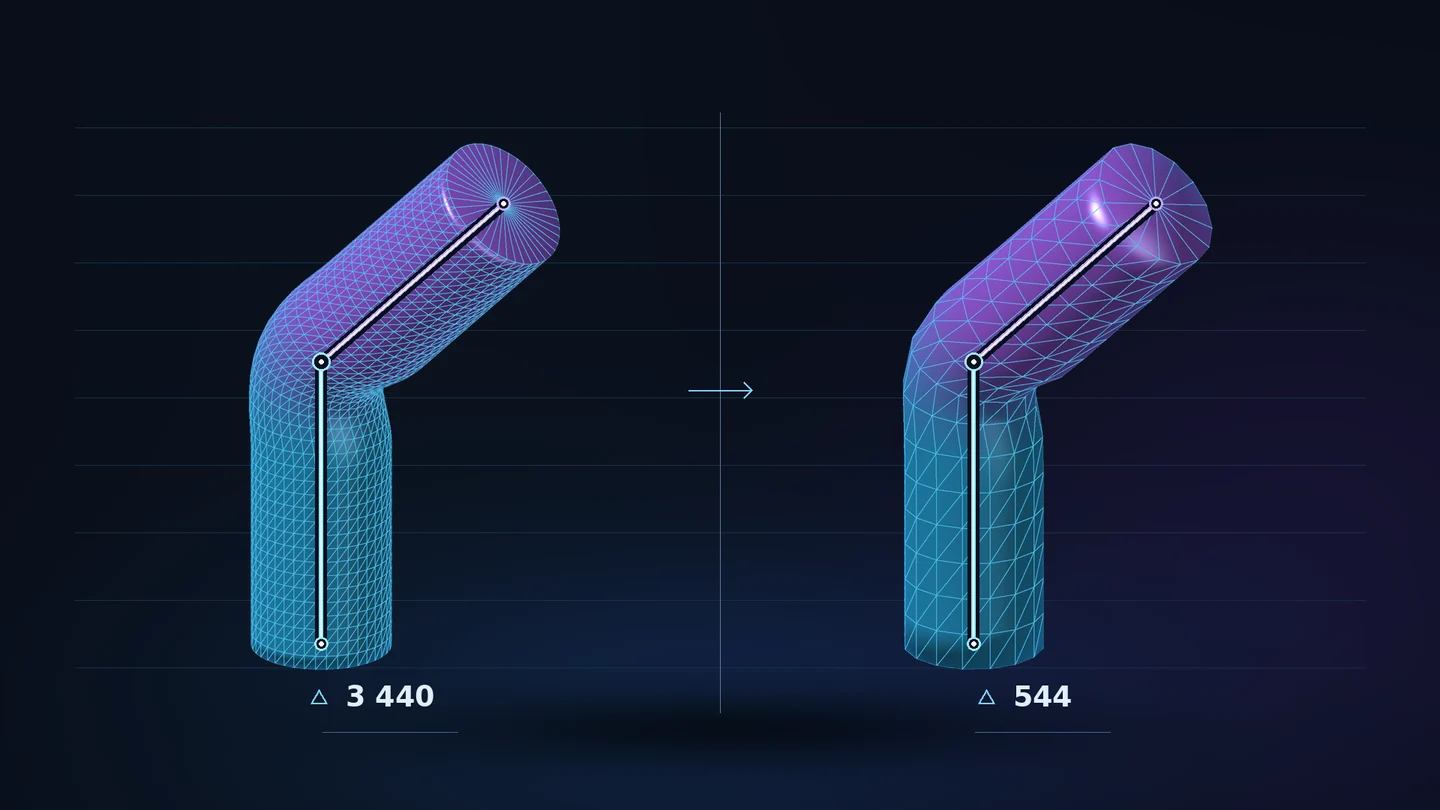
Optimise one Skeletal Mesh in its reference pose while retaining the original Skeleton and transferring the main skin weights.
- Choose the Skeletal Mesh and review geometry and texture settings.
- Decide whether morph targets, clothing and extra skin-weight profiles must be preserved.
- Build the preview and compare the same representative animations or poses on both sides.
- Inspect joints, fingers, shoulders and cloth attachments before saving the new mesh.
When protection for these extras is enabled and extras are present, geometry is kept while textures can still be optimised.
Without that protection, rebuilt geometry receives the main skin weights. Existing morphs, clothing and extra profiles remain in the source and may need to be prepared again for the new mesh.
A good reference pose does not prove good deformation. Use several clips that bend the joints you care about.
Full shared-material baking is a Static Mesh workflow. Mesh Works does not author skeletal Physics Assets.
12 / Collisions
Let the player through the doorway.
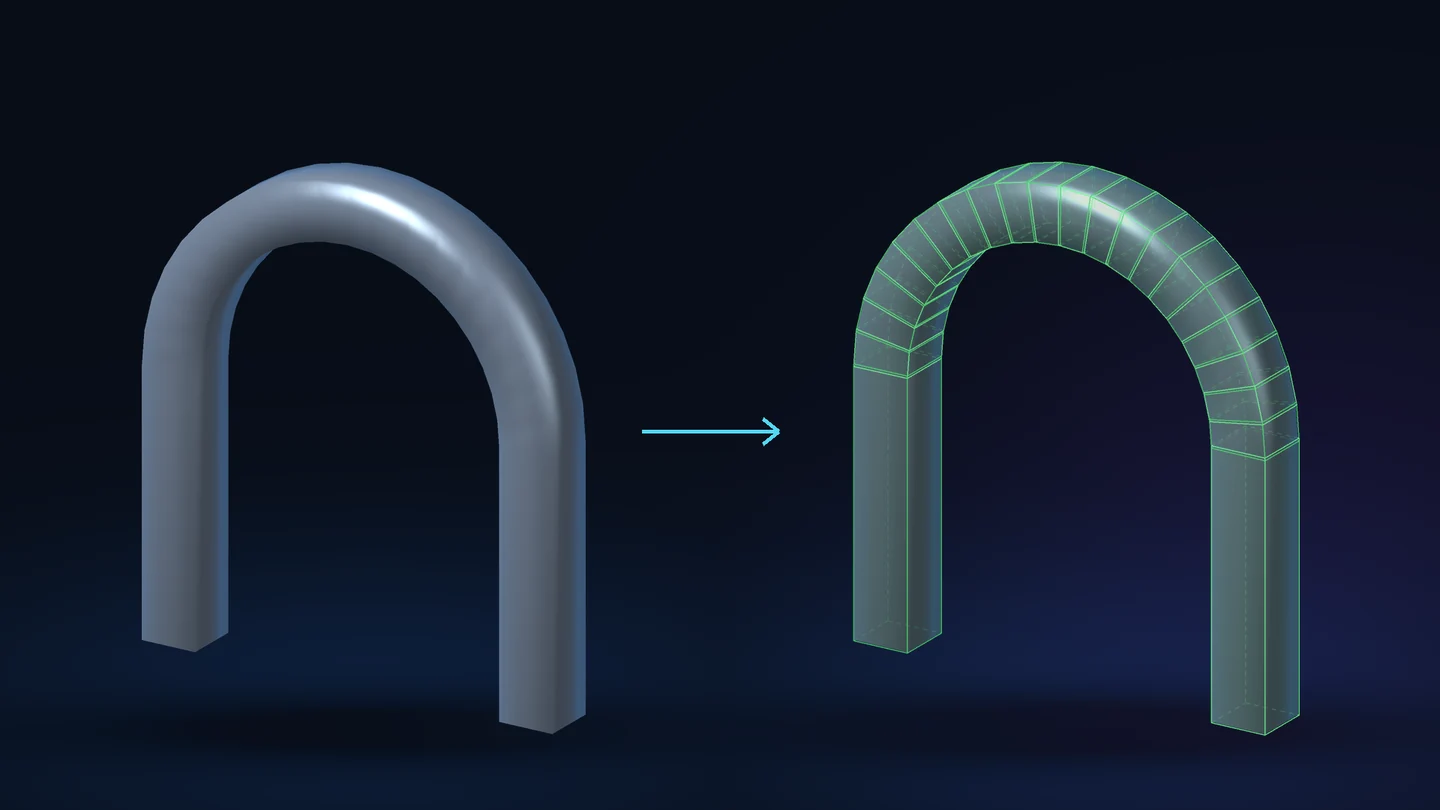
Create and inspect collision for Static Meshes. Choose the shape according to the way the object will be used.
- Open
Collisionsand choose the collision type: keep, none, surface, or the supported simple/convex shapes. - Adjust the shape count, hull detail and fitting controls. More shapes can follow a concave object more closely, at additional cost.
- Inspect the green collision preview. Check passages, handles, concave areas and thin parts.
- Run the available coverage/gap check, then save the separate mesh copy.
Surface collision follows the triangles for static objects. Moving physics objects generally need suitable simple shapes or convex hulls.
Each convex shape is solid. Several hulls may be needed around a hole; one hull across the whole object can close it.
Coverage and gap checks sample points. They help find problems but do not prove that every small feature is covered.
The saved copy keeps the visual LODs, UVs, materials and sockets. Skeletal Physics Asset authoring is outside this tool.
13 / LODs
Let distance do some of the work.
Use the available LOD settings to prepare lighter versions for more distant views.
- Choose the LOD options in the selected workflow. Super automatic can create LOD0–LOD6.
- Compare the main result first, then inspect each more distant level.
- Check thin parts, silhouette changes, material boundaries and the point where each LOD becomes visible.
- Save and inspect the asset in its intended scene and camera distances.
LOD0 is the closest, most detailed level. Later levels should spend less geometry where distance hides it.
Texture memory estimates and triangle counts do not measure frame rate. Use Unreal's profiling tools in the scene that matters.
14 / Batch processing
A queue beats a hundred repeat clicks.
Process assets separately or in groups using a captured set of settings.
- Add selected assets, a folder, or supported scene inputs to the queue.
- Choose individual or grouped processing. Check output names, paths and the intended settings.
- Try a representative mesh before starting a large queue. Settings are captured when the queue starts.
- Review each item's result and report. Check the output folder before repeating stopped or failed items.
A stopped or failed item does not mean every other item failed. Review the individual tasks.
Suitable identical results can be reused. Different assets can still need different protection and texture budgets.
15 / Presets & history
Remember the recipe, not the guesswork.
Save reusable settings, choose an interface language and apply naming rules where they help your asset library.
- Open
Settings and dictionariesto save or load a preset. - Review restored triangle, texture, protection and material settings before starting.
- Use dictionary rules for assets you have named consistently. Explicitly changed limits override dictionary defaults.
- Use work history to return to available sources and settings.
With dictionary protection enabled, a *_Keep rule enables geometric protection. *_Background requests smaller default budgets.
The dictionary recognises naming rules, not anatomy. A file name cannot tell it where a dragon keeps its knees.
History does not recover deleted or missing source assets. Keep source files and project backups separately.
16 / Saving & support
Save the asset. Keep the original handy.
The preview is the place to experiment. The saved result should be the one you have actually inspected.
- Compare shaded and diagnostic views. Look at the silhouette, seams, materials, UVs, openings and the actual triangle count.
- Choose a writable output folder and a clear asset name. Save the new result.
- Open the saved asset in Unreal and inspect it in the intended scene or animation.
- If something is wrong, keep the source, note the operation and settings, and send the relevant log message to support.
Processing a preview does not overwrite the original. Ordinary saved mesh assets do not need Mesh Works for display.
The report separates actual counts, estimated resources and warnings. Estimated memory savings are not a frame-rate benchmark.
For saving problems, check the output path, write permissions and Unreal log before repeating the operation.
17 / FAQ
Questions before you click
Do I need Mesh Works in the finished game?
No. The tools run in Unreal Editor. Ordinary mesh assets saved by these tools can be used without the plugin.
Does retopology mean the same thing as simplification?
No. Simplification reduces the existing surface. Retopology rebuilds its layout, mainly with quad cells. You can use the separate Retopology tool without simplifying first.
Why does a quad result still show triangles?
Unreal stores and renders triangles. Use the cell overlay to inspect quad boundaries; ordinary wireframe also shows their diagonals.
Will the recommendation give an exact final number?
It suggests a starting target. Shape, boundaries and protection can change what is practical. Compare the actual result rather than treating the requested count as a receipt.
Should I bake before or after reduction?
Keep the detailed original as the source. Prepare the final geometry and UVs, then transfer the supported detail to that result. Detail can be baked from the retained original; fine normal detail cannot replace a missing silhouette.
Does combining include subtraction?
This version offers Append and Boolean Union, with optional internal-surface removal. It does not have a separate Boolean Difference/Subtract tool.
Is material blending a runtime effect?
No. The optional Combine blend is baked in the editor into the saved textures and material. Width and strength control that transition.
Can I keep animated or unusual materials?
Use Keep complex materials when their behaviour should remain. Shared baking captures supported appearance into textures; it cannot reproduce every animated, view-dependent or displacement effect.
Are morph targets and clothing copied to rebuilt skeletal geometry?
The preservation option can keep the original geometry when these extras are present. Without it, the new geometry receives the main skin weights; morphs, clothing and extra profiles remain in the original and may need preparing again.
Will collision checks find every possible problem?
They use sampled coverage and gap tests. Inspect the green preview and test important openings and interactions in the scene too.
How many languages are included?
The plugin interface has seven: English, German, French, Italian, Spanish, Simplified Chinese and Russian. This guide adds Ukrainian, Japanese and Hindi for ten in total.
Are the pictures examples of processed assets?
The artwork on this page is labelled as concept illustration. It explains the tools and workflow. It is not an Unreal screenshot or a measured before-and-after result. The pictured models are not included in the product.
Pautinka
Need a hand?
Send the tool name, settings, Unreal version and the relevant log message. A clear screenshot is worth three rounds of guesswork.
Pautinka Studio ↗