
BOOK WORKS ALL IN ONE
Put your book to work
Start with a ready book, then connect the few actions your game needs. The pictures show real Blueprint graphs from Unreal. Click a picture to read it at full size.
Start with a ready book, then connect the few actions your game needs. The pictures show real Blueprint graphs from Unreal. Click a picture to read it at full size.
In Book Works, finish the look you want and choose Create runtime examples. It saves four books using that look. Make a copy of the one you want to change, then place that copy in your level.
Choose BP_Book_MainMenu for a welcome menu, BP_Book_PauseMenu for a pause screen, BP_Book_Inventory for belongings, or BP_Book_Settings for picture settings. Open At Start makes it appear when play begins. Turn it off when your own key or button should open the book.
For the main menu, set Start Level to the level that Begin Journey should open. Alternatively, connect On Start Requested to your own start routine. Until one is supplied, Begin Journey stays unavailable. Even an adventurous book needs a destination.
The settings book offers picture quality, VSync, a frame limit and picture scale. Apply and save keeps the choices; Cancel changes or closing without applying leaves the saved choices alone. It changes the game’s picture settings, so try your choices before keeping them.
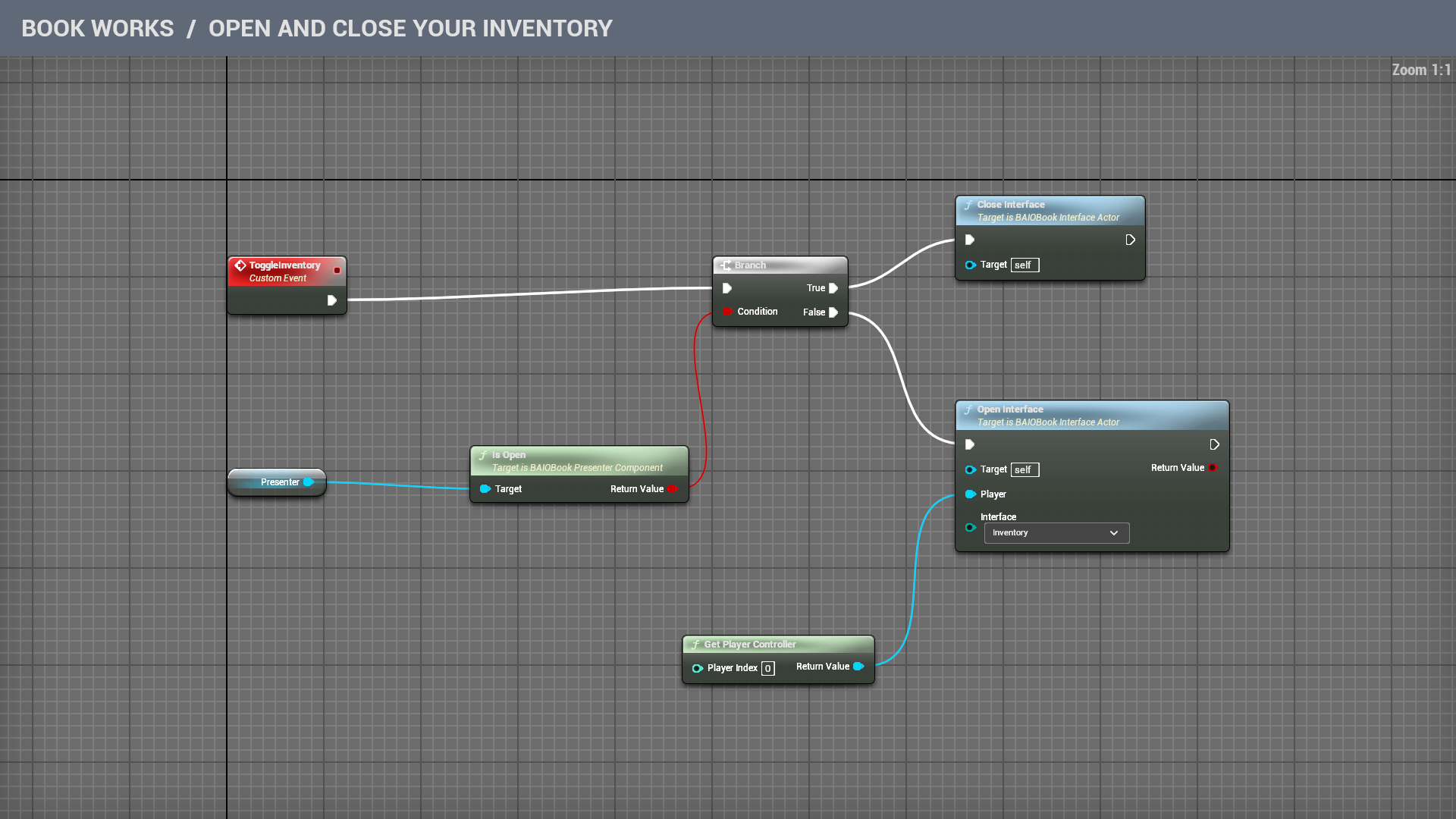
Work inside a copy of the generated inventory Blueprint. Keep Open At Start off and leave Pause While Open on if reading should pause the game. The Target value self in the picture means this same book.
Add a Custom Event named ToggleInventory. Connect it to a Branch. Drag Presenter into the graph, use Is Open, and connect its answer to Condition on the Branch.
Connect True to Close Interface. Connect False to Open Interface and choose Inventory. Add Get Player Controller and connect its Return Value to Player. Player Index 0 is the first local player; choose the correct controller if your game has several.
In your Player Controller or Level Blueprint, connect the chosen key or input action to ToggleInventory on the book placed in your level. If the book pauses the game, let that input run while paused too. Otherwise the opening key may politely refuse to help you close it.
Presentation chooses whether the book stays in the world, is approached for inspection, appears in front of the player, or rises into view. Its Presenter settings choose the entrance, opening movement and pace. Closing gives the player their previous view and controls back.
For a regular key, select its event in the graph and enable Execute When Paused in Details. With Enhanced Input, open the Input Action itself and enable Trigger When Paused.
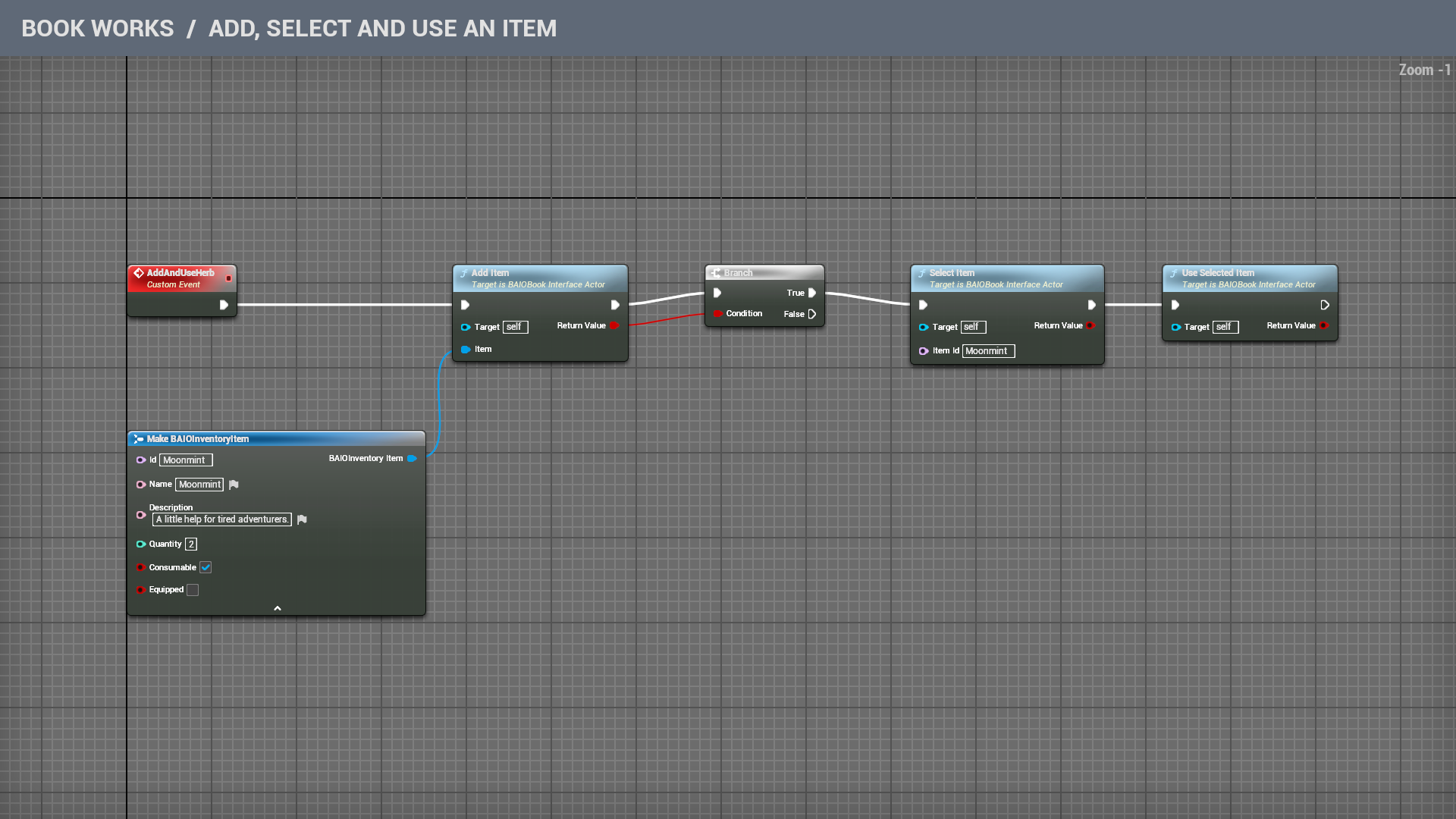
Inside the inventory book, add a Custom Event named AddAndUseHerb. Add Make BAIOInventoryItem and expand its lower arrow to show all fields. Set Id and Name to Moonmint, Quantity to 2 and Consumable on. Description is the sentence the reader sees.
Connect that item to Add Item. Send its Return Value to a Branch and continue from True to Select Item with Item Id Moonmint, then Use Selected Item. If adding fails, False does nothing; an empty satchel cannot provide a refund.
This example adds two herbs, selects their stack and uses one, leaving one. Calling it again adds to the same stack because the ID matches. For normal collecting, call Add Item on its own and let the reader choose when to use the herb.
Connect On Item Used to your own healing or other effect. The book already removes one consumable; your game supplies its effect. For reusable items, On Item Equipped reports the chosen item, and its Equipped value tells you whether it was put on or taken off.
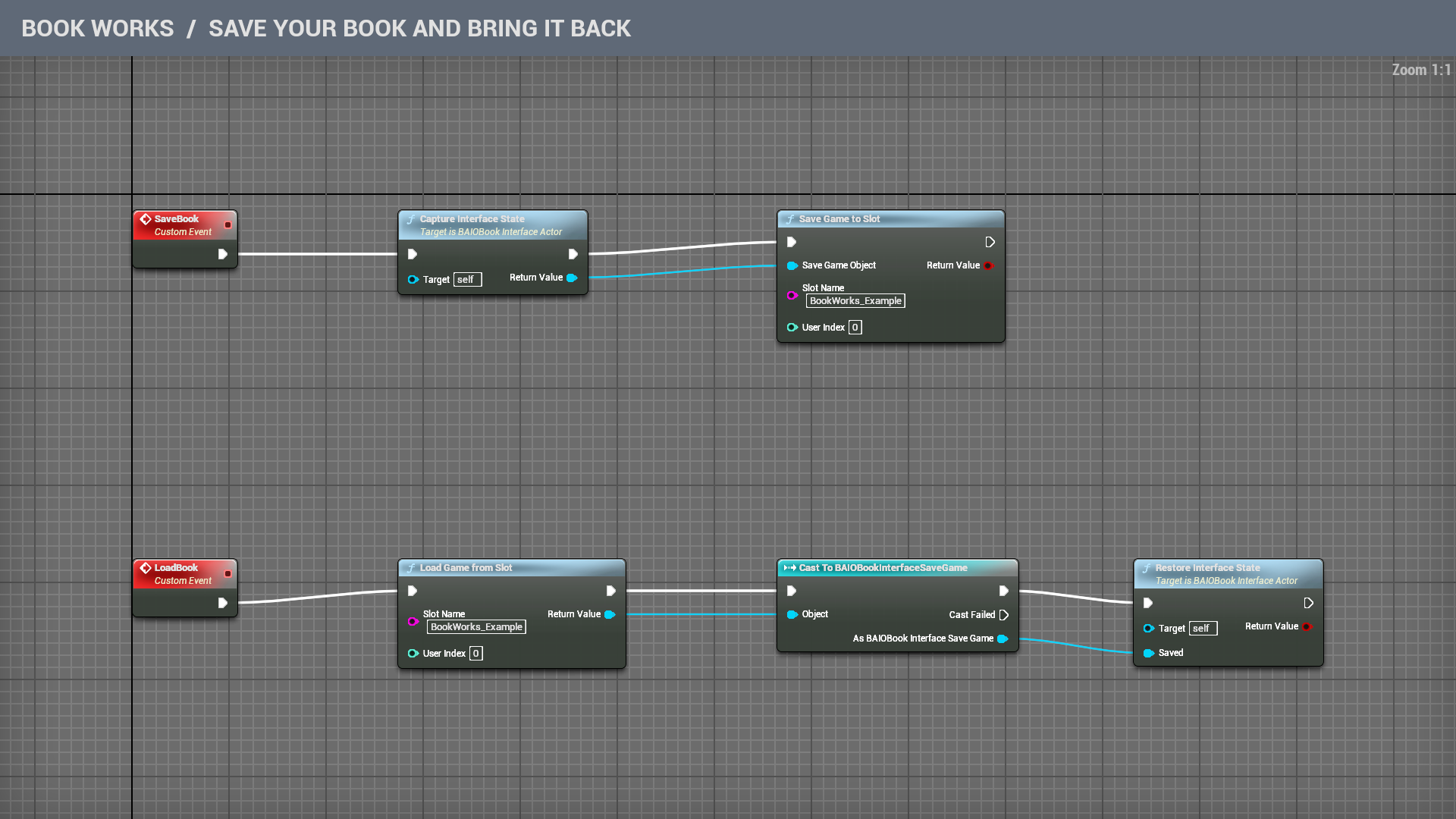
In the same book Blueprint, add SaveBook and LoadBook as Custom Events. These names are yours; the matching node names in the picture are the ones to search for in Unreal.
For saving, connect SaveBook → Capture Interface State → Save Game to Slot. Connect the captured Return Value to Save Game Object. Choose a Slot Name and use the same User Index when loading.
For loading, connect LoadBook → Load Game from Slot → Cast To BAIOBookInterfaceSaveGame → Restore Interface State. Connect the loaded object to Object on the cast, then its saved-book result to Saved on Restore Interface State. Continue from the successful cast output. Cast Failed leaves the current book alone.
Use the same slot name in both rows. A different reader or save slot should have its own name. Capture Interface State remembers the inventory together with pages and control choices; the ordinary Capture State is for a book without this inventory.
To return to the saved reading position, restore after the book has opened. Open Interface deliberately chooses its starting menu page, so calling it afterwards would choose that page again. Use the same saved recipe when restoring: a save for another book is not its lost twin.
Start with a copy of a prepared widget example, or use BAIOPageWidget as the parent of your own Widget Blueprint. Open it and find the page functions in the Overrides menu.
Page Activated gives you Book and Page Index when this page becomes active. Use them to prepare labels or connect controls to this book. Page Deactivated is the place to finish a temporary interaction when the reader leaves.
For a checkbox, let Save Page State return the text On when checked and Off when unchecked. In Restore Page State, leave the default alone if Saved State is empty. Otherwise, compare it with On and set the checkbox to match. These words are just your example’s saved choices; you can use other text for other controls.
The book calls these functions when pages are unloaded and brought back, so visiting another page need not erase the choice. To keep it after leaving the game, use Capture State or Capture Interface State with the save-and-load example above. Save Recipe Copy keeps the page design, not the reader’s progress.