Pautinka
BOOK WORKS ALL IN ONE

Connect your book to the game

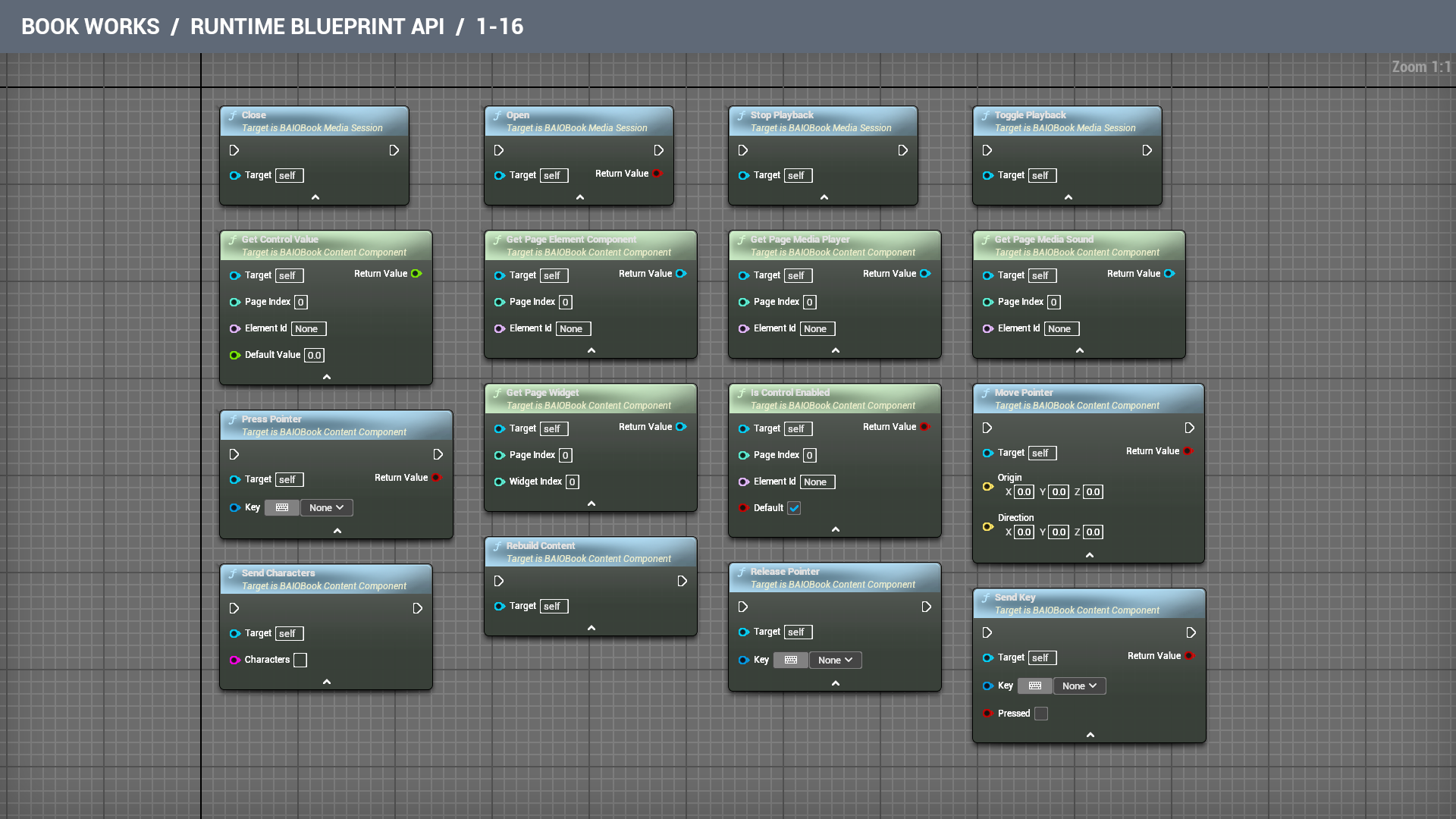
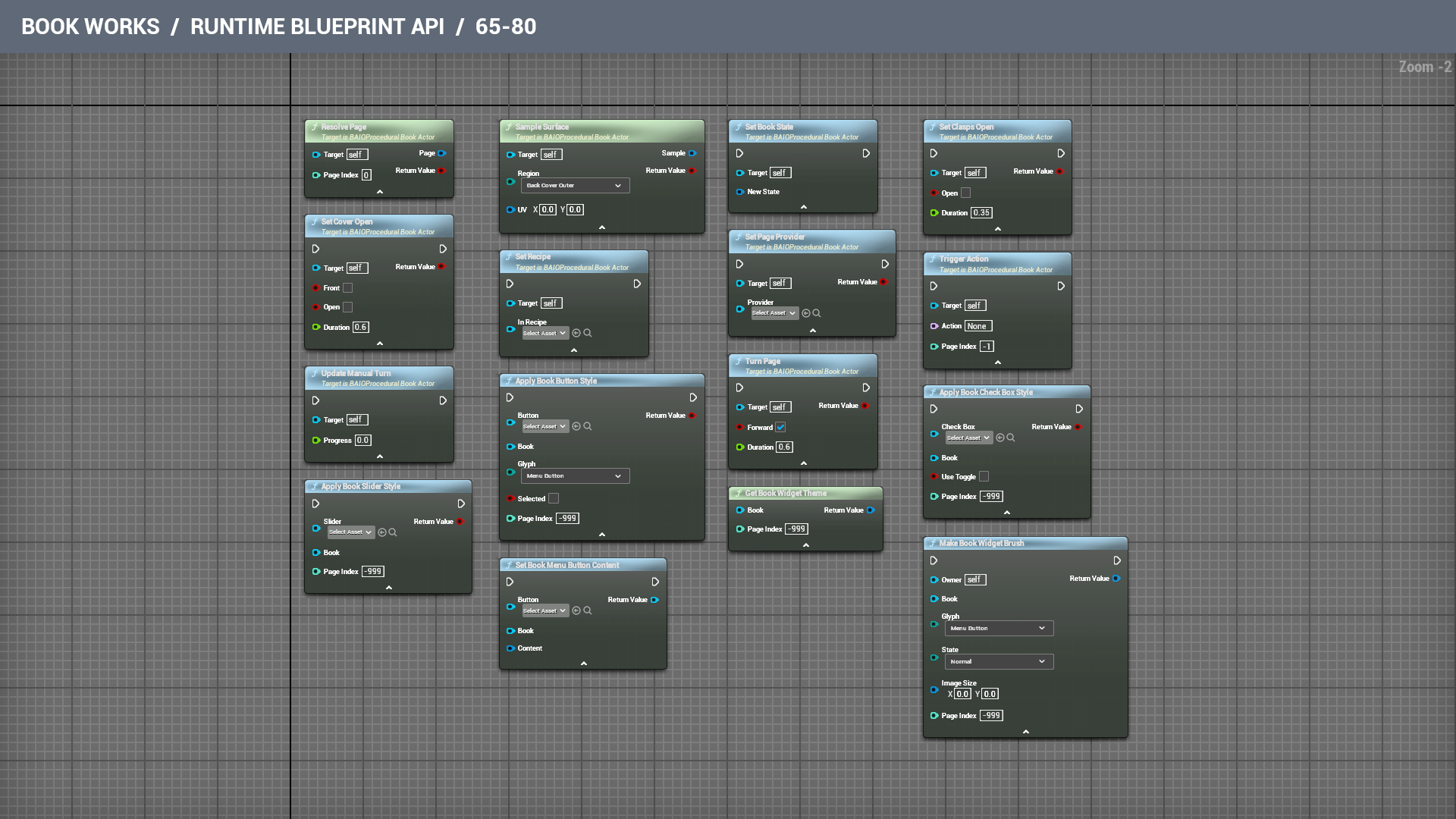
Find a node below, open its connection notes, and follow the names in Unreal. The five pictures show the real nodes, sixteen in each. Click a picture to take a closer look.

English
EnglishРусскийУкраїнськаDeutschFrançaisItalianoEspañol简体中文日本語हिन्दी
What to connect

The blue action nodes need the white wire to tell them when to run. Green nodes give an answer when the graph needs it. To listen for a change, connect your own matching event to the red Event pin. Node and pin names stay as they appear in Unreal, so you can find the right one.

Nodes: 80 / 80

Nodes 1–16

Nodes 1–16Open the full picture ↗

Close

Close this sound or video. Open it again when you need to play it.

What to connect

Inputs

Target
Connect the prepared Book Media Session for this page element. Self only fits a graph belonging to that object.

Open

Begin opening the chosen sound or video. Returns false if the request cannot start; the status message explains the problem. Opening finishes in the background before playback can begin.

What to connect

Inputs

Target
Connect the prepared Book Media Session for this page element. Self only fits a graph belonging to that object.

Results

Return Value
Yes when opening has started. Wait for the sound or video to be ready before asking it to play.

Stop Playback

Stop playback and return to the beginning, ready for the next Play.

What to connect

Inputs

Target
Connect the prepared Book Media Session for this page element. Self only fits a graph belonging to that object.

Toggle Playback

Play, pause, then carry on from the same place. The button takes a breather; your track keeps its place.

What to connect

Inputs

Target
Connect the prepared Book Media Session for this page element. Self only fits a graph belonging to that object.

Get Control Value

Read a page switch or slider's current value. Default Value is returned when it has not been set yet. Switches use zero for off and one for on.

What to connect

Inputs

Target
Connect the book's Contents component. Self works only when this graph belongs to that type.
Page Index
The printed side to use, counting from zero. Use the index from your book rather than the page number painted on its paper.
Element Id
The element's saved Id in that page. A label printed on the page is not its Id.
Default Value
The value to use when the book has no saved choice for this control yet.

Results

Return Value
The saved switch or slider choice. If there is no saved choice yet, this is Default Value.

Get Page Element Component

Get the object attached to a loaded page element, such as its light, model or sound. Returns nothing when the element has no attached object.

What to connect

Inputs

Target
Connect the book's Contents component. Self works only when this graph belongs to that type.
Page Index
The printed side to use, counting from zero. Use the index from your book rather than the page number painted on its paper.
Element Id
The element's saved Id in that page. A label printed on the page is not its Id.

Results

Return Value
The object attached to that loaded page element. An empty result means there is no attached object to use.

Get Page Media Player

Get the sound or video player for an element on a loaded page. Use its element name, not the file name. Returns nothing after that page is removed from memory.

What to connect

Inputs

Target
Connect the book's Contents component. Self works only when this graph belongs to that type.
Page Index
The printed side to use, counting from zero. Use the index from your book rather than the page number painted on its paper.
Element Id
The element's saved Id in that page. A label printed on the page is not its Id.

Results

Return Value
The player for this loaded element. Check that the result is valid before using it; unloading the page removes its player.

Get Page Media Sound

Get the sound output for a page's sound or video element. Use it to adjust that element's audio. Returns nothing when it is not loaded.

What to connect

Inputs

Target
Connect the book's Contents component. Self works only when this graph belongs to that type.
Page Index
The printed side to use, counting from zero. Use the index from your book rather than the page number painted on its paper.
Element Id
The element's saved Id in that page. A label printed on the page is not its Id.

Results

Return Value
The sound output for this loaded element. Check that it is valid before adjusting its sound.

Get Page Widget

Get a custom widget currently loaded on a page. Page and widget numbering start at zero. Returns nothing when that page or widget is not loaded.

What to connect

Inputs

Target
Connect the book's Contents component. Self works only when this graph belongs to that type.
Page Index
The printed side to use, counting from zero. Use the index from your book rather than the page number painted on its paper.
Widget Index
Which embedded widget to return, counting from zero among the widgets on that page.

Results

Return Value
The requested widget on a loaded page. An empty result means that page or widget is not loaded.

Is Control Enabled

Check whether a page control can be used. Default is the answer for a control that has no saved choice yet.

What to connect

Inputs

Target
Connect the book's Contents component. Self works only when this graph belongs to that type.
Page Index
The printed side to use, counting from zero. Use the index from your book rather than the page number painted on its paper.
Element Id
The element's saved Id in that page. A label printed on the page is not its Id.
Default
The answer to use when the book has no saved enabled/disabled choice for this control yet.

Results

Return Value
Yes when the reader can use this control. Default supplies the answer if no choice has been saved yet.

Move Pointer

Point at the book from Origin in Direction. Returns true when the pointer reaches an interactive part of the book.

What to connect

Inputs

Target
Connect the book's Contents component. Self works only when this graph belongs to that type.
Origin
Where the pointing line begins in the game world. Usually this is the camera or hand position.
Direction
Which way that line points. Give it a real direction; three zeroes point absolutely nowhere.

Results

Return Value
Yes when the pointer reaches an interactive part of the book.

Press Pointer

Press a mouse button or other pointer key on the book. Call Release Pointer when it is released, so the button does not stay glued down.

What to connect

Inputs

Target
Connect the book's Contents component. Self works only when this graph belongs to that type.
Key
The mouse button or keyboard key you want to send. Match the release to the button you pressed.

Results

Return Value
Yes when the book accepts this press. Remember to send the matching release.

Rebuild Content

Refresh the book's page contents and decorations from its current settings. Loaded page panels and players are recreated, so use this after an edit rather than while someone is watching.

What to connect

Inputs

Target
Connect the book's Contents component. Self works only when this graph belongs to that type.

Release Pointer

Release the pointer key you pressed earlier. This also lets go of a button or slider held on the page.

What to connect

Inputs

Target
Connect the book's Contents component. Self works only when this graph belongs to that type.
Key
The mouse button or keyboard key you want to send. Match the release to the button you pressed.

Send Characters

Type these characters into the book's focused text field. Click the field first; the margins are not a keyboard.

What to connect

Inputs

Target
Connect the book's Contents component. Self works only when this graph belongs to that type.
Characters
The text to type into the focused page control. This sends written characters, rather than a physical key press.

Send Key

Send a key press or release to the focused page control. Pressed is true while the key is down. Returns true when the control accepts it.
What to connect

Inputs

Target
Connect the book's Contents component. Self works only when this graph belongs to that type.
Key
The mouse button or keyboard key you want to send. Match the release to the button you pressed.
Pressed
Choose whether this is the key going down or coming back up.

Results

Return Value
Yes when the focused page control accepts the key.

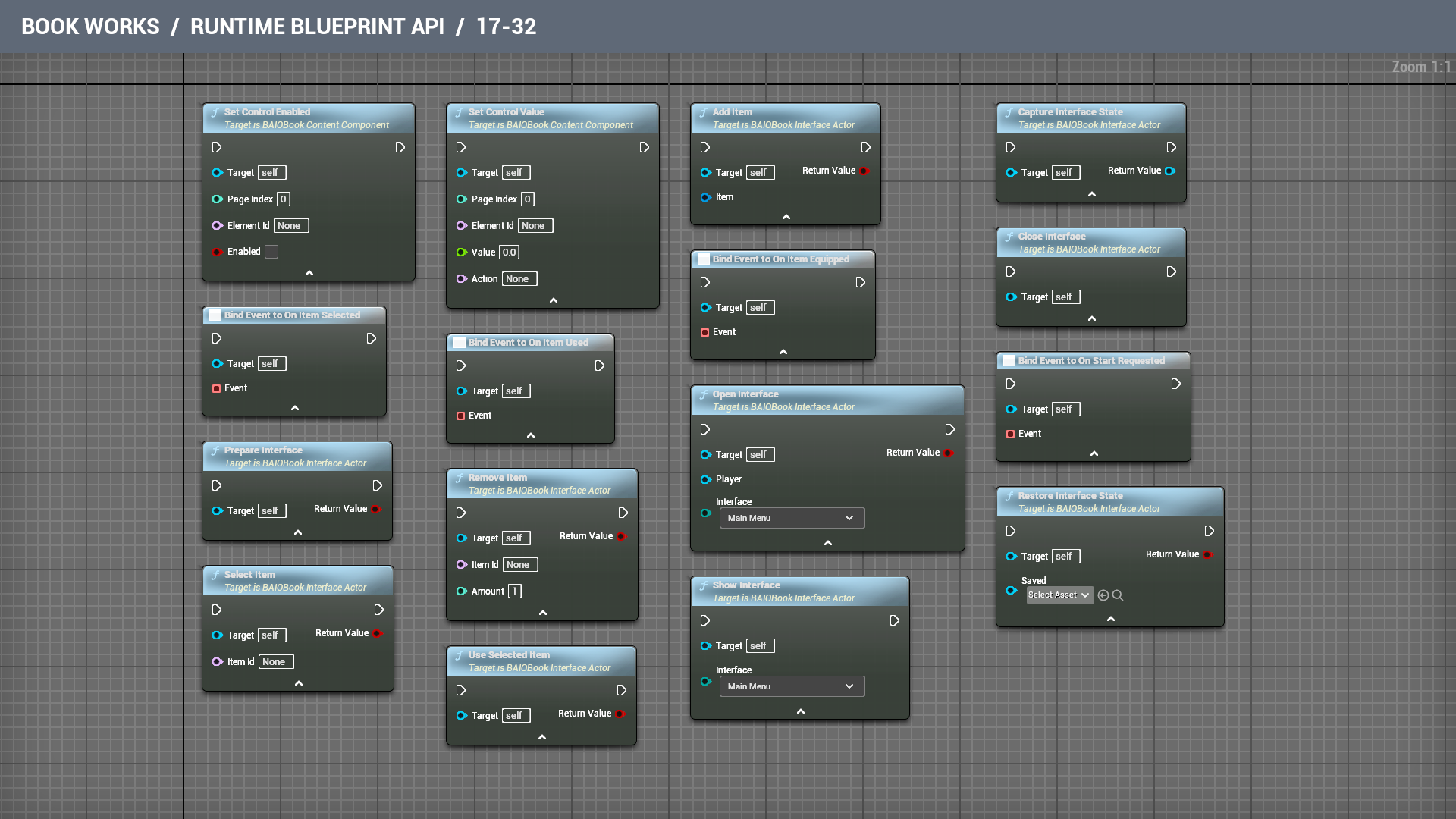
Nodes 17–32

Nodes 17–32Open the full picture ↗

Set Control Enabled

Let a page control accept input, or temporarily disable it. A disabled button stays on the page and politely refuses the click.

What to connect

Inputs

Target
Connect the book's Contents component. Self works only when this graph belongs to that type.
Page Index
The printed side to use, counting from zero. Use the index from your book rather than the page number painted on its paper.
Element Id
The element's saved Id in that page. A label printed on the page is not its Id.
Enabled
Allow the reader to use this control, or keep it visible but unavailable.

Set Control Value

Change a page switch or slider's value between zero and one, refresh its appearance, and announce the change through On Control Changed. Action gives your game an optional name for that change.

What to connect

Inputs

Target
Connect the book's Contents component. Self works only when this graph belongs to that type.
Page Index
The printed side to use, counting from zero. Use the index from your book rather than the page number painted on its paper.
Element Id
The element's saved Id in that page. A label printed on the page is not its Id.
Value
The choice to save, from zero to one. A switch uses zero for off and one for on; a slider can use anything in between.
Action
The saved action name that your game listens for. Use exactly the same name on both sides.

Add Item

Add an item to this book's inventory, or increase the matching stack. Give it a name and a positive amount. Returns false when the item cannot be added.

What to connect

Inputs

Target
Connect the book interface actor. Self works only when this graph belongs to that type.
Item
The inventory item to add, including its stable Id, name and positive amount.

Results

Return Value
Yes when the item was added or its matching stack increased.

Capture Interface State

Make a save containing this book's position, control choices and inventory. Store the returned save using Unreal's normal save-game tools.

What to connect

Inputs

Target
Connect the book interface actor. Self works only when this graph belongs to that type.

Results

Return Value
The save containing this book menu, its control choices and inventory. Pass it to Save Game to Slot to keep it after quitting.

Close Interface

Fold this book menu, return the player's view and controls when it settles, and discard settings that were not applied.

What to connect

Inputs

Target
Connect the book interface actor. Self works only when this graph belongs to that type.

Bind Event to On Item Equipped

Tell your game which inventory item was equipped. The event supplies Item Id, so you can put the right hat on the right head.

What to connect

Inputs

Target
Connect the book interface actor. Self works only when this graph belongs to that type.
Event
Connect a matching custom event here. Drag from this red pin to create the event, then put your response after it. Bind once when setting up the book, rather than again every frame.

Bind Event to On Item Selected

React when the reader selects an inventory item. Use the supplied Item Id to show its description or a closer look.

What to connect

Inputs

Target
Connect the book interface actor. Self works only when this graph belongs to that type.
Event
Connect a matching custom event here. Drag from this red pin to create the event, then put your response after it. Bind once when setting up the book, rather than again every frame.

Bind Event to On Item Used

React when the reader uses the selected item. The event supplies Item Id; your game decides what that item actually does.

What to connect

Inputs

Target
Connect the book interface actor. Self works only when this graph belongs to that type.
Event
Connect a matching custom event here. Drag from this red pin to create the event, then put your response after it. Bind once when setting up the book, rather than again every frame.

Bind Event to On Start Requested

React when the reader chooses to start from the book menu. Connect your own level-opening or new-game action here.

What to connect

Inputs

Target
Connect the book interface actor. Self works only when this graph belongs to that type.
Event
Connect a matching custom event here. Drag from this red pin to create the event, then put your response after it. Bind once when setting up the book, rather than again every frame.

Open Interface

Open the selected menu, pause screen, inventory or settings for this player. Returns false if the book cannot be shown. Closing it gives the player's controls back.

What to connect

Inputs

Target
Connect the book interface actor. Self works only when this graph belongs to that type.
Player
The Player Controller belonging to the person who will read this book.
Interface
Which book screen to show, such as the main menu, settings or inventory.

Results

Return Value
Yes when the chosen book screen can be shown to this player.

Prepare Interface

Prepare the ready menu pages from this book's look and item list. Returns false if the book could not be prepared.

What to connect

Inputs

Target
Connect the book interface actor. Self works only when this graph belongs to that type.

Results

Return Value
Yes when the menu pages have been prepared and can be shown.

Remove Item

Remove this many items from the named stack. Returns false and leaves the stack alone if the full amount is not available. No half-paid biscuits.

What to connect

Inputs

Target
Connect the book interface actor. Self works only when this graph belongs to that type.
Item Id
The stable Id of the inventory item, rather than the name shown to the reader.
Amount
How many items to remove. Use a positive whole number; the node does not remove a partly available amount.

Results

Return Value
Yes when the full amount was removed. No means the stack was left alone.

Restore Interface State

Restore this book's pages, control choices and inventory from a matching save. Returns false if the save belongs to another book or cannot be read.

What to connect

Inputs

Target
Connect the book interface actor. Self works only when this graph belongs to that type.
Saved
The matching saved state previously returned by the capture node for this same kind of book interface or presenter.

Results

Return Value
Yes when this book accepted and restored the saved menu and inventory.

Select Item

Select the named inventory item and turn to its description. Returns false when that item is not in the book.

What to connect

Inputs

Target
Connect the book interface actor. Self works only when this graph belongs to that type.
Item Id
The stable Id of the inventory item, rather than the name shown to the reader.

Results

Return Value
Yes when the item was found and selected.

Show Interface

Turn to another part of this menu book. Choose the menu, inventory or settings; the pages will handle the journey.

What to connect

Inputs

Target
Connect the book interface actor. Self works only when this graph belongs to that type.
Interface
Which book screen to show, such as the main menu, settings or inventory.

Use Selected Item

Use one of the selected consumable, or equip a reusable item. The matching event tells your game what to do. Returns false if there is nothing usable selected.
What to connect

Inputs

Target
Connect the book interface actor. Self works only when this graph belongs to that type.

Results

Return Value
Yes when the selected item could be used or equipped. Listen to the matching event to make it do something in your game.

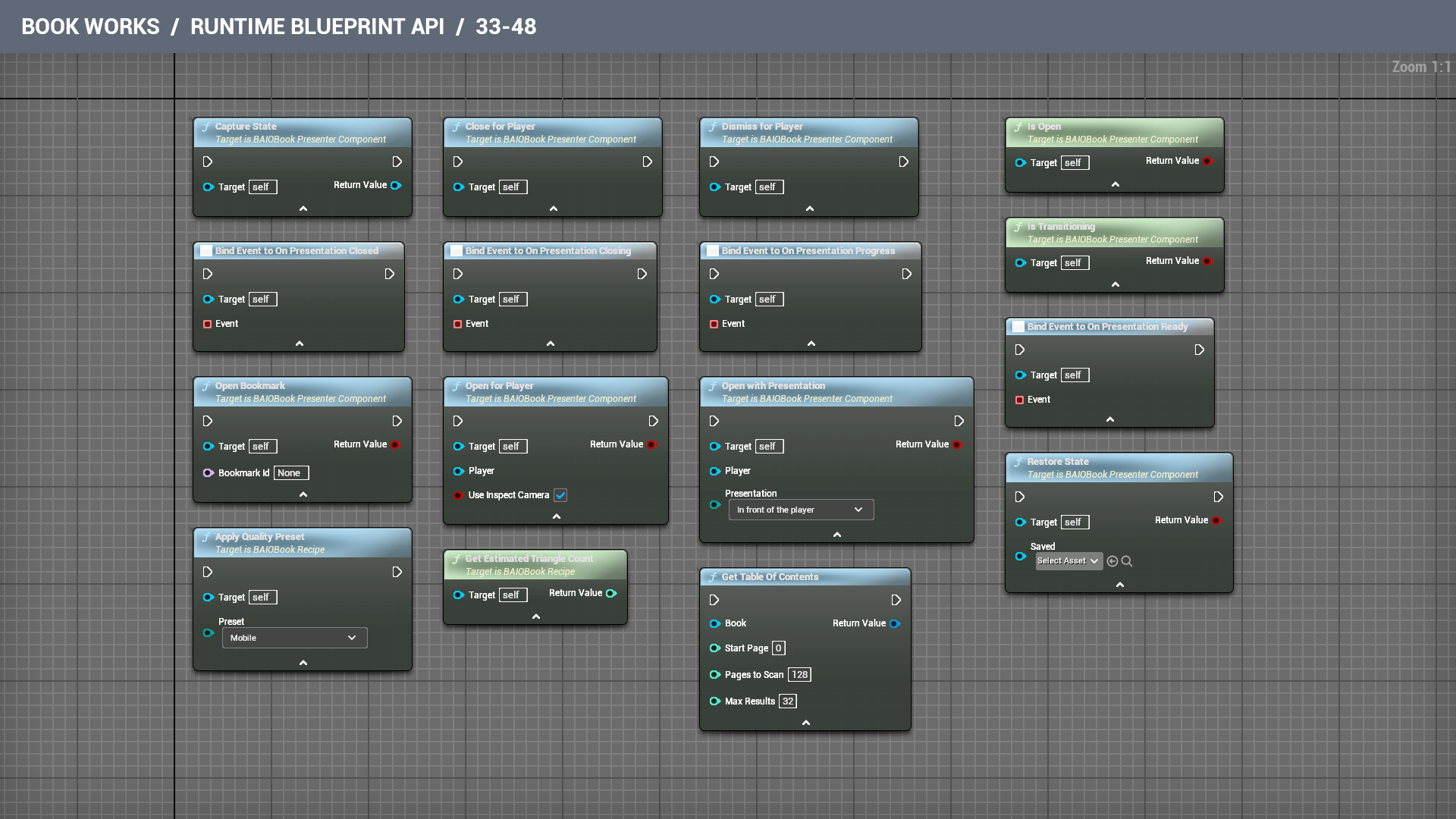
Nodes 33–48

Nodes 33–48Open the full picture ↗

Capture State

Make a save of the current book position and saved page-control choices. Store the returned object with Unreal's save-game tools; the artwork is not copied.

What to connect

Inputs

Target
Connect the book's Presenter component. Self works only when this graph belongs to that type.

Results

Return Value
The save of this book position and page-control choices. Pass it to Save Game to Slot if it should survive quitting the game.

Close for Player

Finish reading and give the player their previous view, mouse and controls back. The bookmark can stay; the borrowed controls cannot.

What to connect

Inputs

Target
Connect the book's Presenter component. Self works only when this graph belongs to that type.

Dismiss for Player

Put the book away with its chosen movement, then return the player's view and controls. Repeated requests do not restart it.

What to connect

Inputs

Target
Connect the book's Presenter component. Self works only when this graph belongs to that type.

Is Open

Check whether a player is currently reading this book through the presenter.

What to connect

Inputs

Target
Connect the book's Presenter component. Self works only when this graph belongs to that type.

Results

Return Value
Yes while a player is reading this book through its Presenter component.

Is Transitioning

Check whether the book is arriving, unfolding or being put away. Its buttons wait until the entrance has finished.

What to connect

Inputs

Target
Connect the book's Presenter component. Self works only when this graph belongs to that type.

Results

Return Value
Yes while the book is arriving, unfolding or being put away. Wait until this becomes no before offering another entrance.

Bind Event to On Presentation Closed

React after the book has been put away and the player has their normal view and controls back.

What to connect

Inputs

Target
Connect the book's Presenter component. Self works only when this graph belongs to that type.
Event
Connect a matching custom event here. Drag from this red pin to create the event, then put your response after it. Bind once when setting up the book, rather than again every frame.

Bind Event to On Presentation Closing

React when the book starts being put away. A good moment for a closing sound or a little farewell sparkle.

What to connect

Inputs

Target
Connect the book's Presenter component. Self works only when this graph belongs to that type.
Event
Connect a matching custom event here. Drag from this red pin to create the event, then put your response after it. Bind once when setting up the book, rather than again every frame.

Bind Event to On Presentation Progress

Follow the entrance or exit from zero to one. Progress tells you how far it has travelled; Closing tells you which way it is going.

What to connect

Inputs

Target
Connect the book's Presenter component. Self works only when this graph belongs to that type.
Event
Connect a matching custom event here. Drag from this red pin to create the event, then put your response after it. Bind once when setting up the book, rather than again every frame.

Bind Event to On Presentation Ready

React when the entrance has finished and the reader can use the book. Put your welcome message here, after the covers have stopped showing off.

What to connect

Inputs

Target
Connect the book's Presenter component. Self works only when this graph belongs to that type.
Event
Connect a matching custom event here. Drag from this red pin to create the event, then put your response after it. Bind once when setting up the book, rather than again every frame.

Open Bookmark

Send the named bookmark's action and ask the book to open its page. Returns true when that bookmark exists; clasps and navigation rules still apply.

What to connect

Inputs

Target
Connect the book's Presenter component. Self works only when this graph belongs to that type.
Bookmark Id
The saved Id of the bookmark you want to visit.

Results

Return Value
Yes when the named bookmark exists. Clasps and page rules can still prevent the page from opening.

Open for Player

Let this player read and use the book. Turn on Use Inspect Camera to visit the book with the camera, or leave it where it is. Returns false if it cannot be opened.

What to connect

Inputs

Target
Connect the book's Presenter component. Self works only when this graph belongs to that type.
Player
The Player Controller belonging to the person who will read this book.
Use Inspect Camera
Use the reading view for a close look. Turn it off when the book should stay in its world presentation.

Results

Return Value
Yes when this player can start reading the book.

Open with Presentation

Show the book in the world, move the camera to it, place it in front of the player, or let it rise into view. Closing restores the previous view and controls.

What to connect

Inputs

Target
Connect the book's Presenter component. Self works only when this graph belongs to that type.
Player
The Player Controller belonging to the person who will read this book.
Presentation
Leave the book in the world, move the camera to it, show it in front of the reader, or let it rise into view.

Results

Return Value
Yes when the book can start the chosen presentation for this player.

Restore State

Restore the book position and page-control choices from a matching save. Returns false when the save is missing or belongs to another book.

What to connect

Inputs

Target
Connect the book's Presenter component. Self works only when this graph belongs to that type.
Saved
The matching saved state previously returned by the capture node for this same kind of book interface or presenter.

Results

Return Value
Yes when this book accepted and restored its matching save.

Apply Quality Preset

Choose a starting balance between smoother shapes and lighter geometry. This changes the book's detail settings; rebuild the book to see the result.

What to connect

Inputs

Target
Connect the saved book recipe. Self works only when this graph belongs to that type.
Preset
A starting level of detail. Choose a lighter setting first when you need to save geometry.

Get Estimated Triangle Count

Count the small triangles reserved for the book's shape, including pieces currently hidden. A larger number asks more of the computer, even if the book looks innocent.

What to connect

Inputs

Target
Connect the saved book recipe. Self works only when this graph belongs to that type.

Results

Return Value
The triangle count for the book shape, including hidden pieces. Use this when comparing the cost of different book designs.

Get Table Of Contents

List pages with a navigation title in reading order. The first page is zero. Continue from Next Page Index until it is minus one. Use a result's Page Index with Jump To Page to open it.
What to connect

Inputs

Book
Connect the book actor you want to work with.
Start Page
The first printed side to scan, counting from zero. For another batch, use Next Page Index from the previous result.
Pages to Scan
The maximum number of printed sides to inspect in this batch. Smaller batches spread a large search over time.
Max Results
How many matches to return at most in this batch.

Results

Return Value
The titled pages found in this batch and Next Page Index. Continue from that index until it is minus one.

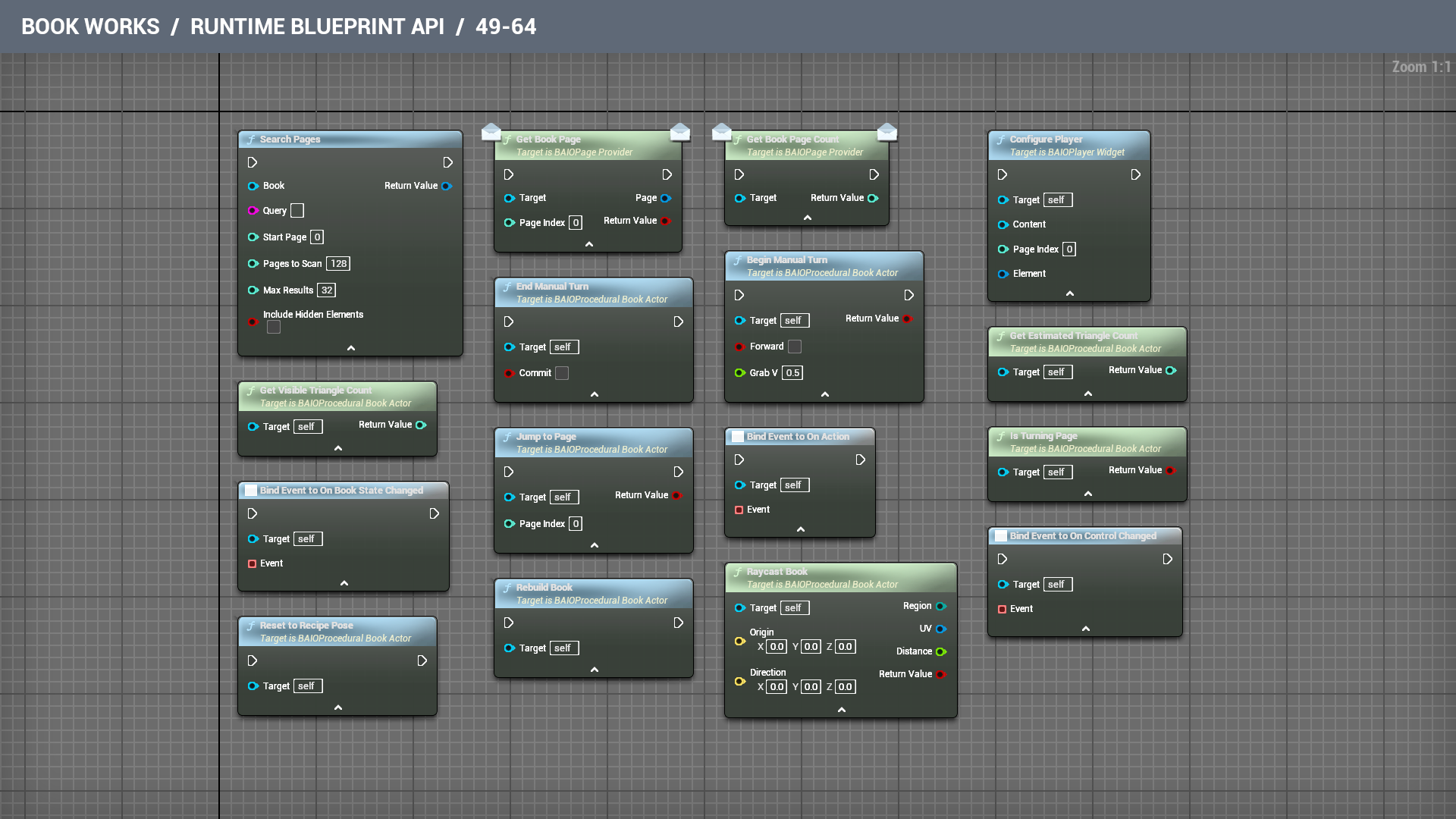
Nodes 49–64

Nodes 49–64Open the full picture ↗

Search Pages

Find words in page titles, printed text and button labels, ignoring letter case. Custom widgets, pictures and videos are not searched. The first page is zero. Search a batch, then continue from Next Page Index until it is minus one; each call checks up to 512 pages and returns up to 128 results.

What to connect

Inputs

Book
Connect the book actor you want to work with.
Query
The words the reader wants to find.
Start Page
The first printed side to scan, counting from zero. For another batch, use Next Page Index from the previous result.
Pages to Scan
The maximum number of printed sides to inspect in this batch. Smaller batches spread a large search over time.
Max Results
How many matches to return at most in this batch.
Include Hidden Elements
Also search text belonging to hidden page elements.

Results

Return Value
The matches found in this batch and Next Page Index. Continue from that index until it is minus one.

Get Book Page

Supply the contents of the requested printed side. Page Index starts at zero. Return true when you filled Page, or false when that page is unavailable.

What to connect

Inputs

Target
Connect an object that supplies pages through the Book Page Provider interface. Self works only when this graph belongs to that type.
Page Index
The printed side to use, counting from zero. Use the index from your book rather than the page number painted on its paper.

Results

Page
The page definition returned by this request. Use it only when Return Value says the request succeeded.
Return Value
Return yes after filling Page with the requested printed side; return no when that side is unavailable.

Get Book Page Count

Tell the book how many printed sides your page provider supplies. Count both sides of each sheet. If this number changes, rebuild the book before reading it.

What to connect

Inputs

Target
Connect an object that supplies pages through the Book Page Provider interface. Self works only when this graph belongs to that type.

Results

Return Value
The number of printed sides supplied by this provider. Include both sides of each sheet.

Configure Player

Set this player panel up for one sound or video element on a page. Supply the book's content component, the page number starting at zero, and the element's settings.

What to connect

Inputs

Target
Connect the player widget on the page. Self works only when this graph belongs to that type.
Content
Connect the book’s page-content component, the same one used for its page controls and players.
Page Index
The printed side to use, counting from zero. Use the index from your book rather than the page number painted on its paper.
Element
The saved sound/video page element that this player should display.

Begin Manual Turn

Pick up a sheet to turn by hand. Forward chooses the reading direction; Grab V runs from zero at the top to one at the bottom. Returns false if the sheet cannot be picked up.

What to connect

Inputs

Target
Connect the book actor placed or created in your game. Self works only when this graph belongs to that type.
Forward
Turn towards the next sheet when enabled, or towards the previous sheet when disabled.
Grab V
Where the reader grabbed the page edge: zero is the top and one is the bottom. Halfway is 0.5.

Results

Return Value
Yes when the sheet was picked up and can follow Update Manual Turn.

End Manual Turn

Let go of the sheet. Commit finishes the turn; turn it off to bring the sheet back. The release keeps the hand's momentum before settling.

What to connect

Inputs

Target
Connect the book actor placed or created in your game. Self works only when this graph belongs to that type.
Commit
Finish the turn when enabled, or return the sheet to where it started when disabled.

Get Estimated Triangle Count

Count the small triangles reserved for the book's shape, including pieces currently hidden. A larger number asks more of the computer, even if the book looks innocent.

What to connect

Inputs

Target
Connect the book actor placed or created in your game. Self works only when this graph belongs to that type.

Results

Return Value
The triangle count for the book shape, including hidden pieces. Use this when comparing the cost of different book designs.

Get Visible Triangle Count

Count the triangles in the book pieces currently shown. This is the visible book geometry, rather than all the geometry reserved for it.

What to connect

Inputs

Target
Connect the book actor placed or created in your game. Self works only when this graph belongs to that type.

Results

Return Value
The triangle count for the book pieces currently shown.

Is Turning Page

Check whether a sheet turn is in progress. A turn paused in the editor still counts as being in progress.

What to connect

Inputs

Target
Connect the book actor placed or created in your game. Self works only when this graph belongs to that type.

Results

Return Value
Yes while a sheet turn is in progress, including a turn paused in the editor.

Jump to Page

Open the requested printed side straight away. The first page is zero. Returns false for an unavailable page or when the book cannot open it.

What to connect

Inputs

Target
Connect the book actor placed or created in your game. Self works only when this graph belongs to that type.
Page Index
The printed side to use, counting from zero. Use the index from your book rather than the page number painted on its paper.

Results

Return Value
Yes when the requested printed side can be opened.

Bind Event to On Action

React to a named book action. The event supplies Action and Page Index, so one book can open a map, accept a quest or politely request another biscuit.

What to connect

Inputs

Target
Connect the book actor placed or created in your game. Self works only when this graph belongs to that type.
Event
Connect a matching custom event here. Drag from this red pin to create the event, then put your response after it. Bind once when setting up the book, rather than again every frame.

Bind Event to On Book State Changed

React when the book changes its reading position or cover pose. The event supplies New State, which you can keep for later.

What to connect

Inputs

Target
Connect the book actor placed or created in your game. Self works only when this graph belongs to that type.
Event
Connect a matching custom event here. Drag from this red pin to create the event, then put your response after it. Bind once when setting up the book, rather than again every frame.

Bind Event to On Control Changed

React when a page switch or slider changes. The event supplies Page Index, Element Id, Value and Action, so your game can change the matching setting.

What to connect

Inputs

Target
Connect the book actor placed or created in your game. Self works only when this graph belongs to that type.
Event
Connect a matching custom event here. Drag from this red pin to create the event, then put your response after it. Bind once when setting up the book, rather than again every frame.

Raycast Book

Find where a line from Origin in Direction meets the book. Returns the face, distance and position on its artwork. Position runs from zero at the top-left to one at the bottom-right. Returns false when the line misses.

What to connect

Inputs

Target
Connect the book actor placed or created in your game. Self works only when this graph belongs to that type.
Origin
Where the pointing line begins in the game world. Usually this is the camera or hand position.
Direction
Which way that line points. Give it a real direction; three zeroes point absolutely nowhere.

Results

Region
The part of the book that the pointing line touched.
UV
Where the line touched that surface, from zero to one across and down.
Distance
How far along the pointing line the hit was found.
Return Value
Yes when the pointing line hits the book. Use Region, UV and Distance only after a hit.

Rebuild Book

Refresh the book after changing its construction or materials. The book reports any problem in Last Build Error. Use this after an edit, not on every frame; paper has enough work already.

What to connect

Inputs

Target
Connect the book actor placed or created in your game. Self works only when this graph belongs to that type.

Reset to Recipe Pose

Return the covers and pages to the recipe's saved starting position. The recipe itself is left as you wrote it.
What to connect

Inputs

Target
Connect the book actor placed or created in your game. Self works only when this graph belongs to that type.

Nodes 65–80

Nodes 65–80Open the full picture ↗

Resolve Page

Read a page without opening it, counting from zero. A page supplied by Book Page Provider wins. Otherwise, a page saved in the recipe overrides the matching Page Table row. A valid empty page also returns true.

What to connect

Inputs

Target
Connect the book actor placed or created in your game. Self works only when this graph belongs to that type.
Page Index
The printed side to use, counting from zero. Use the index from your book rather than the page number painted on its paper.

Results

Page
The page definition returned by this request. Use it only when Return Value says the request succeeded.
Return Value
Yes when Page contains the requested printed side. Ignore Page when the answer is no.

Sample Surface

Find a point on a book face, with its position and facing direction in the level. UV runs from zero at the artwork's top-left to one at its bottom-right. Returns false for missing faces or cut-off corners. Moving-material effects are not included.

What to connect

Inputs

Target
Connect the book actor placed or created in your game. Self works only when this graph belongs to that type.
Region
Which part of the book surface to use, such as the outside of the front cover.
UV
A place on that surface, using values from zero to one across and down. This is a position on the book, rather than a screen pixel.

Results

Sample
The surface position and facing directions at the requested place.
Return Value
Yes when Sample contains a point on the requested book face. Ignore Sample when the answer is no.

Set Book State

Stop the current page motion and apply this book position. Values are kept within this book's valid range. Sound and video playback are managed separately.

What to connect

Inputs

Target
Connect the book actor placed or created in your game. Self works only when this graph belongs to that type.
New State
The complete reading pose to apply, including the pages and covers.

Set Clasps Open

Release the book's clasps before opening, or fasten them after closing. Duration is in seconds. Returns false when there is no matching movement to make.

What to connect

Inputs

Target
Connect the book actor placed or created in your game. Self works only when this graph belongs to that type.
Open
Open the selected cover or clasps when enabled; close them when disabled.
Duration
How many seconds the movement should take.

Results

Return Value
Yes when the requested clasp movement can be made.

Set Cover Open

Open or close the chosen cover over Duration seconds. Front chooses the front cover; turn it off for the back. Returns false when that movement is unavailable.

What to connect

Inputs

Target
Connect the book actor placed or created in your game. Self works only when this graph belongs to that type.
Front
Choose the front cover when enabled, or the back cover when disabled.
Open
Open the selected cover or clasps when enabled; close them when disabled.
Duration
How many seconds the movement should take.

Results

Return Value
Yes when the chosen cover movement can be made.

Set Page Provider

Let another object supply this book's pages. It must implement the Book Page Provider interface. Leave it empty to use the recipe's pages. Returns false when the object cannot supply pages.

What to connect

Inputs

Target
Connect the book actor placed or created in your game. Self works only when this graph belongs to that type.
Provider
The object that implements Book Page Provider and supplies the book with its current pages.

Results

Return Value
Yes when the page supplier was accepted. An empty Provider returns the book to its recipe pages.

Set Recipe

Give this book a recipe and start at that recipe's opening position. Leave Recipe empty to use the actor's own book settings. The same assigned recipe is kept without rebuilding it.

What to connect

Inputs

Target
Connect the book actor placed or created in your game. Self works only when this graph belongs to that type.
In Recipe
The saved recipe containing the book design you want to use.

Trigger Action

Send a named action to this book's On Action event. Page Index identifies the page that asked; minus one means no particular page. Your game decides what that action does.

What to connect

Inputs

Target
Connect the book actor placed or created in your game. Self works only when this graph belongs to that type.
Action
The saved action name that your game listens for. Use exactly the same name on both sides.
Page Index
The printed side to use, counting from zero. Use the index from your book rather than the page number painted on its paper.

Turn Page

Turn one sheet forward or back over Duration seconds. Returns false when there is nowhere to go or a clasp blocks the way. Navigation opens or closes a cover when needed.

What to connect

Inputs

Target
Connect the book actor placed or created in your game. Self works only when this graph belongs to that type.
Forward
Turn towards the next sheet when enabled, or towards the previous sheet when disabled.
Duration
How many seconds the movement should take.

Results

Return Value
Yes when the requested turn can start. A clasp or the end of the book can prevent it.

Update Manual Turn

Move the sheet you picked up: zero is the start of the gesture, one reaches the other side. Call Begin Manual Turn first, then End Manual Turn when the reader lets go.

What to connect

Inputs

Target
Connect the book actor placed or created in your game. Self works only when this graph belongs to that type.
Progress
How far the hand has dragged the page, from zero at its starting side to one at the other side.

Apply Book Button Style

Dress a button in this book's chosen style and symbol. Selected keeps its selected appearance. Returns false when the button or required style is missing.

What to connect

Inputs

Button
The button widget whose appearance or label you want to change.
Book
Connect the book actor you want to work with.
Glyph
Which control picture or symbol to use from the chosen style.
Selected
Keep the button in its selected appearance when enabled.
Page Index
Keep -999 to use the book's overall look, or choose a printed side, counting from zero, to borrow that page's own look.

Results

Return Value
Yes when the button and its required book style were available.

Apply Book Check Box Style

Give a checkbox the book's look. Use Toggle chooses a switch instead of a checkmark. Returns false when the control or required style is missing.

What to connect

Inputs

Check Box
The checkbox widget that should borrow the book style.
Book
Connect the book actor you want to work with.
Use Toggle
Use a sliding switch when enabled, or a checkmark when disabled.
Page Index
Keep -999 to use the book's overall look, or choose a printed side, counting from zero, to borrow that page's own look.

Results

Return Value
Yes when the checkbox or switch and its required book style were available.

Apply Book Slider Style

Give a slider the book's chosen track, fill and handle. Returns false when the slider or required style is missing.

What to connect

Inputs

Slider
The slider widget that should borrow the book style.
Book
Connect the book actor you want to work with.
Page Index
Keep -999 to use the book's overall look, or choose a printed side, counting from zero, to borrow that page's own look.

Results

Return Value
Yes when the slider and its required book style were available.

Get Book Widget Theme

Read the colours and control artwork used by this book. Page Index selects that page's own look when it has one; otherwise the book's look is used.

What to connect

Inputs

Book
Connect the book actor you want to work with.
Page Index
Keep -999 to use the book's overall look, or choose a printed side, counting from zero, to borrow that page's own look.

Results

Return Value
The colours and control artwork to use when dressing your own widget to match this book.

Make Book Widget Brush

Make a picture using this book's chosen control style, symbol, state and size. Keep the returned brush in your widget and reuse it. Page Index selects a page's own style when it has one.

What to connect

Inputs

Owner
The widget or object that keeps the returned picture alive. Keep the result with that widget and reuse it.
Book
Connect the book actor you want to work with.
Glyph
Which control picture or symbol to use from the chosen style.
State
Which appearance to use, such as normal, hovered or pressed.
Image Size
The width and height for the reusable control picture.
Page Index
Keep -999 to use the book's overall look, or choose a printed side, counting from zero, to borrow that page's own look.

Results

Return Value
The reusable picture for your control. Keep it with the widget instead of making it again every frame.

Set Book Menu Button Content

Put a label and optional separate icon inside a book menu button. Long labels wrap when the layout gives them room. Returns the new text label so you can adjust it further.

What to connect

Inputs

Button
The button widget whose appearance or label you want to change.
Book
Connect the book actor you want to work with.
Content
Choose the words and optional separate icon to put inside the button.

Results

Return Value
The new text label inside the button. Keep it if you want to adjust the lettering further.