
Unreal Engine · Win64 Editor#
Use the CRC package made for your Unreal Engine version and Unreal’s standard C++ build tools. ControlRig and RigVM are declared dependencies. CRC runs in the Win64 Editor and creates project assets for later use.
Create editable Control Rigs and Physics Assets from a Skeletal Mesh, build rigid prop Skeletons, and process Animation Sequences. Start with the workspace that matches your source asset.
Create editable Control Rigs and Physics Assets from a Skeletal Mesh, build rigid prop Skeletons, and process Animation Sequences. Start with the workspace that matches your source asset.
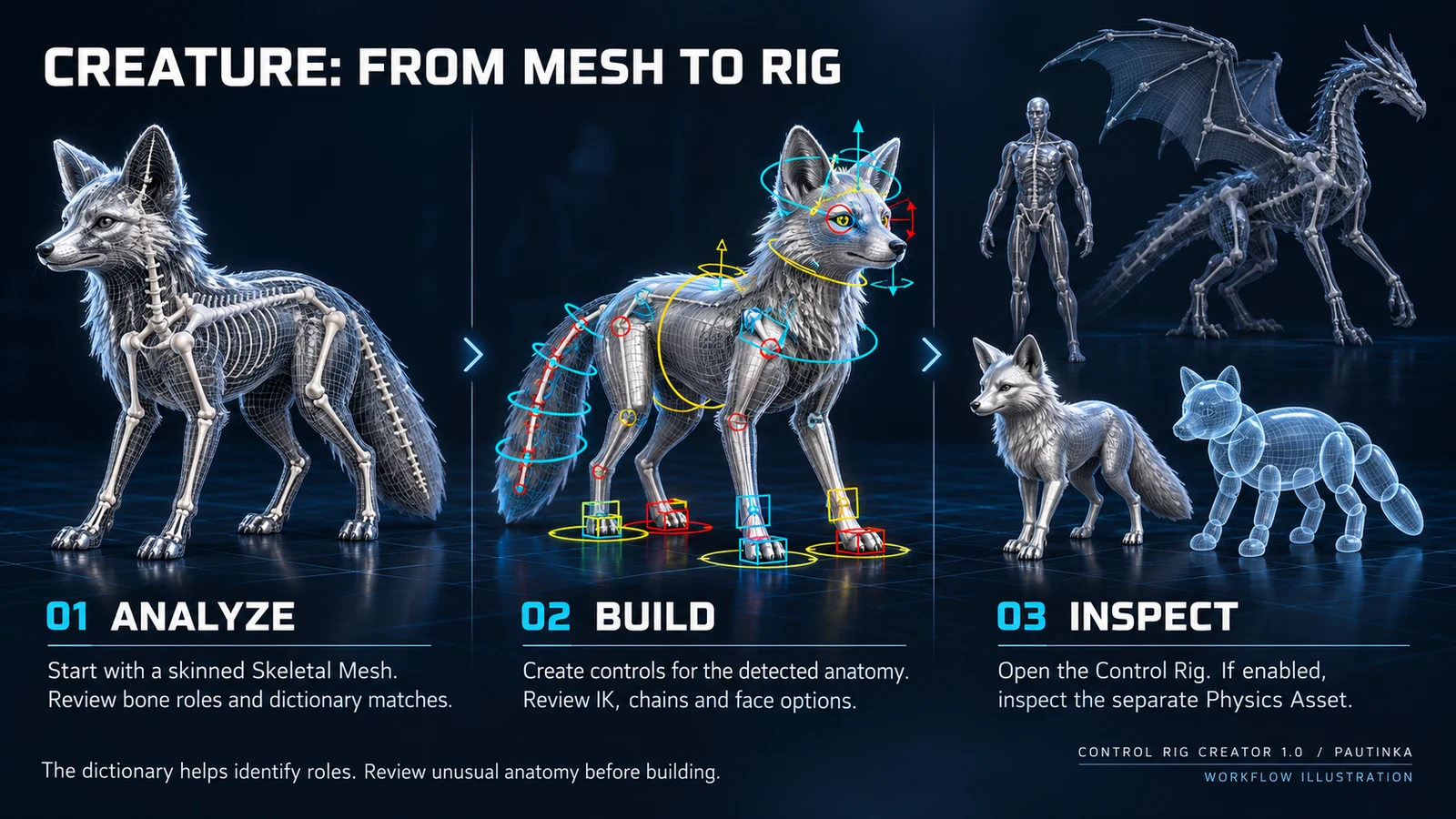
Input: a saved, skinned Skeletal Mesh. Output: an editable Control Rig and, optionally, a Physics Asset. Existing bones and skin weights define what can move.
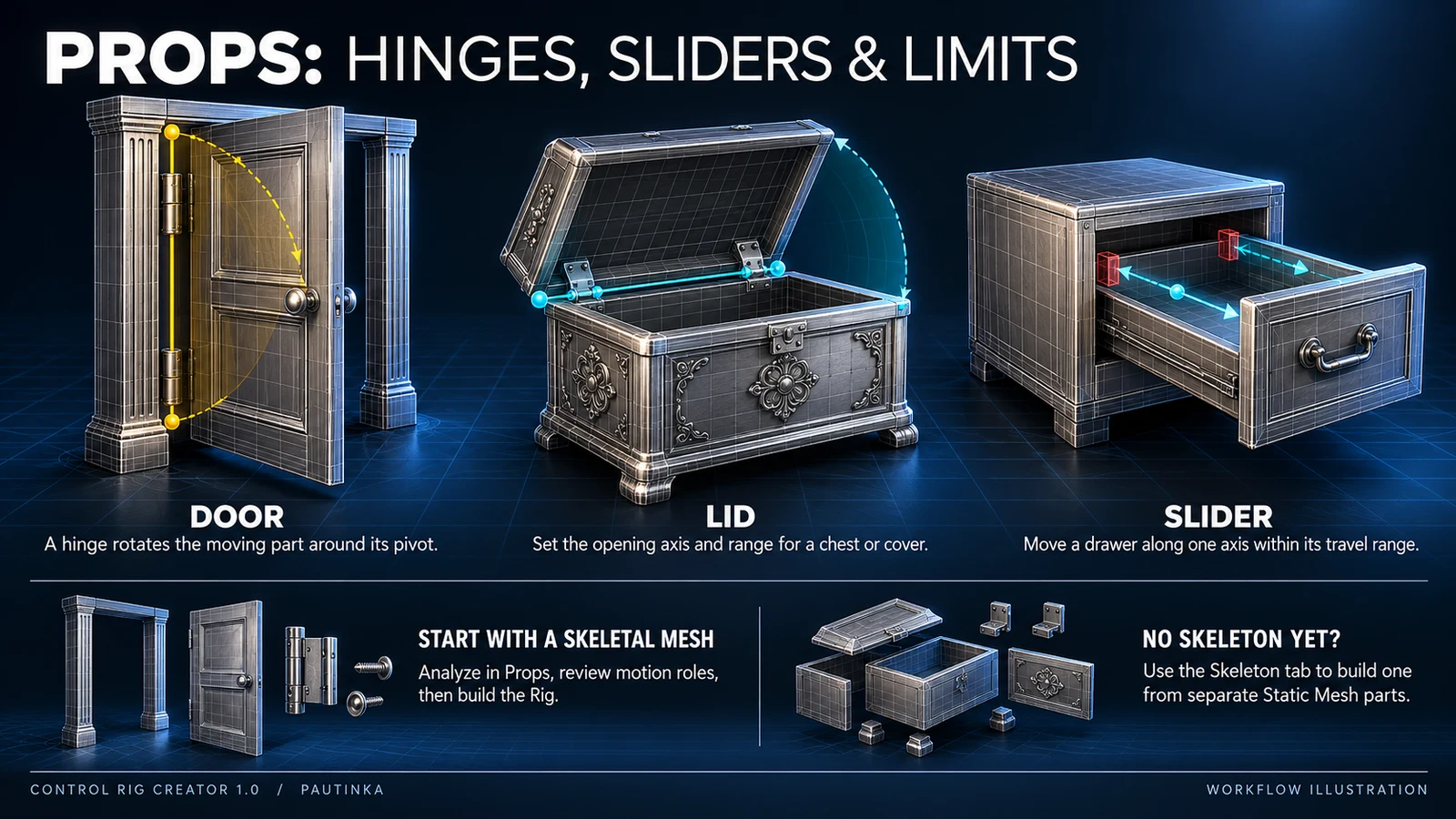
Use a Skeletal Mesh for a door, drawer or mechanism. Start in Skeleton if the object has only Static Mesh parts. Props reads saved movement rules when available.
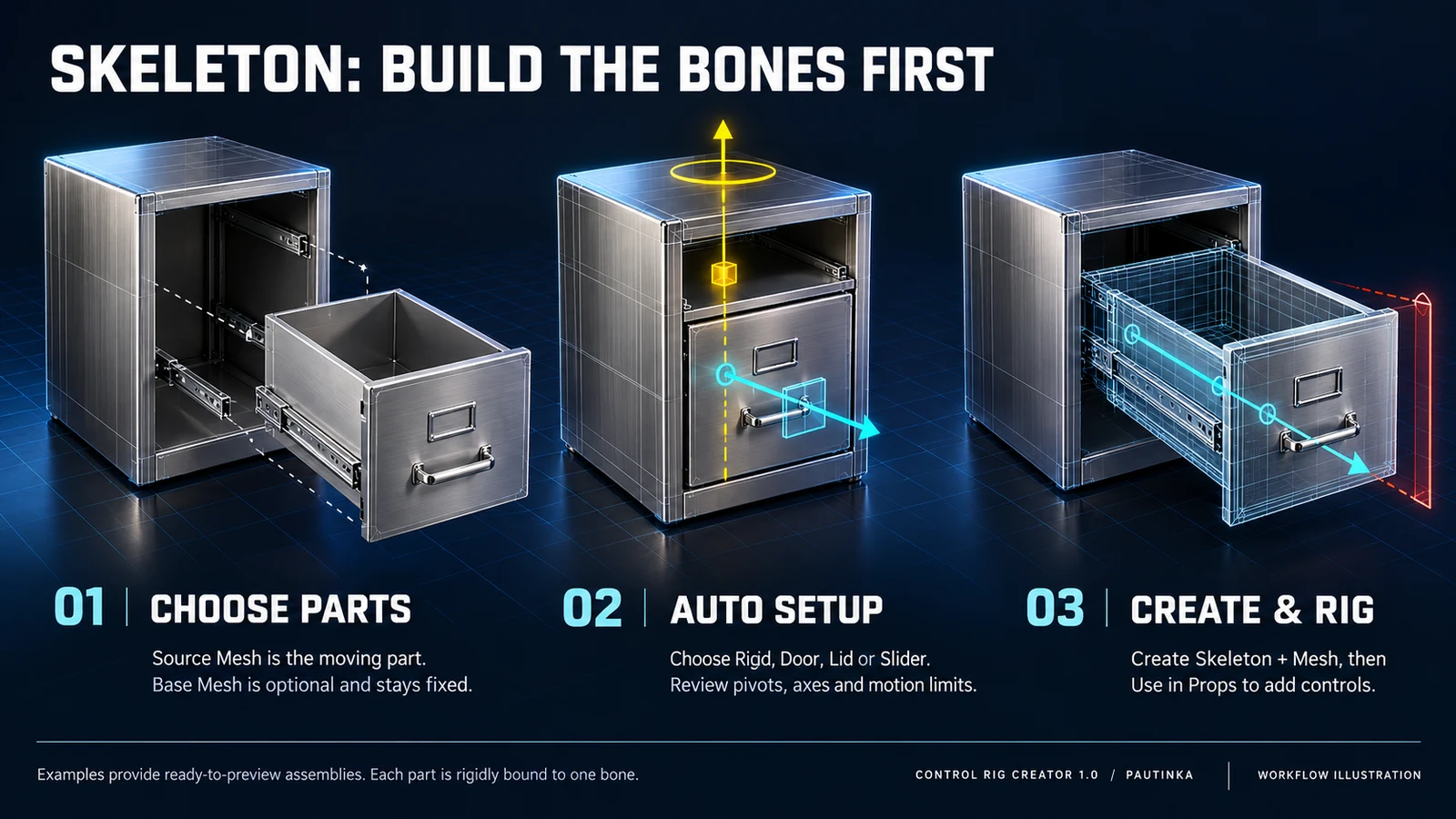
Combine Static Mesh parts into a rigid Skeletal Mesh and a Skeleton. Each part belongs to one bone. This creates the skeleton; it does not automatically skin a soft character.
Input: an editable absolute Animation Sequence. Arrange operations, preview the result and save a new clip. A Control Rig is not required for this workspace.
Use the CRC package made for your Unreal Engine version and Unreal’s standard C++ build tools. ControlRig and RigVM are declared dependencies. CRC runs in the Win64 Editor and creates project assets for later use.
Close Unreal Editor. Extract the complete ControlRigCreator folder into your project’s Plugins folder. The file must be at <Project>/Plugins/ControlRigCreator/ControlRigCreator.uplugin.
Open the project and rebuild when prompted, or build Development Editor / Win64. Enable Control Rig Creator in Edit > Plugins and restart if requested.
Open the tool from the Pautinka section of the Tools menu. Choose the interface language in the top bar. Help opens this documentation; Pautinka website opens the studio website.
Replace the old plugin folder as a whole. Keep backups outside Plugins. Do not carry over old Binaries or Intermediate folders. Existing generated assets remain; build new outputs to apply generator changes.
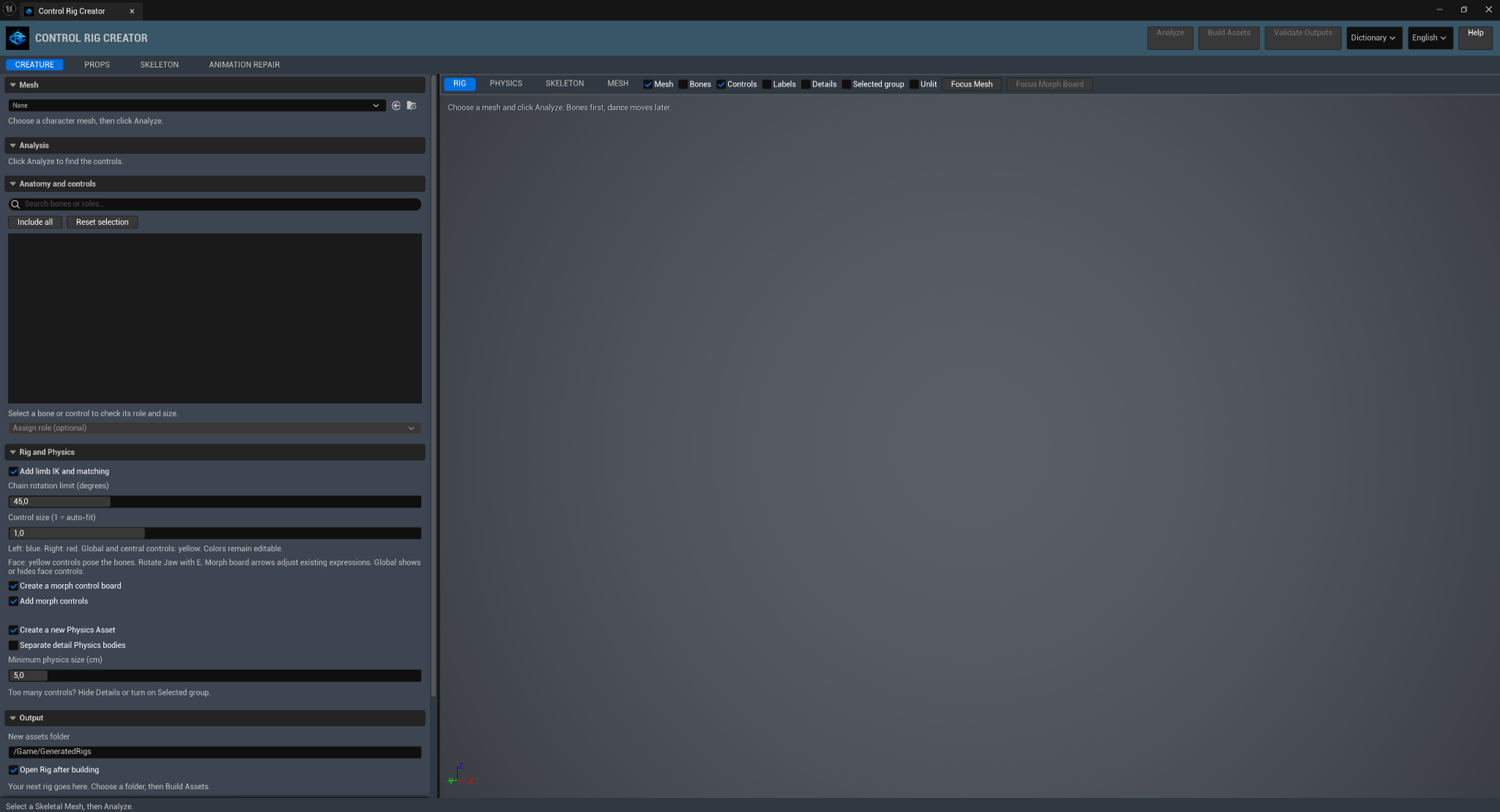
Select a saved Skeletal Mesh, analyze it, review roles and included bones, choose build options, then build. Open the resulting Rig to pose it; the plugin preview only shows layout.
Choose a Skeletal Mesh. The arrow uses the Content Browser selection; the folder locates the asset. Changing Mesh resets this workspace’s analysis and output references.
Reads the Skeleton and suggests roles, control groups and chains. Review the Analysis summary and mapping before building. Recognition is a starting point, especially for ambiguous bone names.
Creates uniquely named outputs in New assets folder. Compiles and checks the Rig before saving. Changed mappings or build options require new outputs; old Rigs are not updated in place.
Recompiles and checks the generated outputs. Use after editing them. A successful check does not replace checking your character’s poses and intended Physics motion.
Open Rig opens the generated Blueprint. Open Physics opens the generated Physics Asset, or the Mesh’s existing asset if none was generated. Assign Physics to Mesh applies the new asset separately, with Undo support.
Default folder: /Game/GeneratedRigs. Use a project content path below /Game, not a disk path. Open Rig after building opens the finished Rig automatically; it starts enabled.
Search by bone name, role or family. A checkbox includes that bone’s planned control. Excluding a connecting bone can break an IK chain; the source Skeleton is not deleted or reparented.
Include all includes every listed bone. Reset selection restores the analyzer’s default inclusion flags; it does not clear manually assigned roles. Select a row to inspect its role, parent and chain details.
Select a bone first, then choose a role. Unassigned removes its semantic role. Use Dictionary > Assign to selected bone for a role with an explanation. Build again to apply changes.
A role says what a bone is for. Analyze uses names to suggest it; rig planning combines that role with the real hierarchy. Names alone cannot supply missing bones, weights or movement rules.
Roles: bone purposes and aliases. Naming profiles: known exporter names. Topology patterns: structural clues. Archetypes: anatomy references. An archetype entry is not an automatic creature preset. Expand More naming and anatomy details for the complete record.
Creature includes 11 naming profiles, 16 topology patterns and 16 archetypes. Props includes 3 profiles, 7 patterns and 13 archetypes. The reference below preserves original role IDs, bone aliases and dictionary descriptions.
Creature only; enabled by default. Creates supported limb and chain targets with IK/FK matching. Disable for an FK-oriented Rig. A recognized role still needs a valid connected chain.
Default 45°; range 0–180°. Used when generating long-chain IK. Available when Creature IK is enabled. Rebuild after changing it; this is not a universal anatomical limit for every joint.
Default 1; range 0.1–5. Scales visible control shapes around their fitted size. Joint pivots stay in place. Change before building a new Rig; it does not scale the Mesh.
Morph controls drive existing Mesh Morph Targets. The board arranges those controls beside the face. Enabling the board enables morph controls; disabling morph controls also disables the board. Both start enabled for Creature, disabled for Props.
Switch the layout view. RIG shows planned controls, PHYSICS shows collision layout, SKELETON shows bone structure, MESH emphasizes the surface. Use Open Rig for posing and Open Physics for simulation.
Independent visibility switches for the surface, bone lines, control shapes and names. Hiding a layer does not exclude bones from the build. Select an element to highlight its linked controls.
Details reveals fine controls. Selected group isolates the current group while retaining Global. Unlit removes lighting distractions. Focus Mesh fits the model into view. These switches affect the preview only.
Global moves the whole Rig and exposes scale. Use uniform scale with IK. COG positions the body when mapped. FK controls rotate joints; children follow their hierarchy. A visible shape offset does not move the joint pivot.
Left-side controls are blue; right-side controls are red. Central and Global controls are yellow. Sides are relative to the character. These are CRC’s current color conventions, not an Epic certification requirement.
Straight arrows indicate movement; curved arrows indicate rotation. Select the handle, then use W or E. Small handles are offset outside the skin. An arrow is a visual cue; actual limits come from the control or solver settings.
Detail controls start hidden; face controls start visible. The Morph Board starts visible when requested. Change these Global channels in the generated Rig. They are separate from the plugin preview’s Details switch.
Select a control in the Rig Editor. In Details, choose Shape and Color. Use Shape Transform to adjust its visual scale and offset.
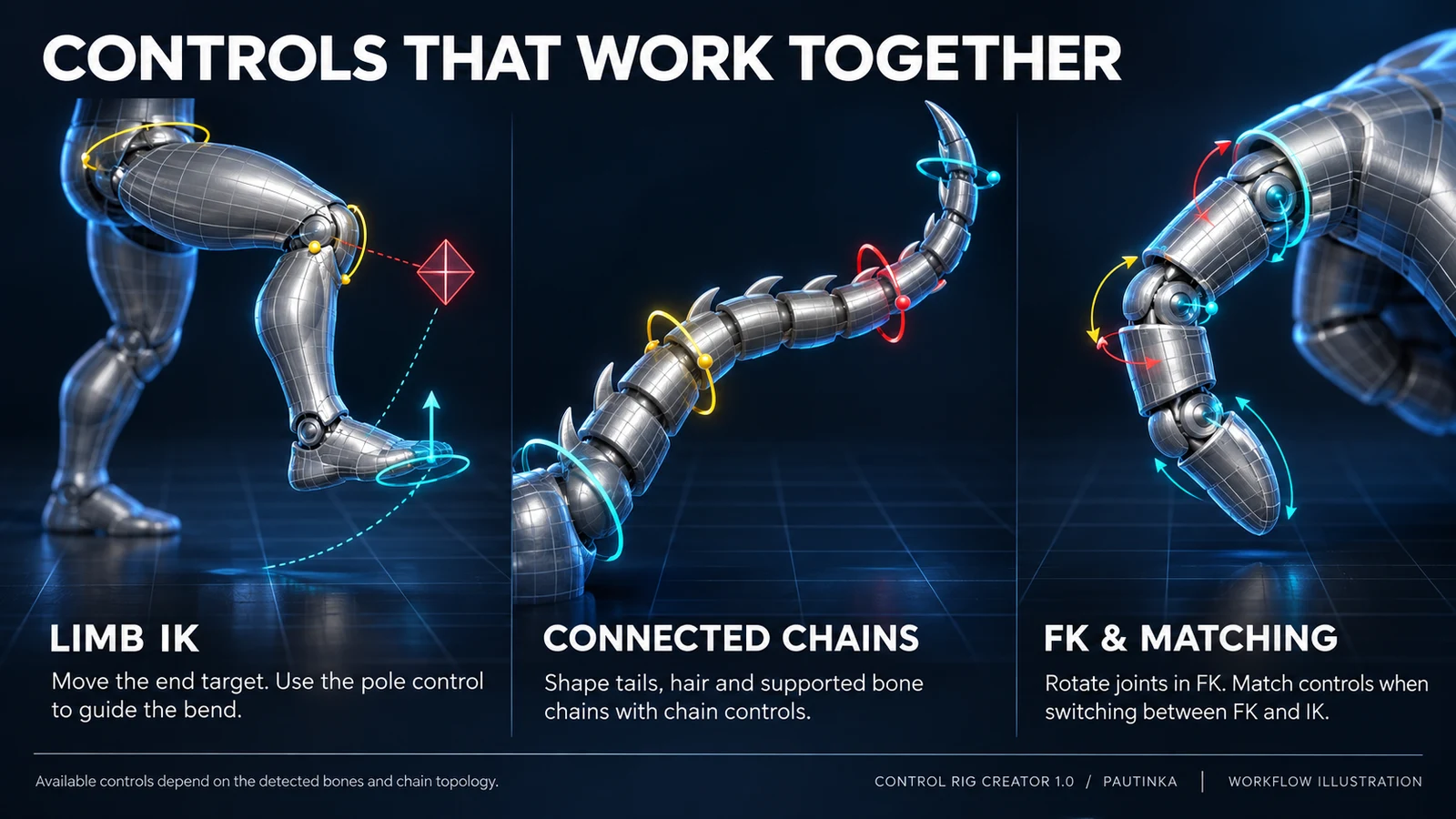
Move IK to place the hand or foot; move PV to choose the elbow or knee’s bend direction. The solver bends a valid two-segment limb. Rotating individual FK joints is a different way to pose that limb.
IK / FK: 0 = FK, 1 = IK. Match to IK places the goal and pole at the current FK pose, then switches. Match to FK fits FK controls to the solved pose. Matching is a one-shot action; key the resulting controls and blend.
Hand goals follow the mapped ancestor above the arm; foot goals start in Global space. Use Unreal’s space picker where spaces are available. Check the pose when switching; Global scale should remain uniform with IK.
A mapped toe-base child adds foot-roll channels in degrees. Use them to roll over heel, ball and toe pivots. Confirm the generated pivots and forward direction before animating a walk.
Connected fingers, toes, axial sections, tails, hair and cloth need at least three included rotational bones. Longer limb, wing and arthropod chains need four. Unsupported or shorter paths use FK. Each finger branch gets its own valid chain.
Move the straight-arrow CHAIN target to bend the whole connected chain without changing segment lengths. 0 = FK, 1 = IK. Matching transfers the current pose between modes. Match to FK reveals individual curved-arrow joint handles.
GUIDE, visible with detail controls, selects an initial bend direction for a straight chain. Chain curl distributes FK rotation on supported appendage roots. At full IK the endpoint still follows its target. These are posing controls, not cloth or hair simulation.
Finger, toe and soft-appendage goals act at the last bone pivot, not at the Mesh’s surface tip. They control position; the tip keeps its local FK orientation relative to its parent. Parent attachment follows the mapped Skeleton hierarchy.
Move the recognized eye-group target to aim the eyes. Eye aim = 0 uses individual FK rotations; 1 uses the target. The source must contain suitable eye bones.
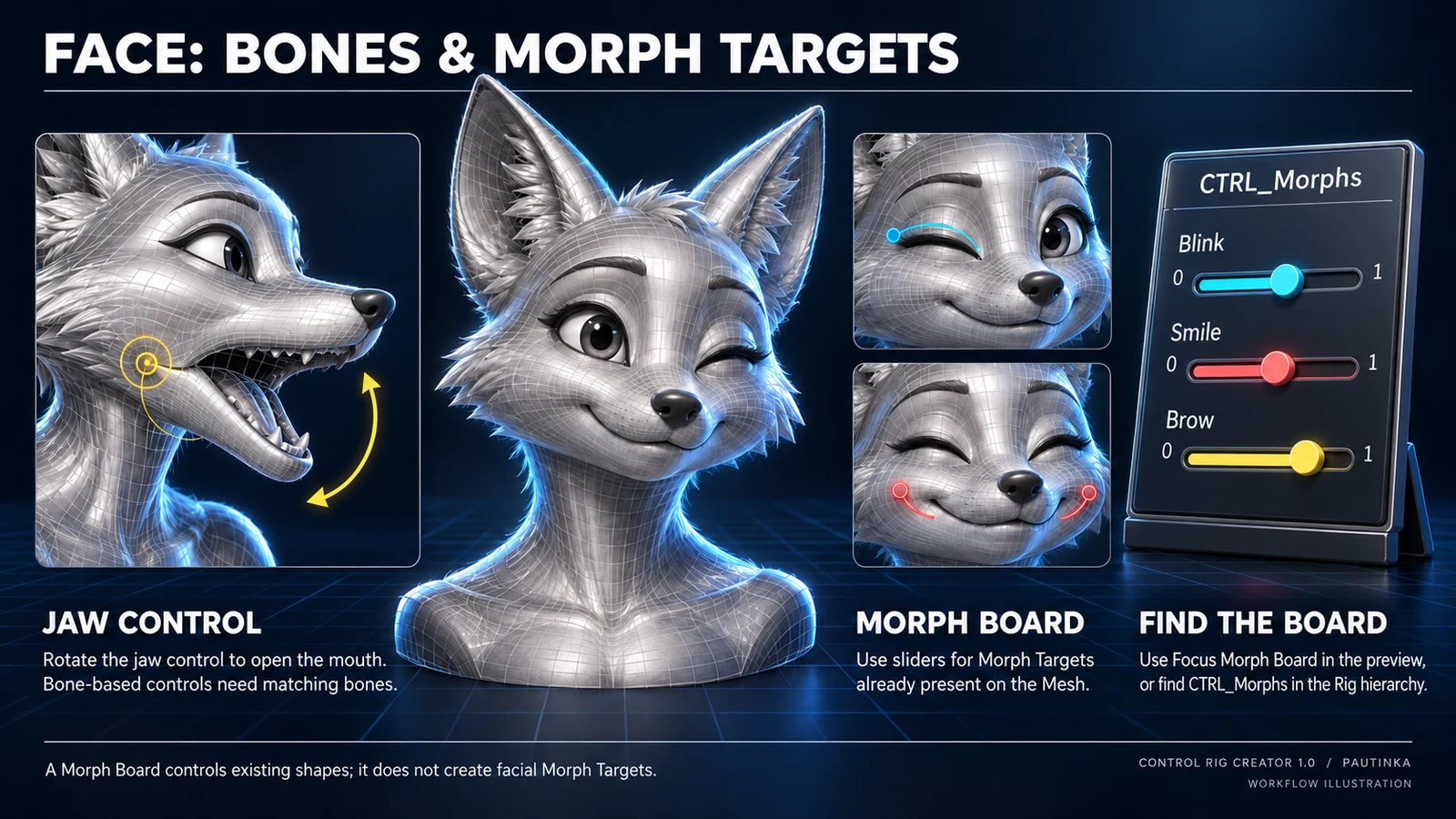
Select the yellow curved arrow in front of the mouth and press E. Rotation occurs at the jaw joint. Map missing recognition to JAW_LOWER or JAW_UPPER; beaks use BEAK_LOWER or BEAK_UPPER. A jaw bone must exist.
Yellow straight arrows move facial patches; curved arrows rotate facial joints. Show face controls toggles the main set; Show detail controls exposes finer handles. These controls pose bones, independently of Morph Targets.
Enable both morph options before building. Select an expression’s board arrow and drag on its horizontal axis, or edit its value. 0 removes that morph; 1 applies its authored full shape. The board uses the Mesh’s original Morph Target names.
After Analyze, use Focus Morph Board to frame the board in the preview. In the generated Rig hierarchy, find CTRL_Morphs. Enable the morph options before building. The board follows the head, or Global when no head is available, and controls only the Mesh’s existing Morph Targets.
Without source Morph Targets there is no expression board to generate. Use mapped face bones, or author and import Morph Targets first. CRC does not invent expressions, missing jaw bones or a facial capture setup.
Enabled by default. Builds a separate Physics Asset alongside the Rig. The source Mesh’s existing Physics Asset is not assigned automatically; use Assign Physics to Mesh when you want the new one.
Default 5 cm; range 0.01–10000 cm. Controls the initial body selection threshold. Smaller values admit smaller bodies. This is not a uniform radius or an instruction to inflate every collision shape.
Creature only; off by default. Off merges crowded fine detail and suitable short chain links while retaining main joints and branch anchors. On keeps detail bodies. Rig controls are unaffected; more bodies are not automatically better.
Shapes fit assigned LOD0 skin: rounded regions use spheres or capsules; broad or flat regions use compact convex shapes. Retained bodies connect through Skeleton ancestors. Neighboring and rest-overlapping pairs have self-collision disabled; other pairs and the environment can collide.
Inspect body fit, connected constraints and intended angular ranges. Creature joints lock translation and limit rotation; tune ranges for the character. Physics and Control Rig are separate outputs: configure simulation/animation blending in your animation setup.
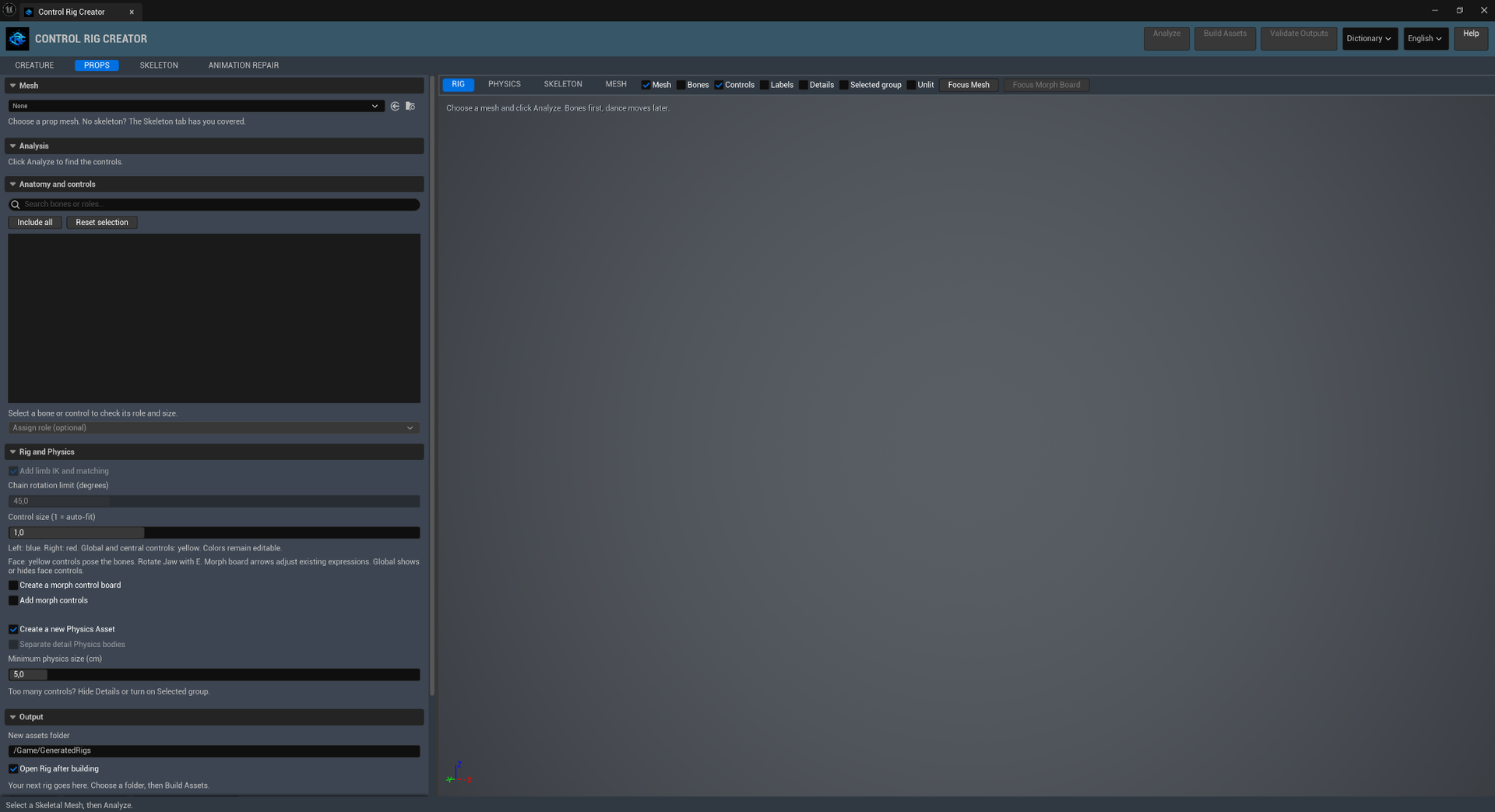
Select the mechanical Skeletal Mesh, Analyze and review roles, then Build Assets. Skeleton-generated props carry saved axes and ranges. An imported prop’s role name alone does not provide a hinge axis or travel limit.
Authored Fixed parts stay attached, Rotate controls follow a hinge axis, and Slide controls follow a translation axis. Their ranges come from the saved rules. Creature limb IK and Separate detail Physics bodies are unavailable in Props.
Automatic mechanical Physics requires explicit movement rules and stationary geometry assigned to Root. If an imported Skeletal Mesh lacks those rules, define the assembly in Skeleton or author its Physics Asset manually in Unreal.
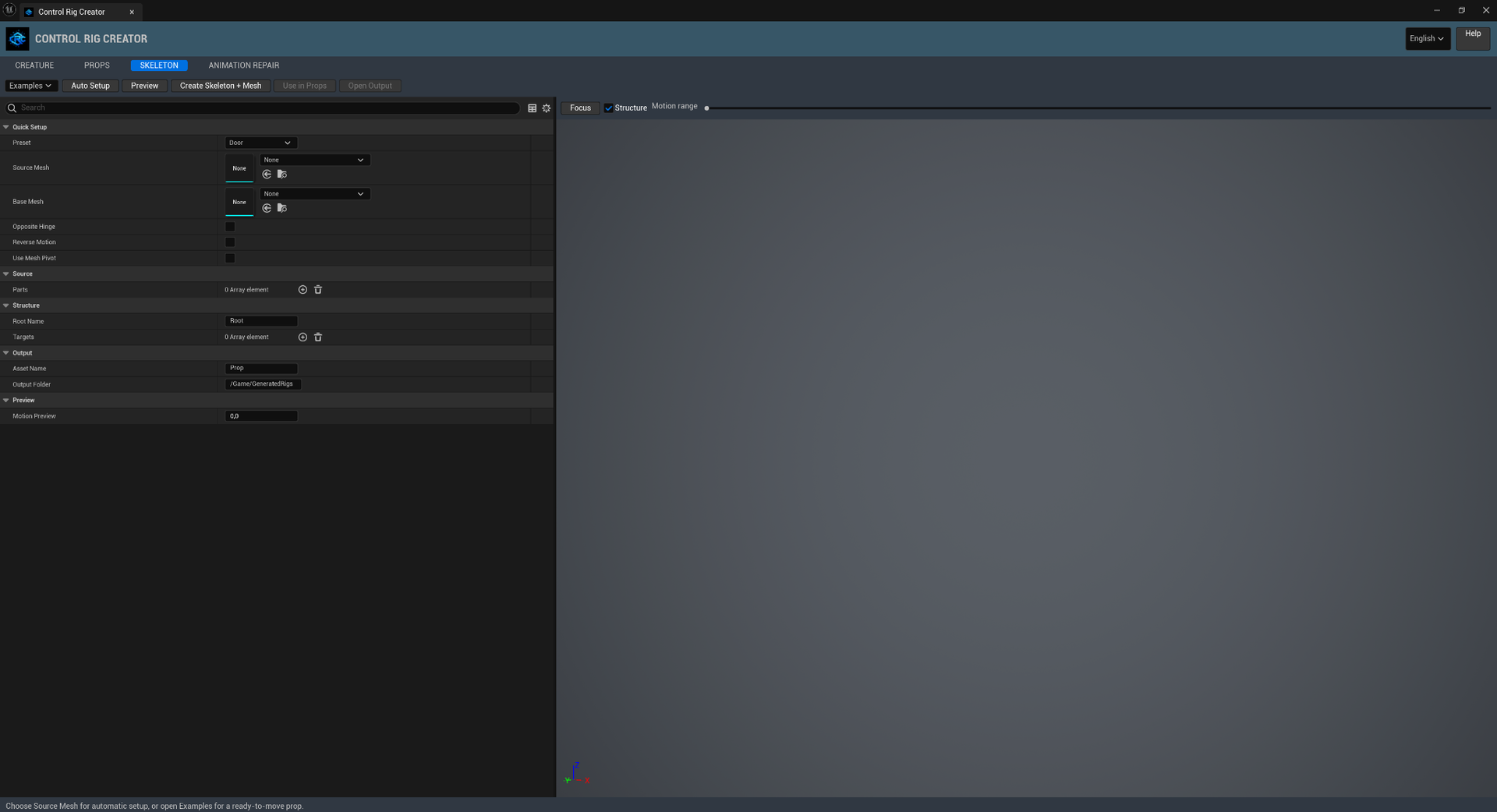
Choose a Source Mesh and optional Base Mesh, pick a preset, then use Auto Setup. Review Parts, Targets, pivots and limits in Preview. Create Skeleton + Mesh saves the assembly; Use in Props sends it to the rigging workspace.
Rigid creates a fixed object. Door uses a local Z hinge; Lid uses a local Y hinge. Slider moves along local X. Auto Setup fits the pivot and motion range to the source geometry. Review these suggestions before saving.
Source Mesh is the moving part; Base Mesh is optional and stays fixed. Opposite Hinge selects the other edge. Reverse Motion reverses the opening direction. Use Mesh Pivot uses the source origin. Auto Setup refits the setup; changing Source Mesh or Base Mesh starts a new assembly.
Examples supplies complete Rigid object, Door and frame, Chest and lid, and Drawer and cabinet setups using engine Cube meshes. Preview and adjust them before creating assets. Examples alone does not save a Skeleton.
Mesh selects a Static Mesh; Transform places it in assembly coordinates. Target: 0 = Root, 1 = first target. Material Slot: -1 uses the whole Mesh; another index uses that material region. Split moving regions into separate entries.
Root Name defaults to Root. Each target needs a distinct Name. Parent 0 means Root; other values must reference an earlier target. Pivot is the joint position in assembly coordinates, not a visual handle offset.
Motion: Fixed, Rotate or Slide. Give a nonzero Axis. Minimum and Maximum use degrees for Rotate, centimeters for Slide; the range must include zero. Rotation stays within -180° to 180°. Fixed parts remain stationary relative to their parent.
Preview refreshes the assembled view. Motion range, or Motion Preview in the panel, runs from 0 = Minimum to 1 = Maximum for every target. Focus frames the assembly. Structure shows pivots, axes and parent links.
Defaults: Prop and /Game/GeneratedRigs. Create Skeleton + Mesh saves new assets. Open Output opens the last created Mesh. Use in Props sends that Mesh to Props for controls and optional Physics. It is available after creation.
Each part is bound entirely to its target bone. Separate fused moving sections into parts or material regions. Uses editable LOD0; extra LODs, cloth, Morph Targets and sockets are not transferred. Bake mirrored/negative transforms into the Static Mesh first.
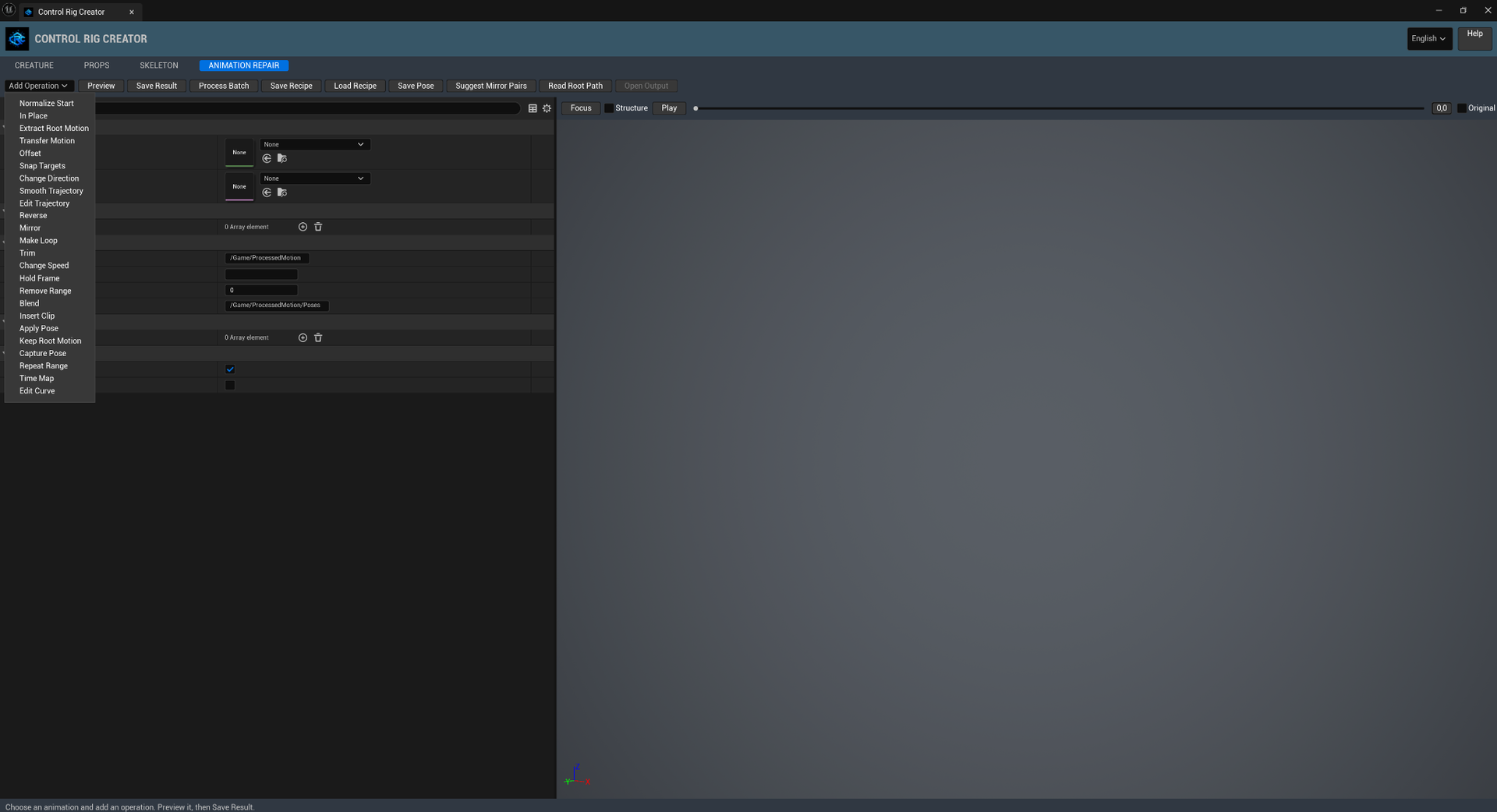
Choose an Animation Sequence and a Preview Mesh using the same Skeleton. The preview is a temporary processed copy. Save Result writes a new Animation Sequence; your Source remains unchanged.
Add Operation appends one of 24 operations. Steps execute from top to bottom. Expand an entry to edit it; Enabled skips or includes it. Reorder entries before previewing because each operation receives the previous result.
Array controls add, duplicate, remove or reorder entries such as Steps, Parts, Targets and keys. Removing an entry is different from disabling a step. The Details search filters visible fields; it does not change your recipe.
Preview processes current settings. Live Preview refreshes after edits; turn it off for heavy recipes and preview manually. Save Result processes and saves a new clip. Open Output opens the last saved result.
Focus frames the Mesh; Structure toggles bone lines. Play/Pause controls playback. Drag the timeline or enter seconds to seek; seeking pauses playback. Original / Show Original compares Source at the same time in seconds, not normalized progress.
Output Folder defaults to /Game/ProcessedMotion. Empty Asset Name derives names from each source. Output FPS: 0 keeps source rate; range 0–240. Pose Folder defaults to /Game/ProcessedMotion/Poses. Use /Game content paths.
Use editable absolute sequences. Bake additive animation and transform curves first. Time edits and secondary clips with unsupported custom animated attributes are rejected to avoid losing them. Float and morph curves are sampled at output FPS when retimed.
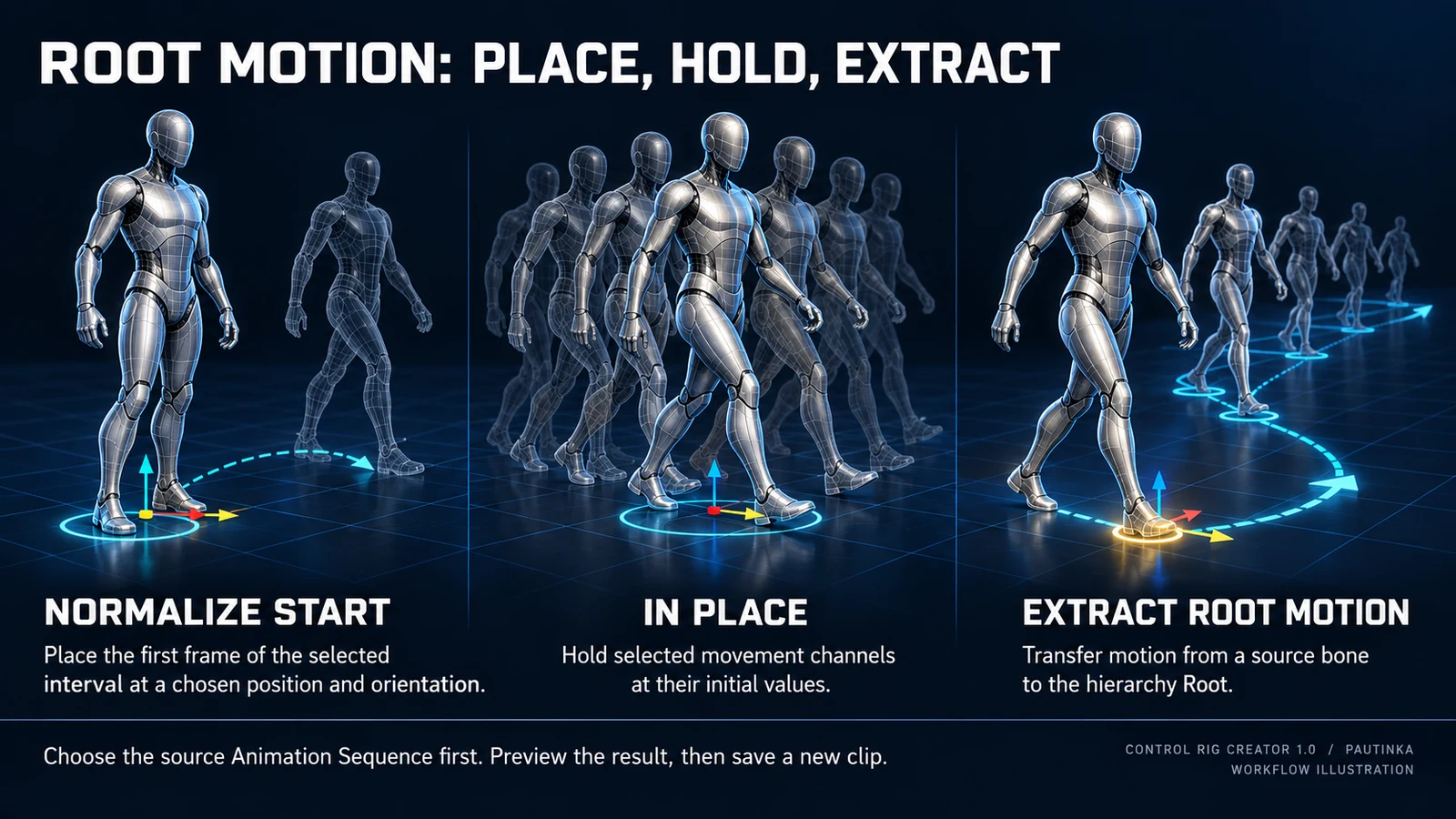
Moves the selected interval’s initial position and orientation to Translation and Rotation. Target defaults to Root. Useful before joining clips recorded at different starting locations.
Available fields
Holds selected translation and rotation channels at their initial values. Planar preserves height and non-yaw rotation. Use for a stationary version of a traveling animation.
Available fields
Transfers Source movement to the hierarchy Root and enables Root Motion. Source and Target must differ. Compensate can preserve descendant component-space positions while the parent changes.
Available fields
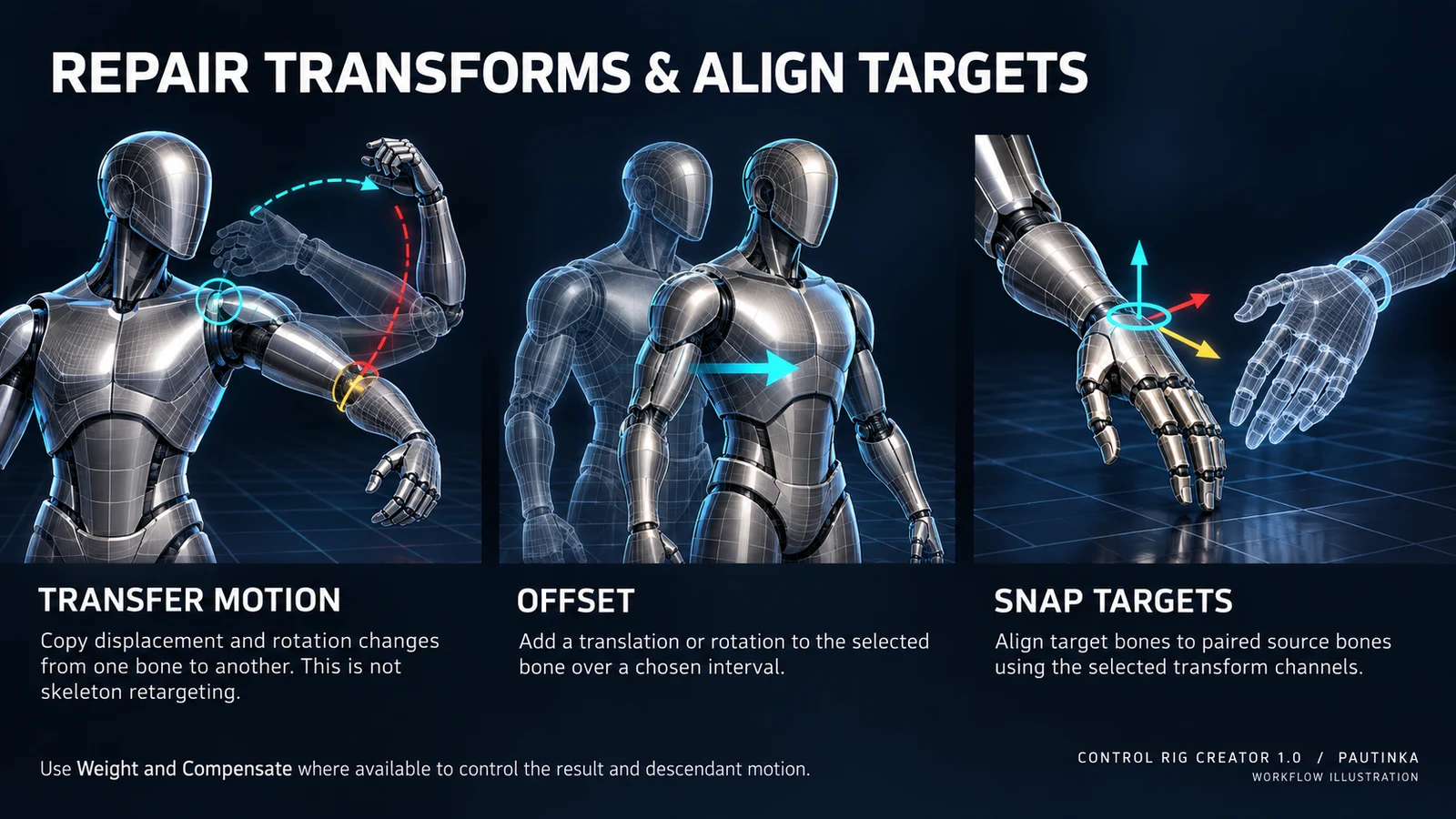
Transfers the Source’s displacement and rotation change to Target, relative to the interval start. Select channels, Planar and Compensate as needed; this is not a retargeter between Skeletons.
Available fields
Adds Translation and Rotation to Target during the range. Weight blends the correction. Compensate keeps descendants in place when enabled; disable it when the whole branch should follow.
Available fields
Copies selected transform channels from each Pairs.Source to Pairs.Target. Add at least one valid pair; destinations must be unique. Weight and Compensate control blending and descendant behavior.
Available fields
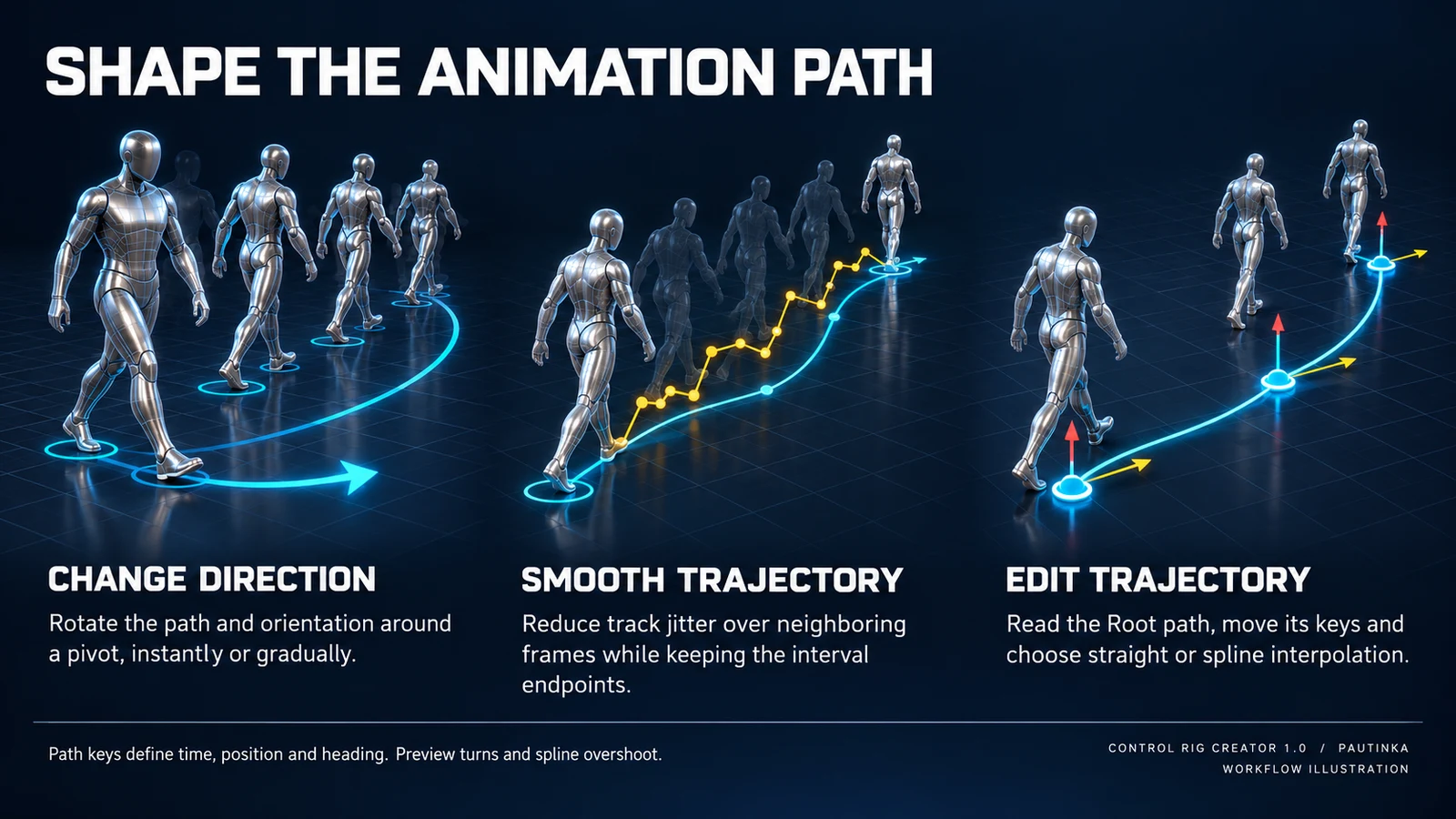
Rotates the path and orientation around Pivot by Rotation. Interpolate Direction gradually applies that turn across Start–End; disabled applies the full turn throughout the interval.
Available fields
Smooths the selected transform track using Smooth Radius in frames and Weight. The interval endpoints stay fixed. Increase the radius gradually; excessive smoothing can erase deliberate accents.
Available fields
Replaces selected position and heading channels using Path keys. Needs two or more distinct increasing times. Spline uses cubic interpolation; switch it off for straight segments if the path overshoots.
Available fields
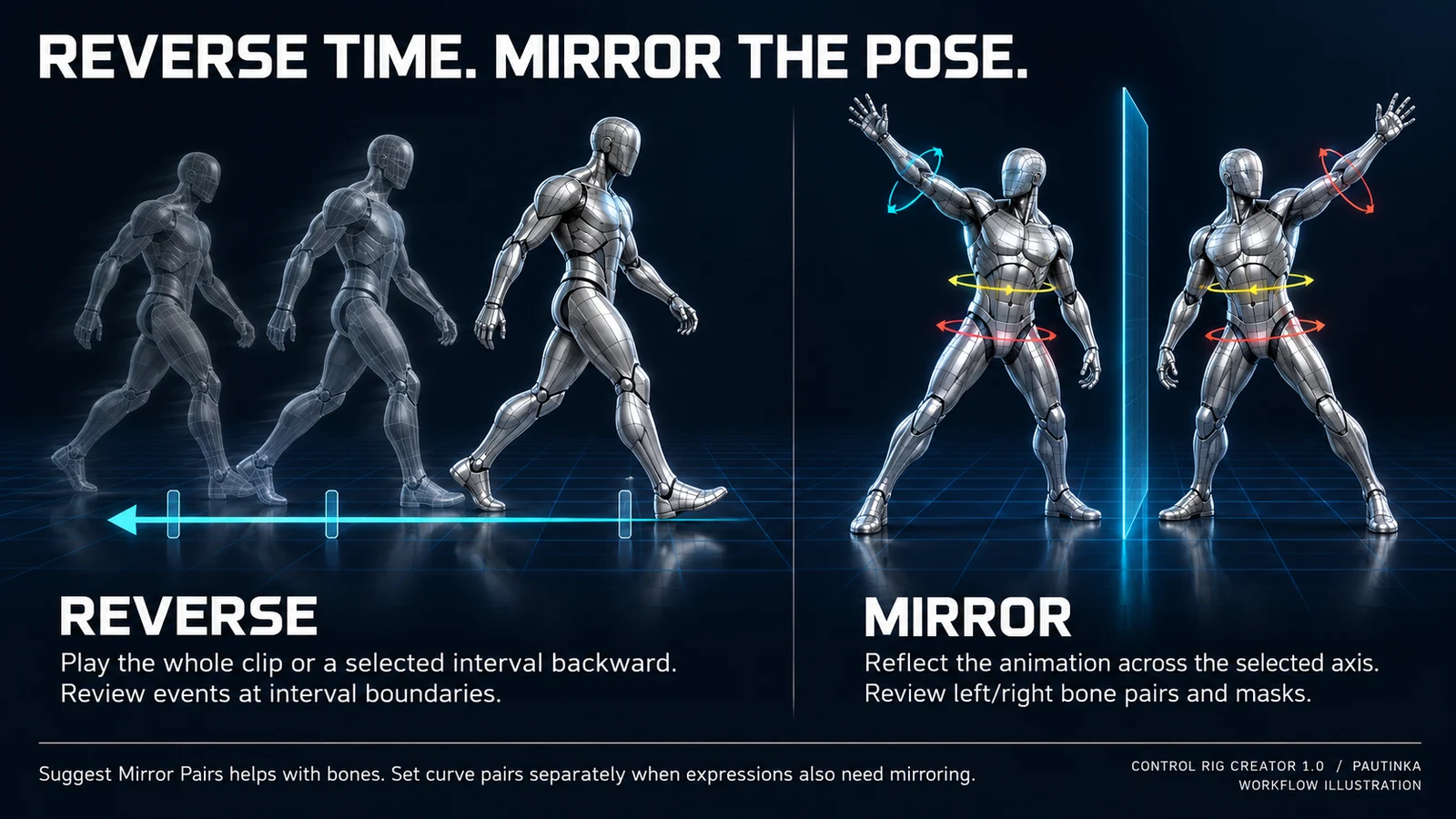
Mirrors the pose on Mirror Axis with bone Pairs and optional chain masks. Review suggested pairs. Curve Pairs swap named curves; mismatched left/right names need manual correction.
Available fields
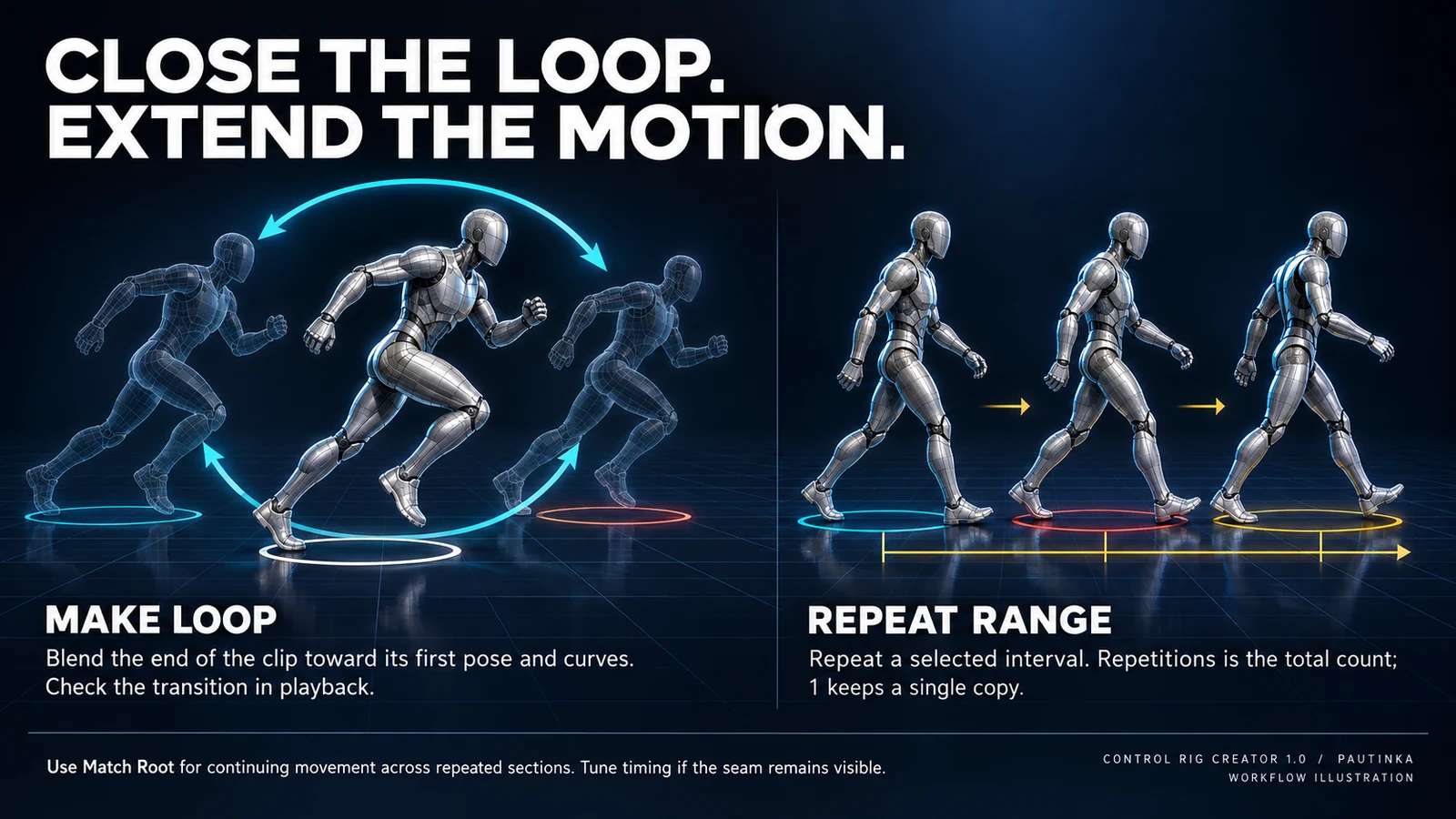
Blends the final Duration seconds toward the interval’s first pose and curve values. Chain masks limit affected bones. This closes the pose; timing at the seam may still need adjustment.
Available fields
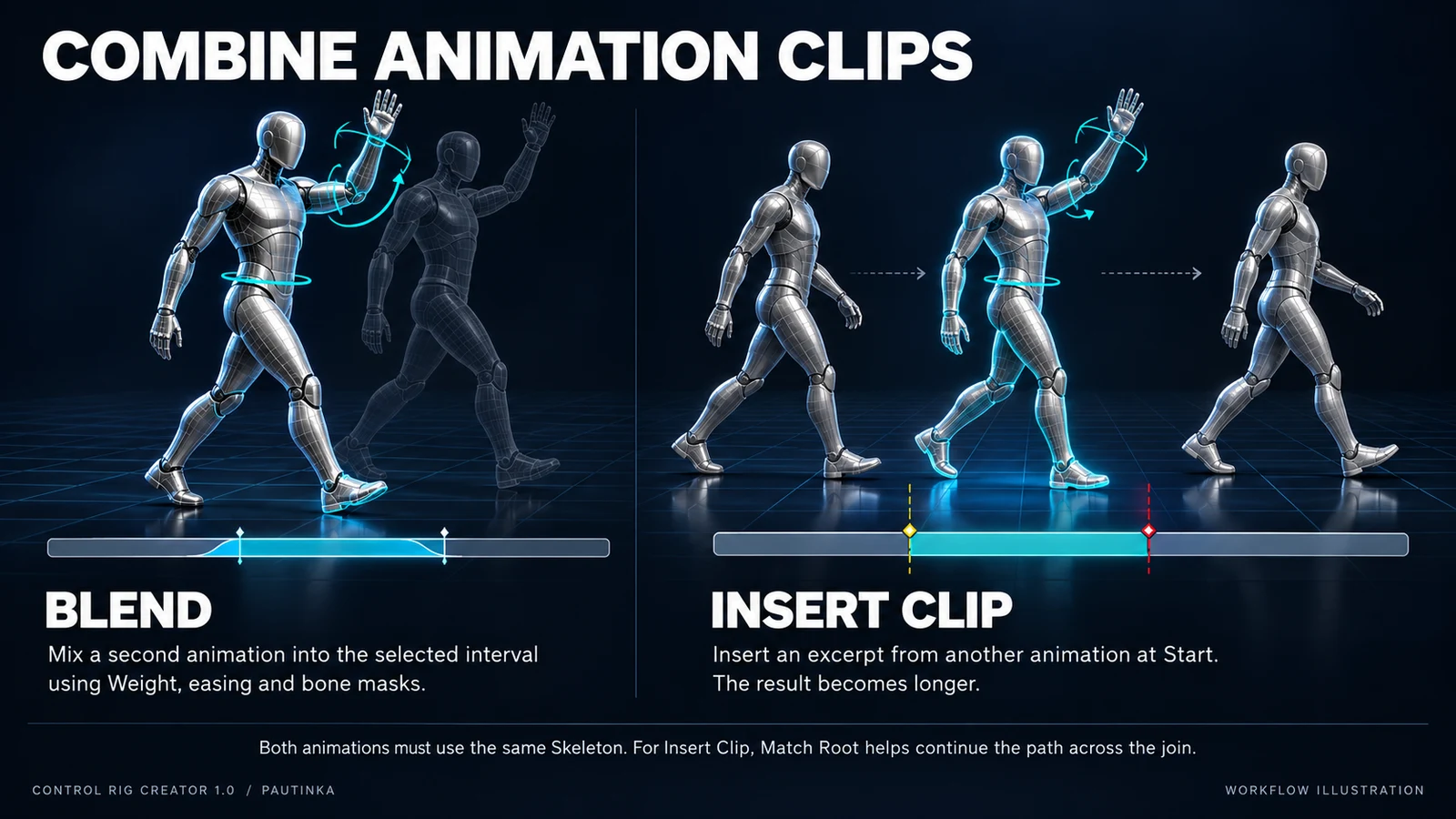
Mixes Other into the interval using Weight and Ease. Other must share the same Skeleton. Other Start selects its starting point; Speed controls its playback. Masks limit affected bone branches.
Available fields
Inserts an excerpt of Other at Start and extends the timeline. Duration is output insertion time, capped by available source frames and Speed. Match Root aligns the inserted path and continuing root motion.
Available fields
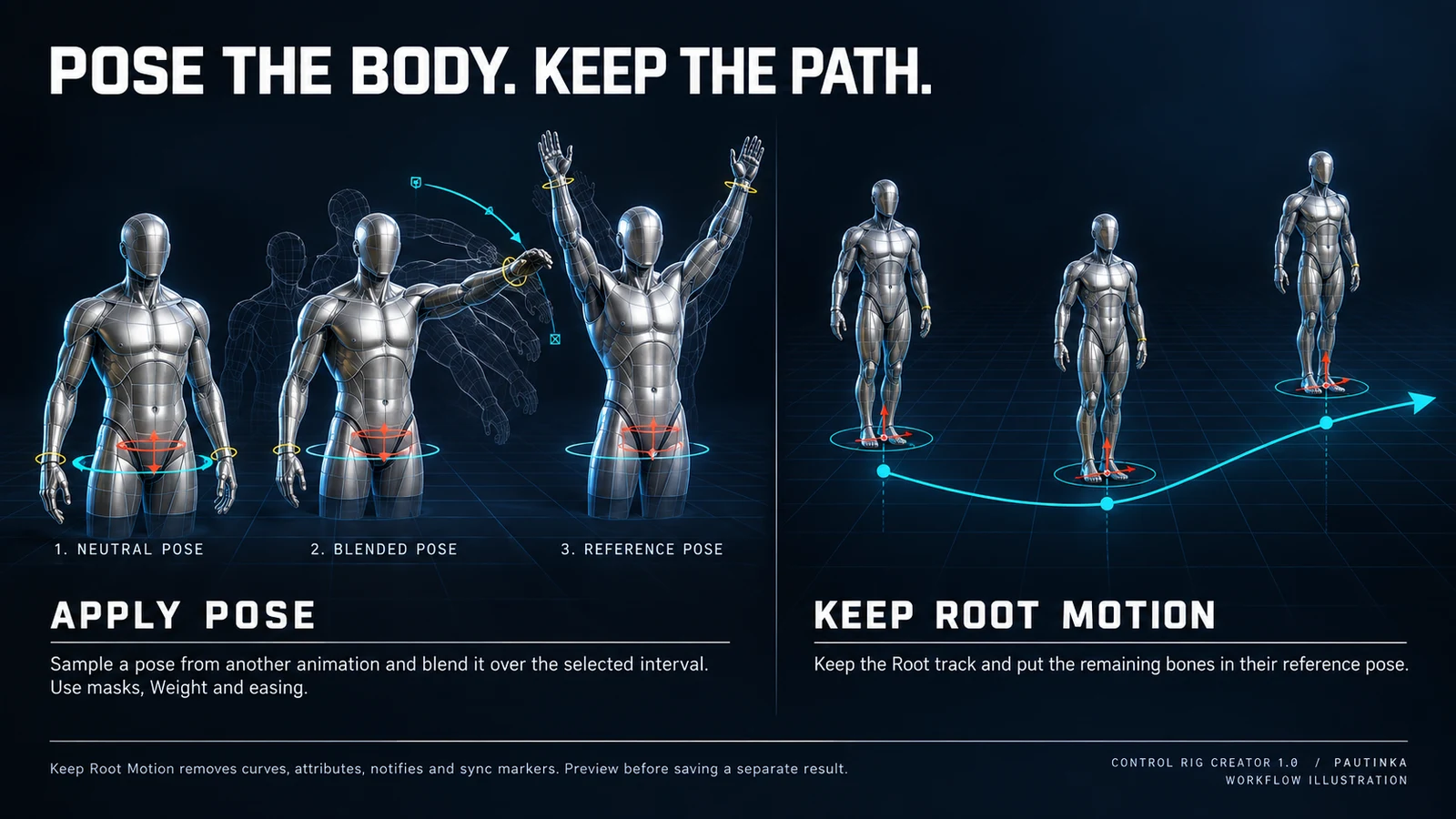
Samples Other at Other Start and blends that static pose over Start–End. Use Weight, Ease and chain masks to apply only the required part of the pose.
Available fields
Repeats Start–End Repetitions times in total; 1 leaves it unchanged. Match Root accumulates the path between copies. Repeated events are retimed with their corresponding segments.
Available fields
Enabled includes the step. Operation selects its action and visible fields. Start/End are seconds in this step’s input clip; End 0 means its end. Timing snaps to the output frame grid. Earlier edits may change these times.
Source/Target name bones; empty Target uses Root where offered. Each Pairs entry has Source and Target. Snap copies Source to Target; Mirror swaps paired sides. Curve Pairs names curves rather than bones. Review pairs before processing.
Names identify starting bones and all their descendants. Empty Include Chains includes all bones. Exclude Chains removes its branches from that selection. These masks affect bones; do not assume they also mask float or morph curves.
Checkboxes choose changed channels. Planar limits travel changes to XY and yaw, preserving height. Compensate preserves descendant component-space poses when changing a parent; off lets the branch follow. All four default to enabled where used.
Weight: 0–1, default 1. Ease: blend-in/out seconds, default 0.15. Other: secondary clip with the same Skeleton. Other Start: sample/start time in it. Match Root aligns its root with the receiving pose, or accumulates motion for Repeat Range.
Translation is an offset/target position in cm; Rotation uses degrees. Pivot is Change Direction’s center in component coordinates. Interpolate Direction defaults off; on spreads the requested turn over the interval. These values are separate from channel checkboxes.
Speed: 0.05–20, default 1. Duration: seconds, default 0.5; used for holds, loop blending or insertion length. Repetitions: total count 1–100, default 2. The affected operation determines which fields appear.
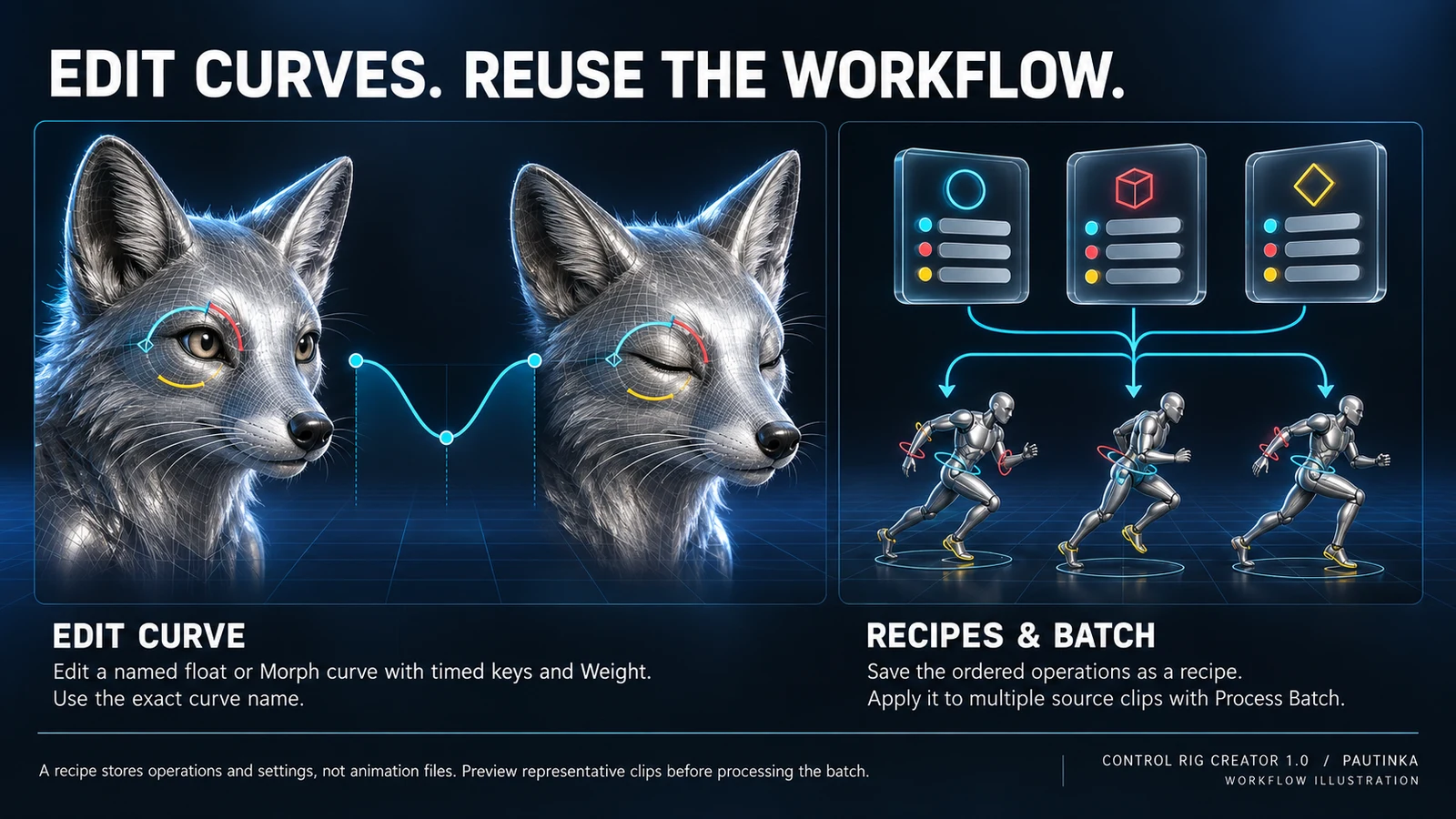
Mirror Axis: 0=X, 1=Y, 2=Z; default Y. Smooth Radius: 1–120 frames, default 3. Spline defaults on. Curve is the exact float/morph name; each Curve Keys entry contains Time in seconds and Value.
| Field | Default |
|---|---|
| Enabled | ✓ |
| Operation | Normalize Start |
| Start | 0.f |
| End | 0.f |
| Source | — |
| Target | — |
| Include Chains | — |
| Exclude Chains | — |
| Pairs | — |
| Translation ✓ | ✓ |
| Rotation ✓ | ✓ |
| Planar | ✓ |
| Compensate | ✓ |
| Weight | 1.f |
| Ease | .15 |
| Translation | 0, 0, 0 |
| Rotation | 0, 0, 0 |
| Pivot | 0, 0, 0 |
| Interpolate Direction | — |
| Speed | 1.f |
| Duration | .5 |
| Other | — |
| Other Start | 0.f |
| Match Root | ✓ |
| Mirror Axis | 1 |
| Path | — |
| Smooth Radius | 3 |
| Spline | ✓ |
| Repetitions | 2 |
| Time Keys | — |
| Curve | — |
| Curve Keys | — |
| Curve Pairs | — |
Read Root Path creates Edit Trajectory keys from the latest valid preview or Source. Path.Time is seconds in the current clip; Position is component-space XYZ in cm; Heading is yaw in degrees. Two distinct increasing times are required.
Drag points to edit XY. Shift-click adds a point. Edit height, time and heading in the Path entries. Delete a Path entry to remove its point. The panel edits the last Edit Trajectory step; later steps can change the final result.
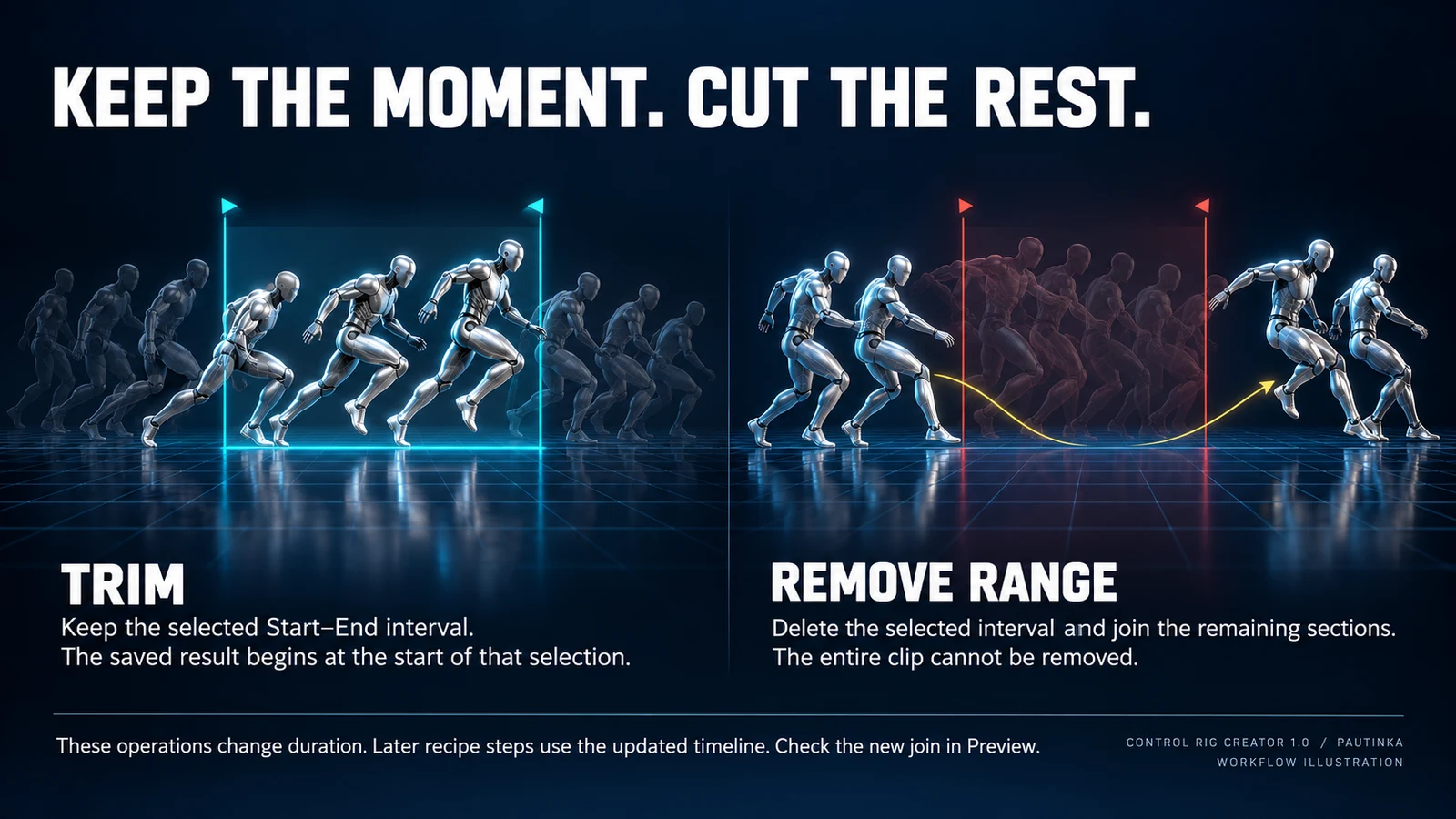
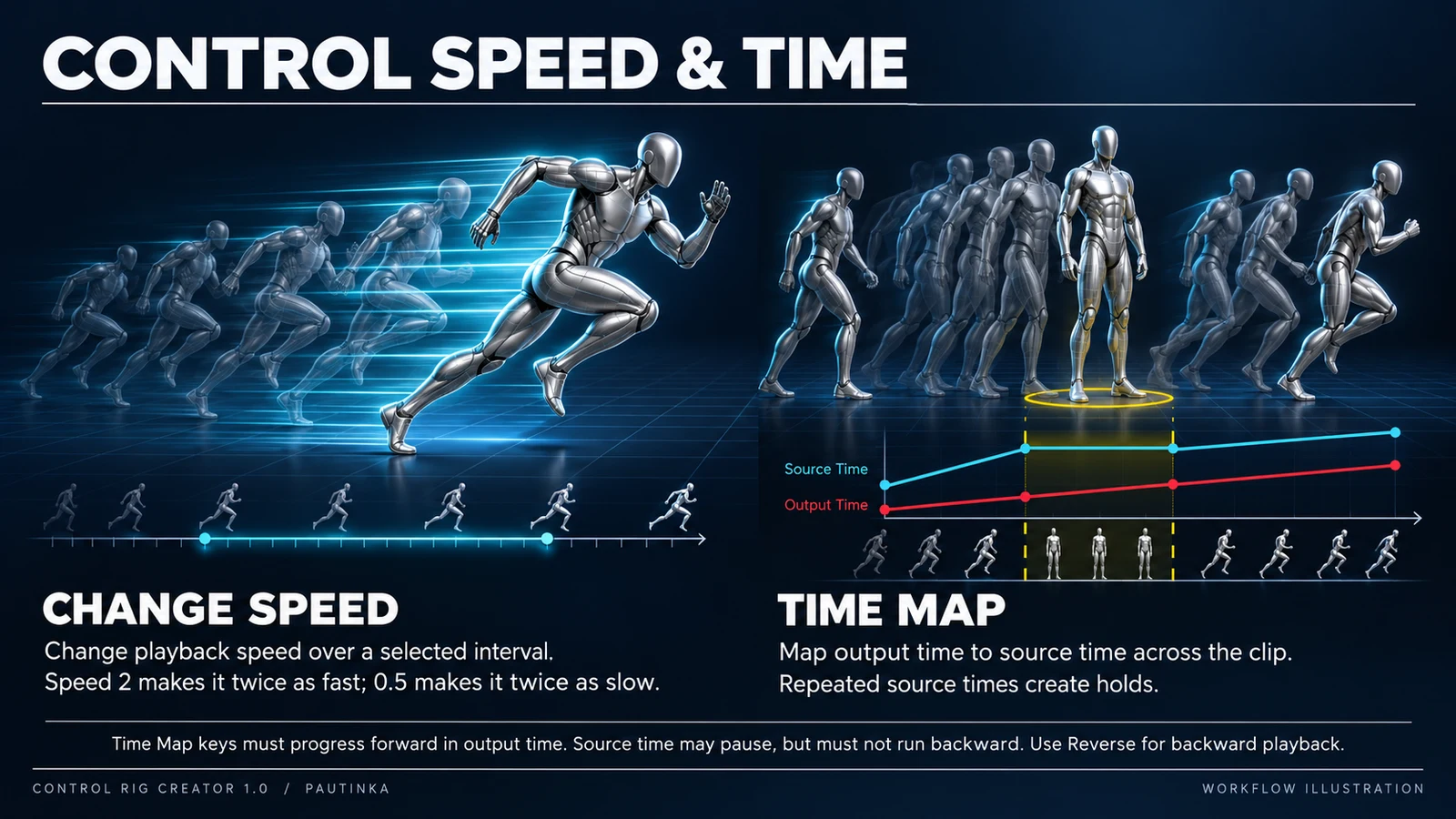
Each key maps an output second to a source second. Example: (0,0), (1,1), (2,1), (3,2) inserts a one-second hold. Output starts at zero and strictly increases; source stays within the clip and never decreases.
Adds a Mirror operation with suggested bone pairs. Check left/right matches, Mirror Axis and masks before saving. Curve Pairs are entered separately; this button does not suggest curve pairs.
Save Recipe writes operations and output settings to JSON. Load Recipe restores them while keeping Source and Batch. Secondary asset references must exist in the project or engine content. A recipe stores settings, not copies of its clips.
Add source Animation Sequences to Batch. Process Batch applies the recipe separately to each unique source. Cancel takes effect between clips; already saved results stay. The status reports saved, failed and remaining clips; failures include details in Output Log.
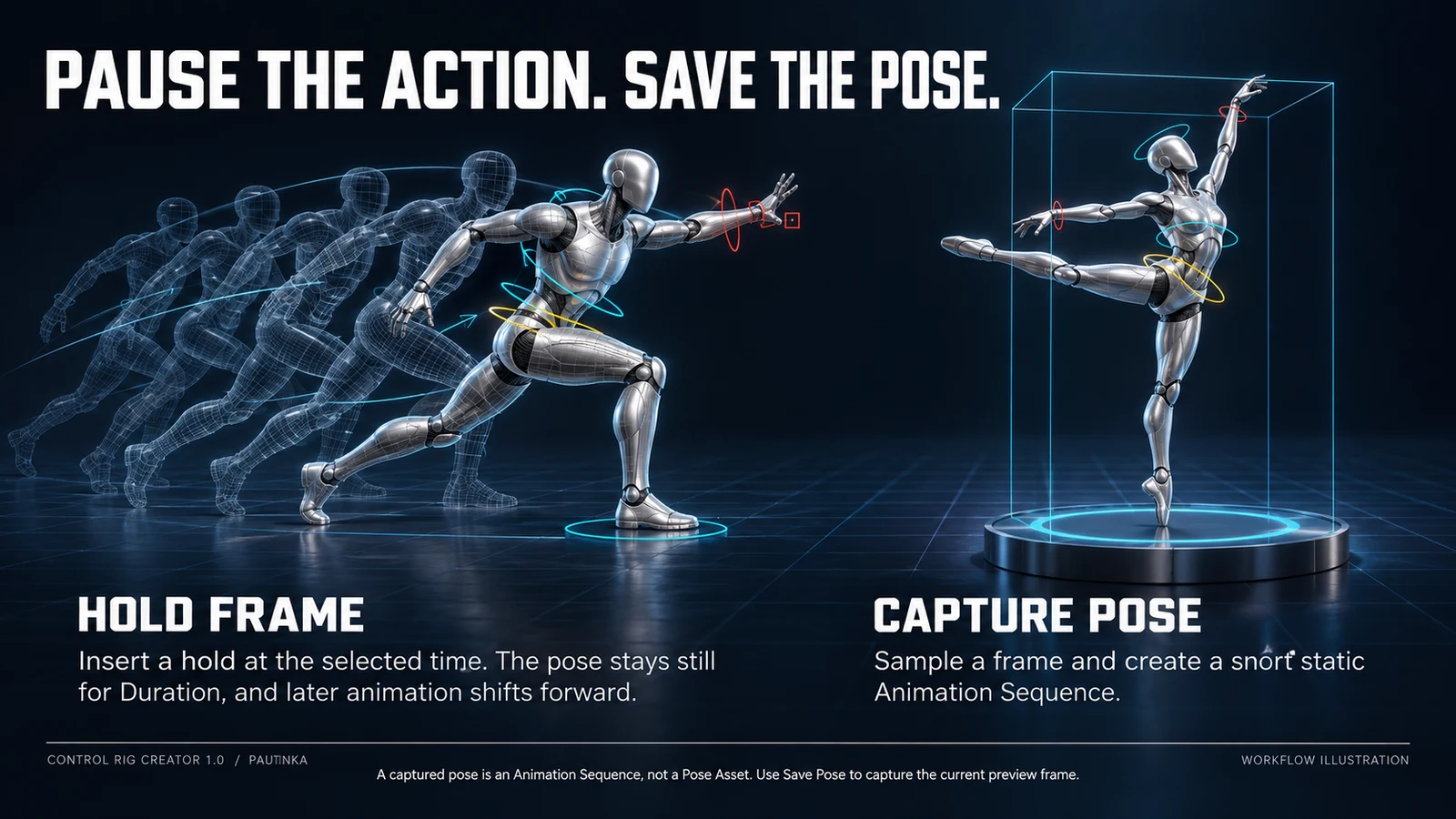
Captures the displayed pose at the current preview time into Pose Folder as a short Animation Sequence. Choose Original first to capture the source pose. Reuse the saved asset as Other in Apply Pose; it is not a Pose Asset library.
CR is the editable Control Rig Blueprint; PHYS is the optional Physics Asset. Current Rigs use Unreal’s stock Control Shape Library. Older Rigs may reference a CR_<Mesh>_Resources folder: keep it if the Rig still depends on it.
Forwards Solve drives bones from controls. Backwards Solve fits controls to incoming animation for baking. Open named functions to inspect detail logic. Backwards Solve reconstructs the pose, not the animator’s original IK/FK blends or procedural choices.
Add the animated character to Sequencer. Use the character track’s Bake To Control Rig command and select the generated Rig. Review the baked pose and curves. These are Unreal’s Sequencer tools, not extra CRC toolbar buttons.
Use Unreal’s Migrate command to move the Rig and its project dependencies. The destination also needs the relevant engine Control Rig resources. Copying only the CR asset is insufficient.
Left Panel Width: initial width hint, default 420, range 320–640. The main splitter can also resize panels. Interface language is saved per user and project using the plugin’s top-bar menu.
Grid, Auto Frame Mesh and Mesh start on; Bones and Labels off. Default Preview Mode accepts Rig, Physics, Skeleton or Mesh; default Rig. These initialize the Rig preview when it is created. Documentation URL and Website URL are read-only links.
Copy error details copies the complete last error for support; it does not send anything. Check the named bone, missing source data, output path or failed action. Include plugin/engine versions and reproduction steps when contacting Pautinka.
Check chain roles, inclusion and parent continuity; then use CHAIN or IK rather than a single FK joint. Reveal Global’s detail/face channels. For Morph Board, confirm source Morph Targets and both build options, then generate a new Rig.
In Open Physics, inspect intersecting bodies and their collision pairs. Test without gravity to reveal misaligned constraints; correct fit and joint frames first. Use modest damping. Tiny bodies may need fewer detail bodies or physics substepping. See Epic’s linked guide.
For animation, use a Preview Mesh with the source Skeleton and refresh Preview. After timing edits, Original compares equal seconds, so poses may differ intentionally. If CRC is missing, verify Plugins/ControlRigCreator, rebuild, enable the plugin and restart Unreal.
Original dictionary records. IDs, aliases and authored descriptions remain in their source language. These are recognition references, not additional one-click presets.
324