Fab からインストール
- Media Work を Fab ライブラリに追加します。Unreal Editor を閉じ、同じ Epic アカウントでランチャーにサインインします。
- Unreal Engine > Library > Fab Library で Install to Engine を選び、プロジェクトのバージョンを指定します。対応環境は Windows 64 ビット、Unreal Engine 5.3–5.8 です。
- Edit > Plugins で有効にし、エディターを再起動します。Tools > Pautinka > Media Work を開き、付属の動画を再生します。
ファイルの取り込みと差し替え
- Content Browser で既存のアセットを選ぶか、ディスクから取り込みます。MP3 と対応する MP4、MOV を使用できます。一般的な MP4 には H.264 と AAC が使えます。
- プレビューで映像と音を確認してアセットを保存します。ゲームに含める素材は、取り込んだ状態でプロジェクトに残します。
- 差し替えるときは元アセットのメニューから Reimport を選び、保存済みプレイヤーで確認します。
マテリアルで動画と音を再生
マテリアルが映像を表示し、Media Work が同じ再生セッションの音を同期して流します。
- Video to texture で動画を選び、テクスチャを保存します。
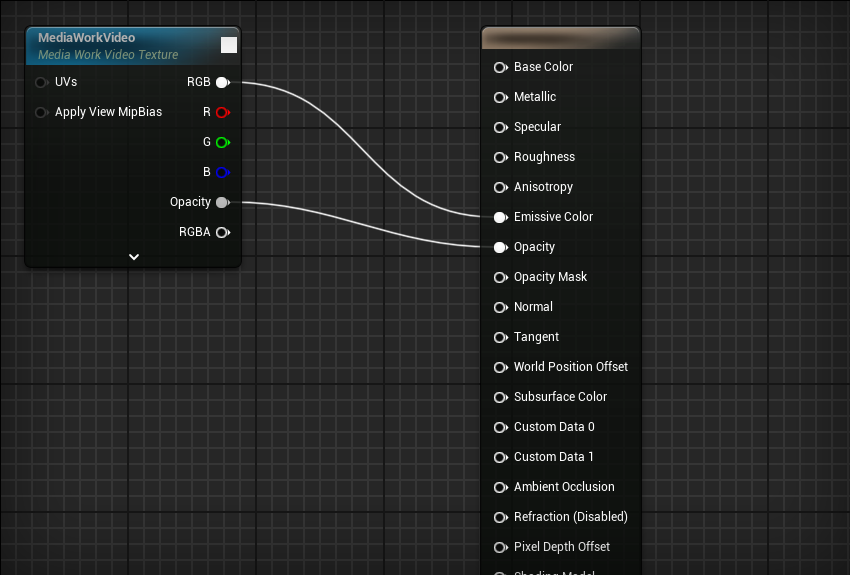
- Material Editor に Media Work Video Texture を追加します。画面を自発光にする場合は Unlit にし、RGB を Emissive Color に接続します。
- マテリアルインスタンスの MediaWorkVideo に保存したテクスチャを設定して、メッシュに適用します。ウィジェットでは UI マテリアルを使います。
- 手動で始めるには Blueprint でテクスチャの Start を呼びます。同じセッションで一時停止、シーク、音量を操作します。
透過 MOV とエッジマスク
- アルファチャンネル付きの MOV を選びます。ProRes 4444 が一例です。コントラストの強い背景で透過を確認します。
- マテリアルを Translucent にし、映像に RGB を使い、Opacity 出力をマテリアルの Opacity につなぎます。
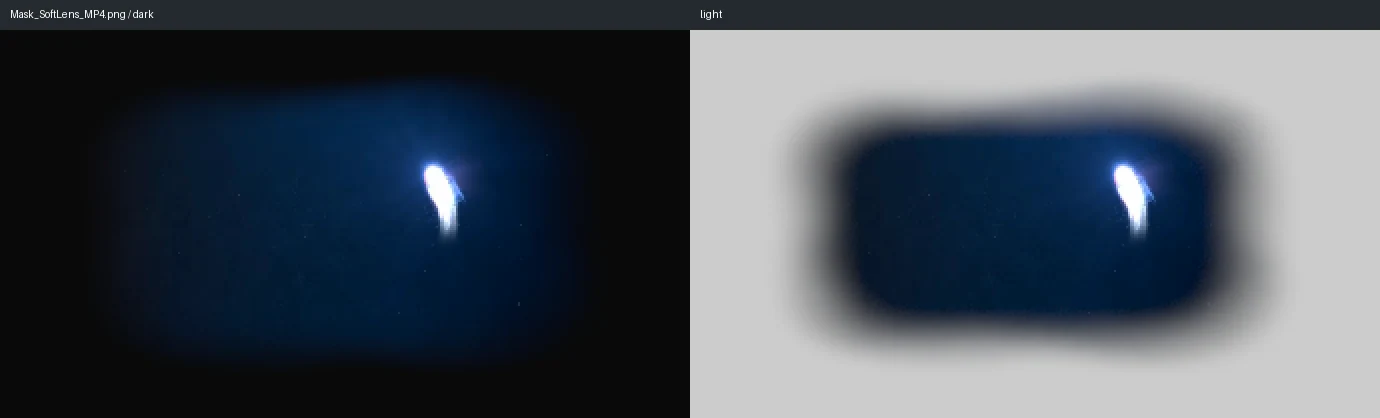
- 50 種類のマスクから、単独の動画テクスチャの輪郭をぼかすものを選べます。Red はグレースケール、Alpha は PNG の透過を読みます。白や不透明の部分が残ります。
- 自作マスクは中央を塗りつぶし、外周に達する前に透明度の値を 0 にします。マスクは元の動画のアルファと組み合わされます。

プレイヤー全体を表示
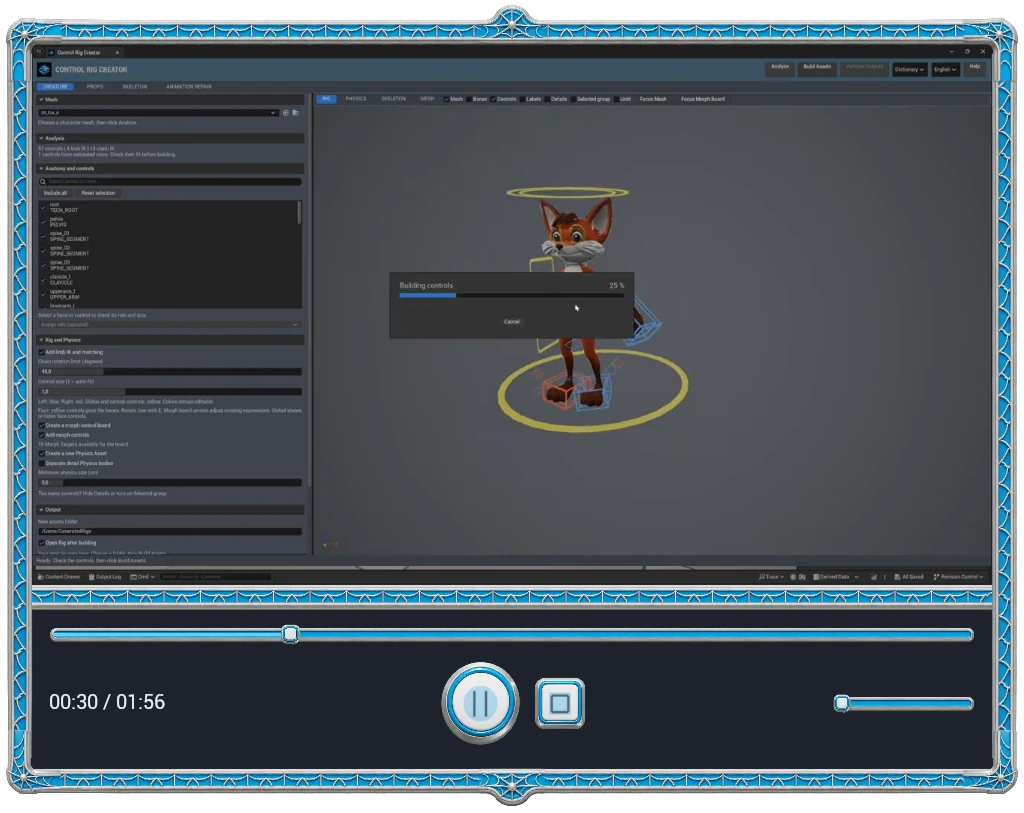
- Video player で動画とスタイルを選びます。Screen は画面表示、Plane はレベルの平面、Texture はフレームとボタンを含むテクスチャです。
- 縦横比は Auto または手動で設定します。枠内で映像の大きさと位置を変えられます。タイトルは任意です。
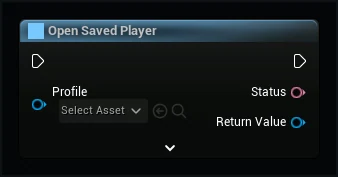
- 保存して Open Saved Player を呼びます。戻り値からサーフェス、セッション、Get Output Texture にアクセスできます。
操作を対象のプレイヤーに接続
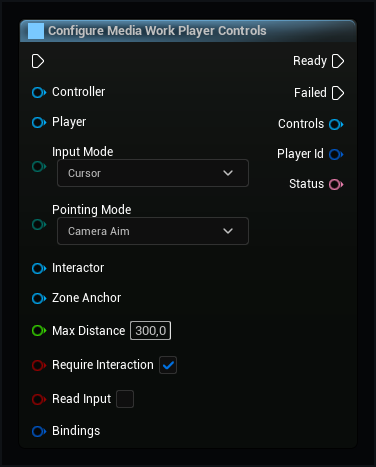
- サーフェスを Configure Media Work Player Controls に渡します。カーソルかボタン、キャラクターと最大距離を設定します。
- 平面ではレイを使えます。独自マテリアルでは Update Pointer UV に各軸 0~1 の位置を送り、押した操作と離した操作も渡します。
- 独自 UI に Media Work Controls を加えてセッションかプレイヤー ID に接続します。2 台の画面で独立した一時停止を確認し、シーク中に範囲外へ出る操作も試します。
オーディオとプレイリスト
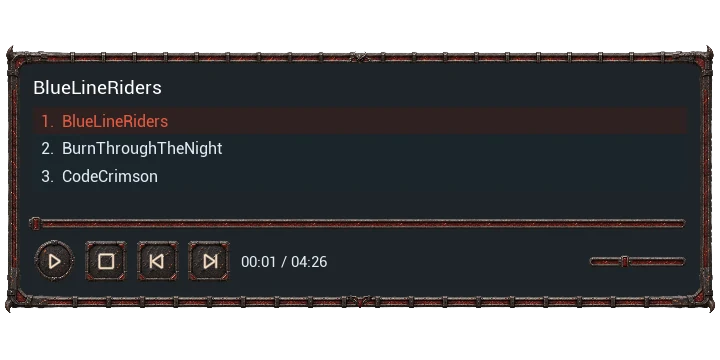
- Audio player に MP3 またはインポートした音源を追加します。リストか前後ボタンで曲を選びます。
- リピート、シャッフル、音量、6 バンド EQ を調整します。曲名とリストは別々に表示できます。
- リストを保存します。Widget Blueprint に Media Work Player を追加し、そのアセットで Open Playlist を呼びます。
フレームとボタンを自作
- プレイヤースタイルと変更するボタンスタイルを複製します。グラフィック編集ソフトで SVG テンプレートを開きます。
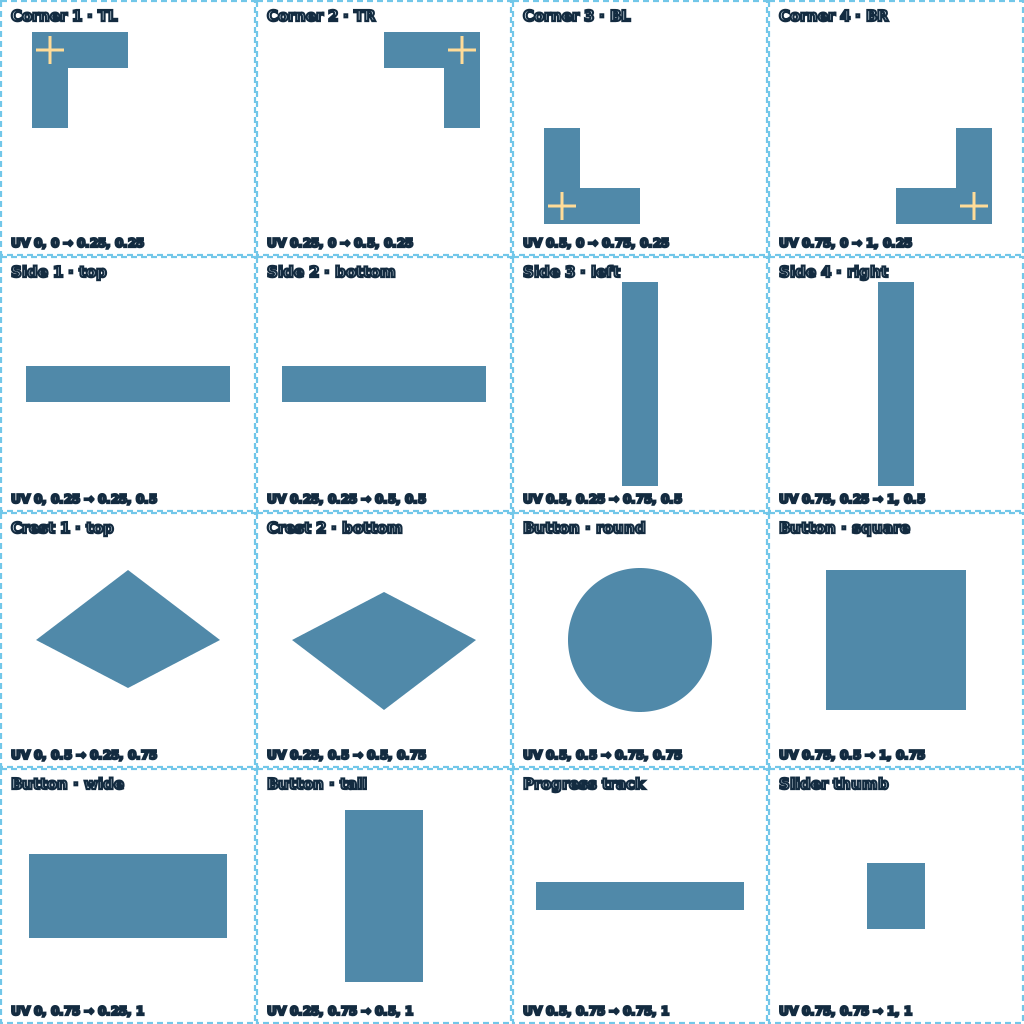
- 四隅、四辺、必要な装飾、ボタン、トラック、つまみを描きます。周囲に透明な余白を残し、ガイドを非表示にして RGBA PNG に書き出します。
- Frame に部品を割り当てます。アトラスではピクセル座標を画像の幅と高さで割り、UV Min と UV Max に入力します。
- Corner Anchors、Corner Arm Widths、Side Profiles で継ぎ目を合わせます。Corner Offsets は角サイズに対する割合です。負の値は左または上です。Join Overlap で辺を角の下に伸ばします。
- ボタンは元の色、全体の色替え、部分的な色替えを選べます。色マスクの白が変更箇所です。横長、正方形、縦長と小型の音声プレイヤーを確認します。
字幕を追加
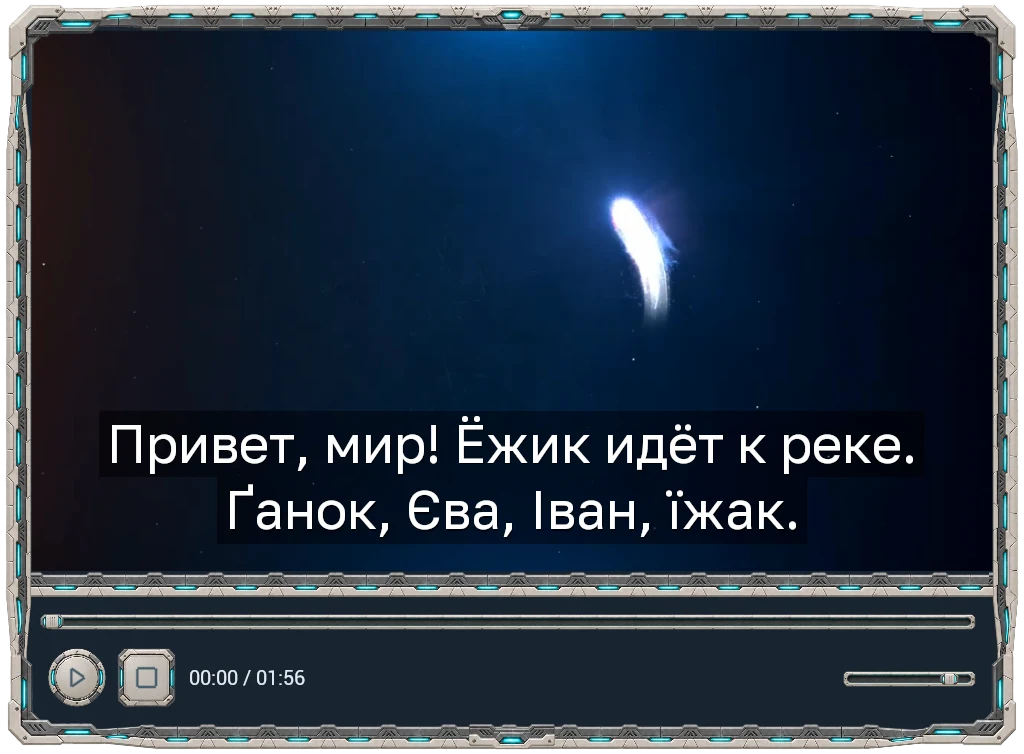
- SRT、VTT、ASS、SSA、TTML、DFXP、SBV を取り込み、文と時間を確認します。
- 動画プレイヤーで字幕を有効にし、トラックと言語を選びます。
- 必要な文字を含むフォントを選びます。キリル文字には Golos Text が使えます。時間のずれを調整して保存します。
動画エフェクト
- Video Effects で動画とプリセットを選び、再生中に元の映像と比較します。
- 強さや色などを調整します。透過を保つには Preserve Alpha を使います。
- エフェクトを保存し、Blueprint で再生セッションにつないで出力テクスチャをマテリアルに使います。


カメラ映像をテクスチャに出力
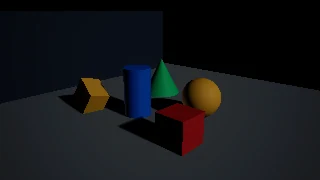
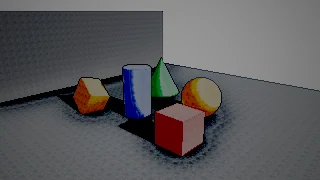
- Camera でシーンのカメラを選び、映り方を確認します。
- サイズ、更新頻度、必要なエフェクトを設定して保存します。
- Media Work Camera Texture にカメラと設定を割り当て、Get Output Texture または Apply to Material を使います。
出力品質の調整
- 直接出力は元のフレームを使います。サイズ、フィルター、アルファを変えるには処理を有効にします。プレイヤー全体には別の設定があります。
- 拡縮時にスムージングを使えます。ピクセルアートではオフにします。16 ビットは滑らかなフェードに、8 ビットはメモリ節約に向きます。
- 動画、プレイヤー、カメラの更新頻度を個別に調整し、実際の画面で確認します。
Windows ゲームをパッケージ化
- 使用するメディア、マテリアル、スタイル、プレイヤーを保存します。ゲーム中に読み込むアセットが含まれることを確認します。
- Windows 64 ビット向けにパッケージ化して単独で起動します。映像、音声、シーク、透過、ボタンを確認します。
- エディターでしか再生できない場合は、元アセットと依存ファイルがパッケージにあるか確認します。
Blueprint ノードリファレンス
クラスとノードを開くと、用途とピンを Unreal の画像で確認できます。上のマテリアルグラフに RGB と Opacity の接続があります。
ノード名、ピン、ツールチップは Unreal の英語 UI の表記です。
一致するノードがありません
MWCameraCaptureComponent · 13
Apply to Material
Connects the live picture to a texture parameter. The connection follows changes in output size.
MWCameraCaptureComponent.ApplyToMaterial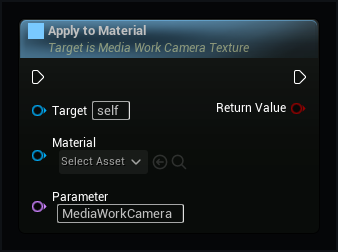
Close Camera
Stops capture and releases this camera's picture buffers and material connections.
MWCameraCaptureComponent.CloseCamera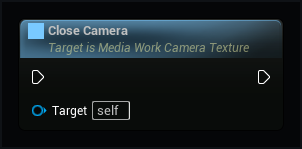
Set camera texture settings
Creates a live camera texture with the saved size, update rate and effect.
MWCameraCaptureComponent.Configure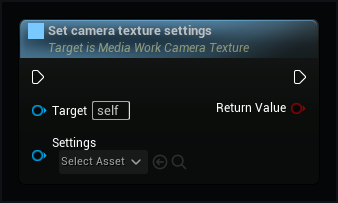
Update camera texture
Draws one new frame. Use this when automatic updates are paused.
MWCameraCaptureComponent.DrawFrame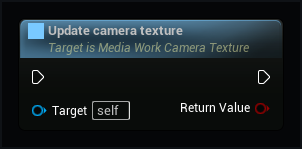
Get Output Texture
Returns the finished live texture, or no texture while the camera is unavailable.
MWCameraCaptureComponent.GetOutputTexture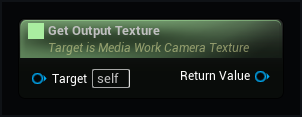
Choose source camera
Follows this camera. Leave empty to follow the player's camera during the game.
MWCameraCaptureComponent.SetCamera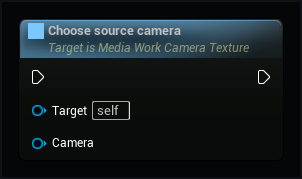
Set Effect
Chooses a scene effect without opening a second camera. An empty choice restores the camera picture.
MWCameraCaptureComponent.SetEffect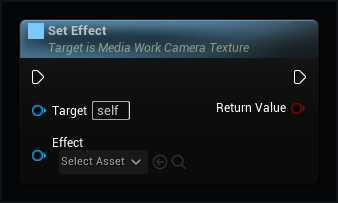
Set Effect Color
Changes a named color or pattern placement in an effect part. Other cameras keep their own settings.
MWCameraCaptureComponent.SetEffectColor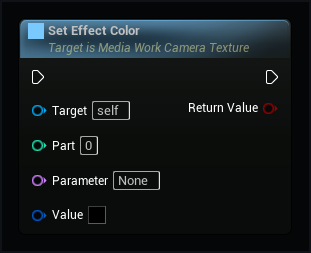
Set Effect Strength
Sets how strongly the selected effect changes the picture, from zero to one.
MWCameraCaptureComponent.SetEffectStrength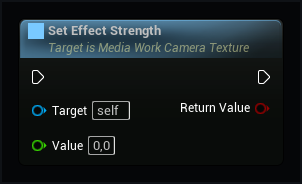
Set Effect Value
Changes a named value in an effect part. Parts count from zero. Invalid names or values return false.
MWCameraCaptureComponent.SetEffectValue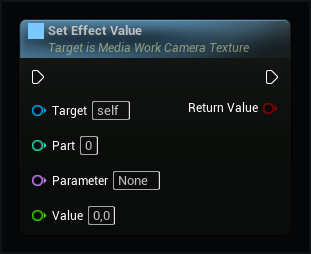
Set Output Size
Changes the exact output size. Unsupported sizes are rejected, without silently choosing a smaller picture.
MWCameraCaptureComponent.SetOutputSize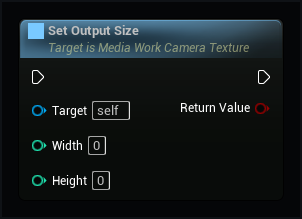
Pause camera updates
Keeps the last frame without rendering the scene again until updates resume.
MWCameraCaptureComponent.SetPaused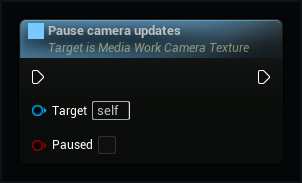
Set Update Rate
Sets automatic updates per second, from 1 to 120. Pausing still keeps the last frame.
MWCameraCaptureComponent.SetUpdateRate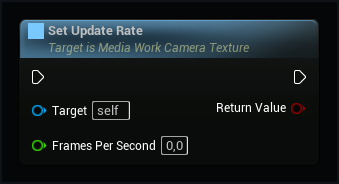
MWEffectPlayer · 10
Apply to Material
Connects the processed picture and its transparency to a texture parameter. The connection follows changes of effect and output size.
MWEffectPlayer.ApplyToMaterial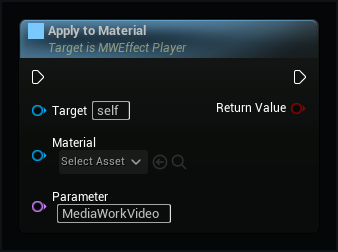
Close
Releases this effect's picture buffers and material connections. The shared player and its sound continue playing.
MWEffectPlayer.Close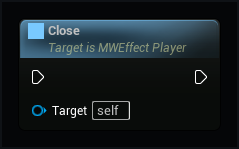
Get Player Id
The ID of the shared player used by this effect.
MWEffectPlayer.GetPlayerId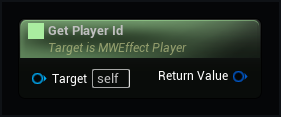
Preserve Alpha
Keeps the original video's transparency. Turn off only when you want a solid rectangular picture.
MWEffectPlayer.PreserveAlpha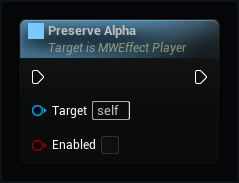
Draw video effect
Processes the current video frame and returns the finished texture.
MWEffectPlayer.Render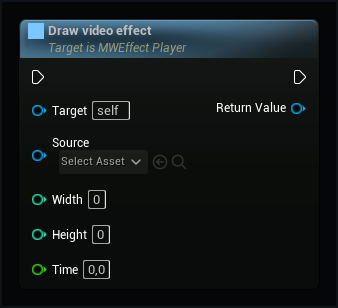
Change effect color
Changes a color in a pass of the selected effect.
MWEffectPlayer.SetColor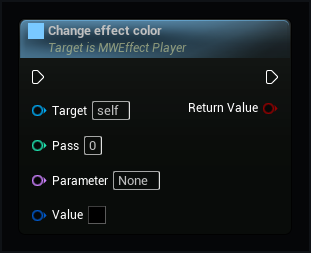
Set video effect
Applies this effect and its saved settings to the video.
MWEffectPlayer.SetEffect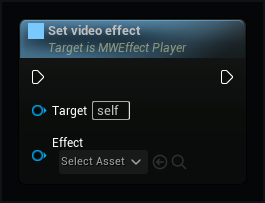
Change effect value
Changes one setting in a pass of the selected effect.
MWEffectPlayer.SetScalar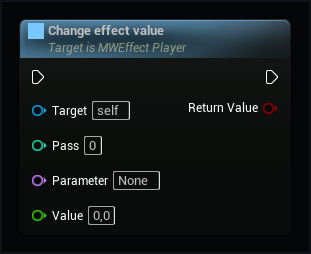
Set Strength
Sets how strongly the effect changes the picture, from zero to one.
MWEffectPlayer.SetStrength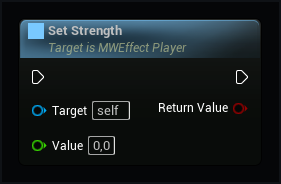
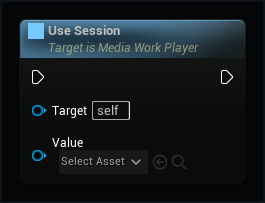
Use Session
Processes this player's live picture using its own playback clock. Sound and controls keep using the same player. An optional texture can supply its masked picture.
MWEffectPlayer.UseSession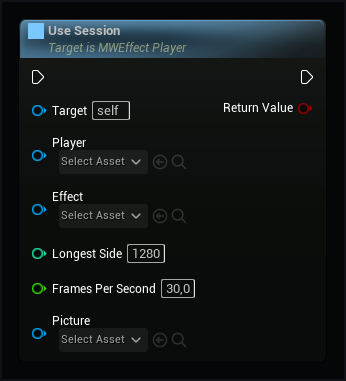
MWMaskedVideoTexture · 10
Apply video to material
Connects this live texture to a texture parameter in a material.
MWMaskedVideoTexture.ApplyToMaterial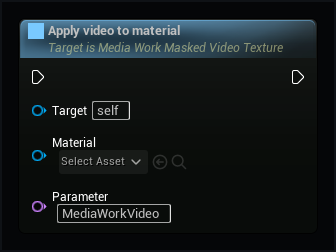
Close player surface
Stops drawing this texture.
MWMaskedVideoTexture.CloseVideo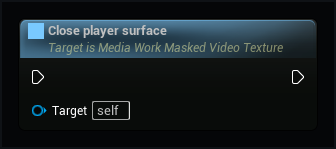
Update masked video
Draw the current video frame and its edge fade into this texture.
MWMaskedVideoTexture.DrawFrame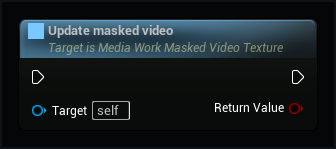
Player ID
This session has its own unique ID. Use it to address only this player.
MWMaskedVideoTexture.GetPlayerId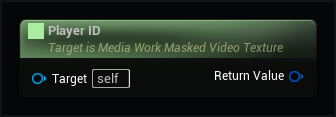
Change edge fade
Apply a saved mask to this video texture. An empty choice restores the original video transparency.
MWMaskedVideoTexture.SetMask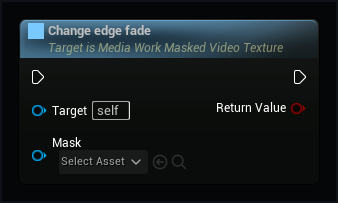
Use edge fade
Switch the chosen mask on or off. The original video alpha is preserved.
MWMaskedVideoTexture.SetMaskEnabled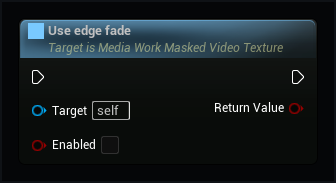
Reveal the faint edge
Zero preserves the painted fade. Higher values reveal more of its faint outer edge without cutting off the gradient.
MWMaskedVideoTexture.SetMaskSoftness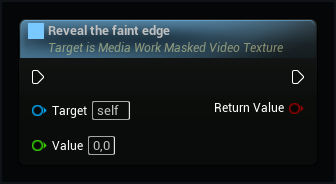
Set picture framing
Moves or scales the picture inside the video texture.
MWMaskedVideoTexture.SetVideoFraming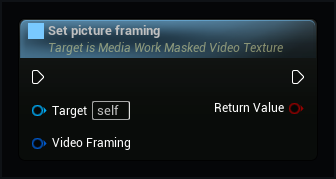
Start video texture
Starts live video directly in this texture.
MWMaskedVideoTexture.Start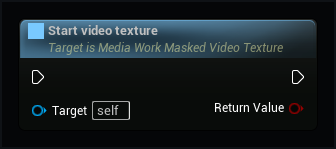
Use existing session
Shows video from an existing playback session.
MWMaskedVideoTexture.UseSession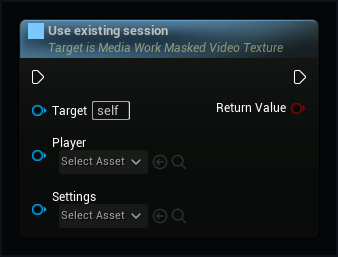
MWMediaController · 12
Close source
Closes this player’s source and sound. Its ID and texture remain available for reopening.
MWMediaController.Close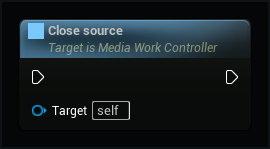
Finished video texture
Connect this texture to your material. It includes the chosen edge fade.
MWMediaController.GetOutputTexture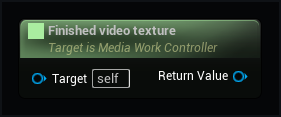
Player ID
This session has its own unique ID. Use it to address only this player.
MWMediaController.GetPlayerId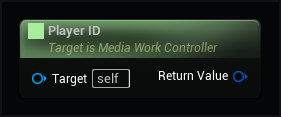
Open media
Opens a saved media asset and connects its sound to this game world.
MWMediaController.OpenMedia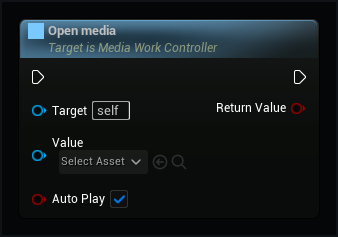
Pause
Pauses playback and keeps its position.
MWMediaController.Pause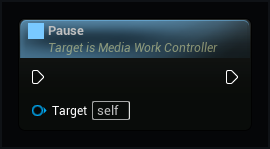
Play
Starts or resumes the current track.
MWMediaController.Play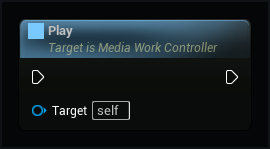
Seek
Moves to a time in seconds. Returns false when the source cannot seek.
MWMediaController.Seek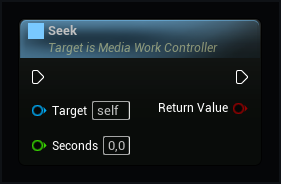
Set picture framing
Resizes and moves only this controller’s video inside its fixed output. After the first change, get Output Texture again and assign it to your material or UI: framing may create a processed output. The sound and session stay the same.
MWMediaController.SetVideoFraming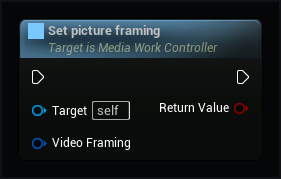
Change edge fade
Apply a saved mask to this video texture. An empty choice restores the original video transparency.
MWMediaController.SetVideoMask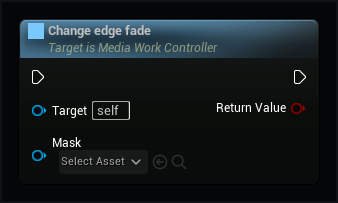
Set volume
Sets this player's volume from 0 for silent to 1 for full volume.
MWMediaController.SetVolume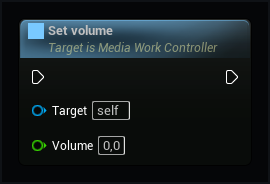
Stop
Stops playback and returns to the beginning. The source stays selected.
MWMediaController.StopPlayback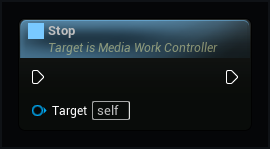
Play or pause
Pauses a playing track or resumes a paused track.
MWMediaController.TogglePlayback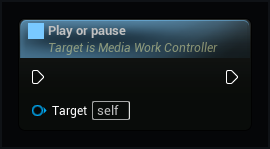
MWMediaSession · 33
Can seek
Reports whether the source can jump to a chosen time.
MWMediaSession.CanSeek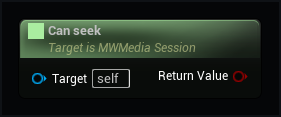
Change track
Use 1 for the next track, -1 for the previous track and 0 to restart the current track.
MWMediaSession.ChangeTrack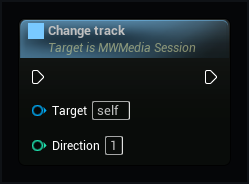
Close source
Stops playback and releases the decoder and sound. Reopen Source can open it again.
MWMediaSession.Close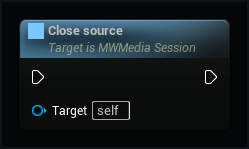
Find player by ID
Finds only the matching player in this game world. An unknown ID returns no player. Connect the result to Play, Pause or another command.
MWMediaSession.FindPlayerById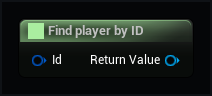
Source duration
Returns the length in seconds, or zero while it is unknown.
MWMediaSession.GetDuration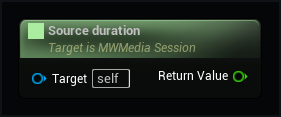
Get six-band gains
Six bands from bass to treble. Zero keeps the original sound; positive values boost and negative values reduce the band. Each track keeps the chosen settings. A band can only affect frequencies present in the recording.
MWMediaSession.GetEqualizer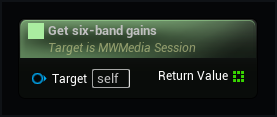
Does playlist repeat
Tells you whether the playlist starts over.
MWMediaSession.GetPlaylistRepeat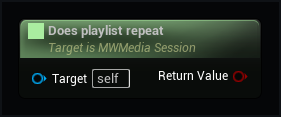
Is shuffled
Tells you whether the playlist plays in shuffled order.
MWMediaSession.GetPlaylistShuffle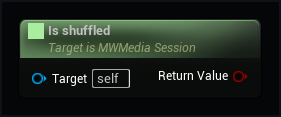
Playback position
Returns the current time in seconds for a clock or progress bar.
MWMediaSession.GetPosition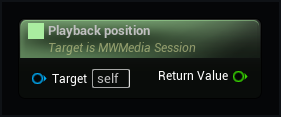
Get current subtitle lines
Returns the lines at this player’s real playback time. Use them in your own UI. Hidden, stopped or invalid subtitles return empty text.
MWMediaSession.GetSubtitleText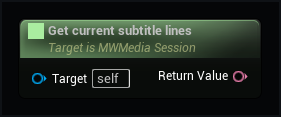
Track count
The number of tracks in this playlist.
MWMediaSession.GetTrackCount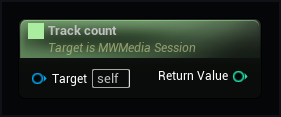
Playlist track index
Returns the selected row from zero, or -1 for a single source.
MWMediaSession.GetTrackIndex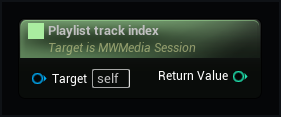
Track name
The name of a playlist row. Use -1 for the current track.
MWMediaSession.GetTrackTitle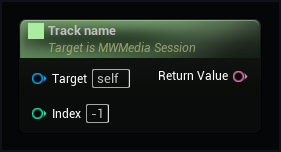
Get volume
Returns this player's loudness from 0 to 1.
MWMediaSession.GetVolume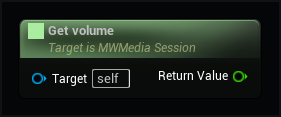
Reopen source
Reopens the selected source after closing it or after an error.
MWMediaSession.Open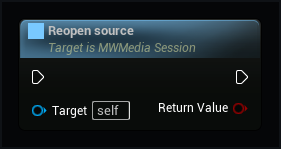
Open media
Opens a saved media asset and connects its sound to this game world.
MWMediaSession.OpenMedia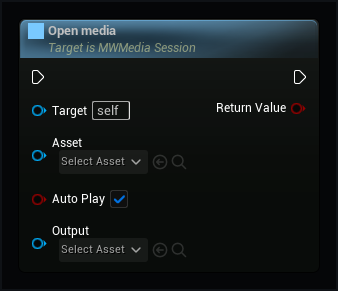
Open playlist
Starts a saved playlist. Replace any missing tracks before playing.
MWMediaSession.OpenPlaylist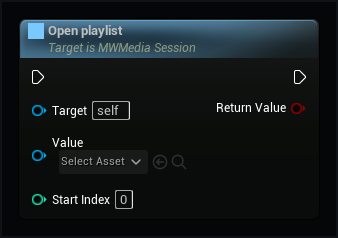
Pause
Pauses playback and keeps its position.
MWMediaSession.Pause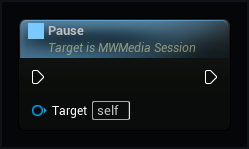
Play
Starts or resumes the current track.
MWMediaSession.Play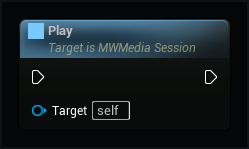
Reset equalizer
Returns all six gains to zero without restarting the track or changing its volume.
MWMediaSession.ResetEqualizer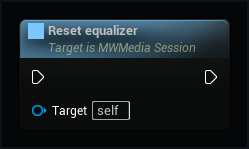
Seek
Moves to a time in seconds. Returns false when the source cannot seek.
MWMediaSession.Seek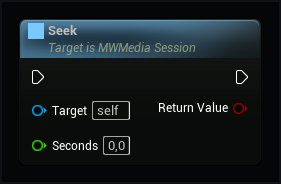
Play playlist row
Plays the chosen playlist row. The first row is zero.
MWMediaSession.SelectTrack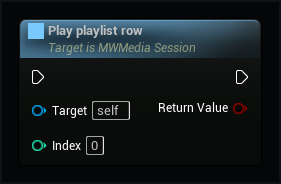
Set equalizer
Sets 60, 150, 400, 1000, 2500 and 8000 Hz from -12 to +12 dB. Missing band values become zero.
MWMediaSession.SetEqualizer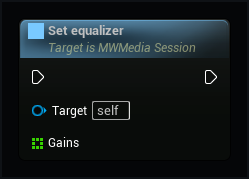
Set one equalizer band
Changes one gain from -12 to +12 dB. Band zero is 60 Hz, then 150, 400, 1000, 2500 and 8000 Hz. Other bands stay as they are. Returns false for an invalid band or value.
MWMediaSession.SetEqualizerBand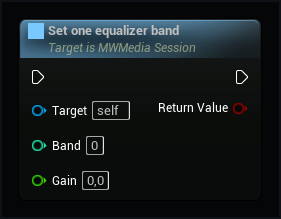
Set repeat
Repeats the current source at its end. Playlists have their own repeat setting.
MWMediaSession.SetLooping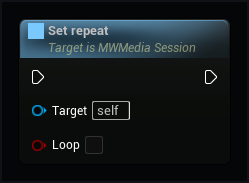
Set playlist repeat
Starts a new pass after the last track. Turn off to stop when this pass ends.
MWMediaSession.SetPlaylistRepeat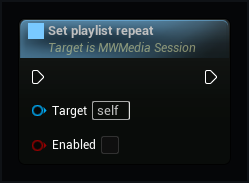
Set shuffled order
Changes the order of upcoming tracks. Each track plays once per pass, and the selected track starts first. Previous returns through the tracks you have heard.
MWMediaSession.SetPlaylistShuffle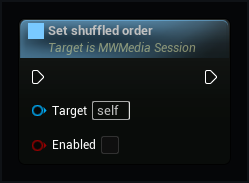
Set subtitle language
Choose a language found in this file. The default uses the language saved in the source.
MWMediaSession.SetSubtitleLanguage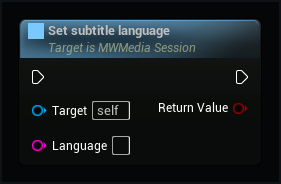
Set subtitle visibility
Shows or hides captions in views sharing this session. Video, sound and position keep playing as before.
MWMediaSession.SetSubtitlesEnabled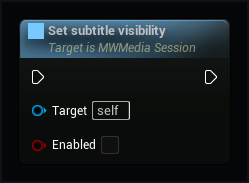
Set subtitle track
Choose imported subtitles from Content. Players can share this file and keep their own appearance.
MWMediaSession.SetSubtitleTrack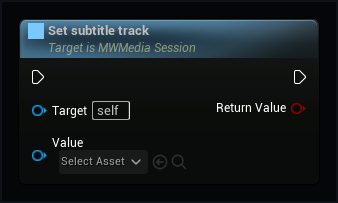
Set volume
Sets this player's volume from 0 for silent to 1 for full volume.
MWMediaSession.SetVolume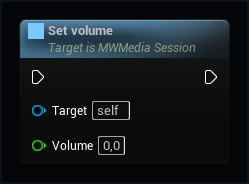
Stop
Stops playback and returns to the beginning. The source stays selected.
MWMediaSession.StopPlayback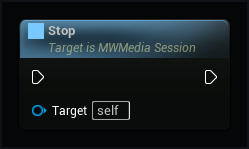
Play or pause
Pauses a playing track or resumes a paused track.
MWMediaSession.TogglePlayback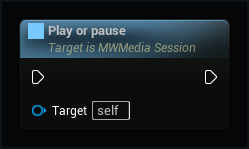
MWSubtitleAsset · 5
Get saved subtitle language
Returns the subtitle language used by default.
MWSubtitleAsset.GetDefaultLanguage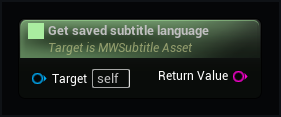
Get subtitle languages
Lists the subtitle languages in this asset.
MWSubtitleAsset.GetLanguages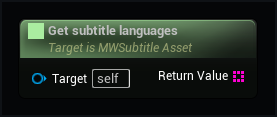
Get subtitle lines at time
Returns the lines at the given time, with the saved offset and language.
MWSubtitleAsset.GetTextAtTime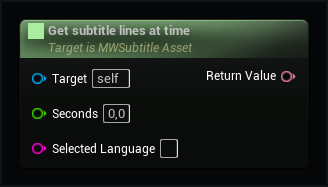
Read subtitle file
Imports text and timing. Set the font and appearance here. ASS drawings, animation and karaoke need an ordinary timed-text export first.
MWSubtitleAsset.ImportFile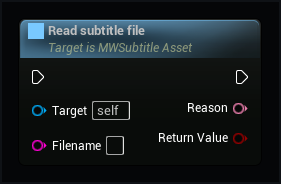
Check subtitles and font
Checks timing, appearance, language and letters. If something cannot be used, returns false and explains why.
MWSubtitleAsset.Validate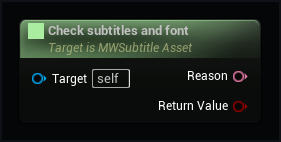
MWSubtitleFontAsset · 1
Check font letters
Checks every letter against this font. Returns false and names the first missing character; it does not substitute another font.
MWSubtitleFontAsset.SupportsText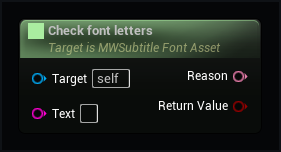
MWVideoTexture · 3
Apply video to material
Connects this live texture to a texture parameter in a material.
MWVideoTexture.ApplyToMaterial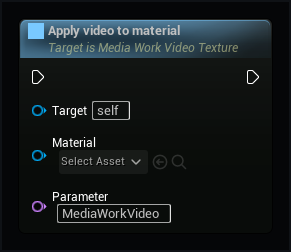
Close video texture
Stops the video and releases its playback resources.
MWVideoTexture.CloseVideo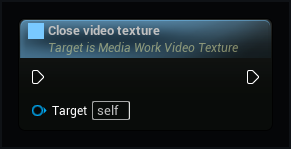
Start video texture
Starts live video directly in this texture.
MWVideoTexture.Start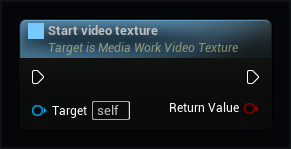
MWMediaControlsWidget · 5
Bind Player Id
Connects only to the player with this ID in this world. An unknown ID disconnects the panel and returns false.
MWMediaControlsWidget.BindPlayerId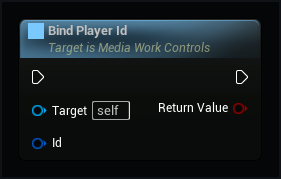
Set Button Styles
Replaces the play and secondary button artwork for this panel only. Choose a theme first.
MWMediaControlsWidget.SetButtonStyles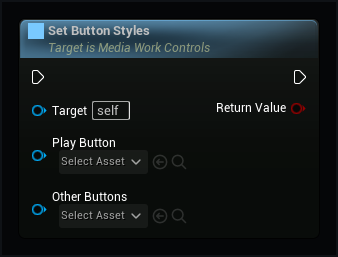
Set Preset
Changes how many controls this panel shows without restarting playback.
MWMediaControlsWidget.SetPreset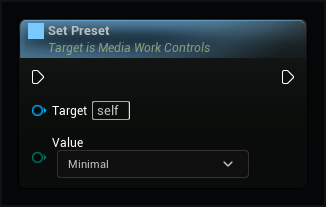
Set Style
Changes this panel's theme without changing another panel or restarting playback.
MWMediaControlsWidget.SetStyle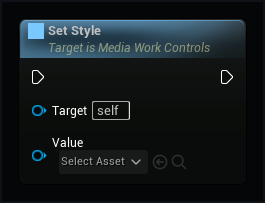
Use Session
Connects this panel to an existing player's picture and sound. It does not open another player.
MWMediaControlsWidget.UseSession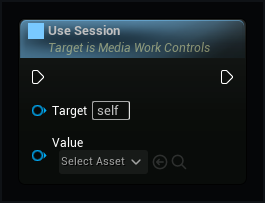
MWPlayerInteractionComponent · 11
Begin Interaction
Enters control mode if the character is within range.
MWPlayerInteractionComponent.BeginInteraction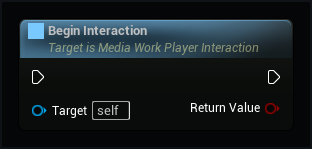
Can Control
Whether this input controller can currently operate the selected player.
MWPlayerInteractionComponent.CanControl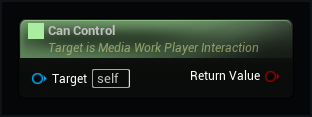
End Interaction
Leaves control mode and cancels held buttons or an unfinished seek.
MWPlayerInteractionComponent.EndInteraction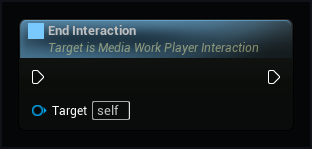
Get Player Id
The ID of the one player selected by this input controller.
MWPlayerInteractionComponent.GetPlayerId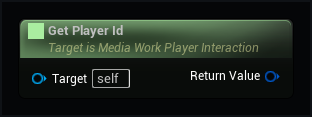
Is in Range
Whether the character is within the configured distance of the selected player.
MWPlayerInteractionComponent.IsInRange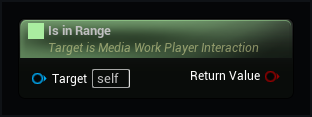
Press Pointer
Presses the selected player's button at the current pointer position, within the allowed distance.
MWPlayerInteractionComponent.PressPointer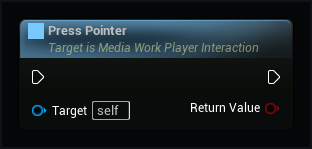
Release Pointer
Releases a held player button or finishes a slider drag. Leaving the interaction zone cancels the action.
MWPlayerInteractionComponent.ReleasePointer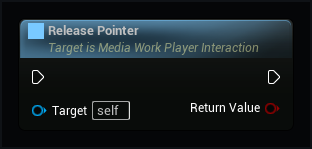
Send Command
Sends a playback command to this player only, while the character is in range and control mode is active.
MWPlayerInteractionComponent.SendCommand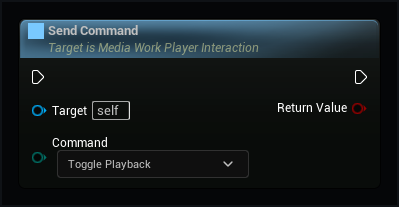
Send Control Key
Sends a navigation or activation key to the selected player's on-screen controls.
MWPlayerInteractionComponent.SendControlKey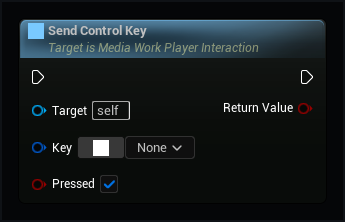
Update Pointer Ray
Traces a world ray to the selected player plane. Other blocking objects stop the ray.
MWPlayerInteractionComponent.UpdatePointerRay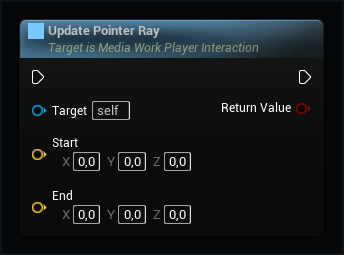
Update Pointer UV
Moves over a player displayed in your own material. Supply its actual UV coordinates; distance is still checked.
MWPlayerInteractionComponent.UpdatePointerUV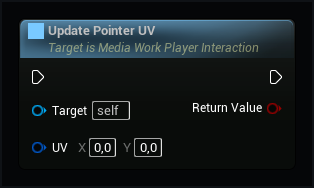
MWPlayerInteractionLibrary · 1
Configure Media Work Player Controls
Selects one player for this controller, chooses cursor or buttons, and sets the required interaction distance. Calling it again changes the selected player.
MWPlayerInteractionLibrary.ConfigurePlayerControls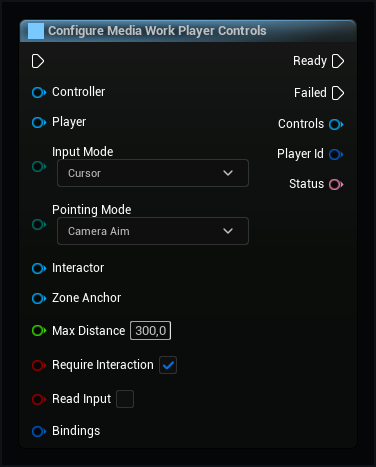
MWPlayerOutput · 8
Close
Closes this output and releases its screen, plane, texture and playback session.
MWPlayerOutput.Close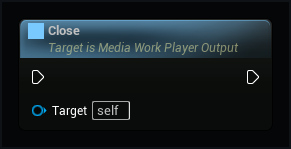
Get Output Texture
Returns the complete live player texture for texture and plane outputs.
MWPlayerOutput.GetOutputTexture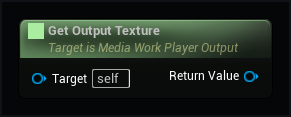
Get Plane
Returns the plane created for a saved plane output.
MWPlayerOutput.GetPlane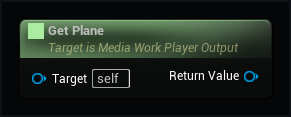
Get Player Id
Returns the ID used to control only this player.
MWPlayerOutput.GetPlayerId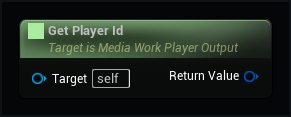
Get Screen Player
Returns the screen widget when the saved output is the game screen.
MWPlayerOutput.GetScreenPlayer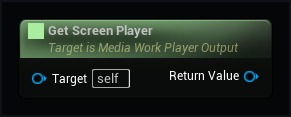
Get Session
Returns this output's playback session, shared by its picture, sound and controls.
MWPlayerOutput.GetSession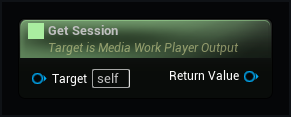
Get Status
Shows opening progress or the reason why this output could not play.
MWPlayerOutput.GetStatus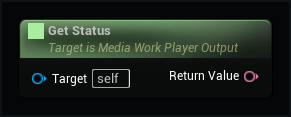
Get Surface
Returns the surface component used to send pointer and key input to a player texture or plane.
MWPlayerOutput.GetSurface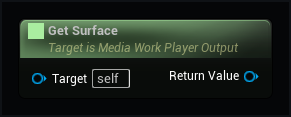
MWPlayerOutputLibrary · 1
Open Saved Player
Opens the saved player on the game screen, on a plane or as a complete texture, according to its output setting. Keep the returned object to control and close this player.
MWPlayerOutputLibrary.OpenSavedPlayer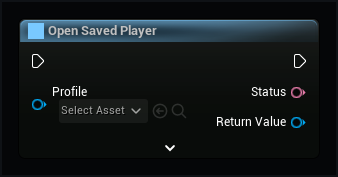
MWPlayerPlane · 5
Open Player
Opens a saved player on this plane with its picture, frame, buttons and sound.
MWPlayerPlane.OpenPlayer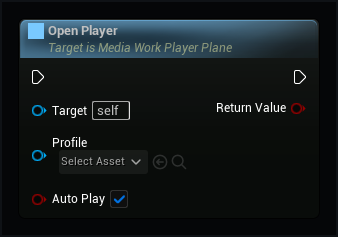
Player UVTo World
Converts texture UV coordinates into a world point on this plane.
MWPlayerPlane.PlayerUVToWorld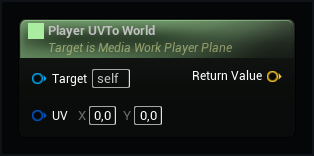
Ray to Player UV
Finds where a ray meets this plane, including beyond its edges for a held slider.
MWPlayerPlane.RayToPlayerUV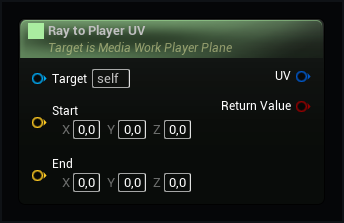
Set Plane Width
Changes plane width while preserving the displayed player's proportions.
MWPlayerPlane.SetPlaneWidth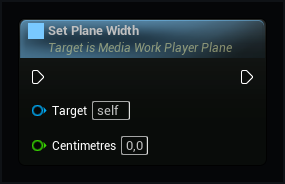
World to Player UV
Converts a point on this plane to texture UV coordinates. Points beyond its edges also return their coordinates.
MWPlayerPlane.WorldToPlayerUV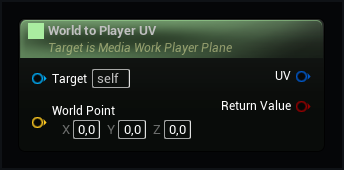
MWPlayerRenderTexture · 1
Apply to Material
Connects the complete player picture, frame and buttons to a material texture parameter.
MWPlayerRenderTexture.ApplyToMaterial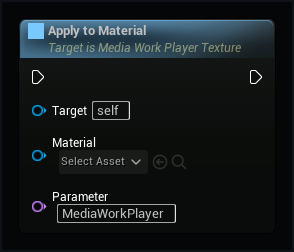
MWPlayerSurfaceComponent · 20
Bind Player Id
Connects to this player's ID in the same world. An unknown ID disconnects this surface.
MWPlayerSurfaceComponent.BindPlayerId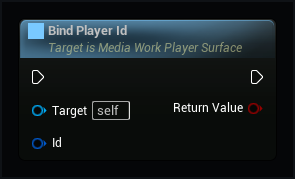
Cancel Pointer
Cancels a held button or an unfinished seek without applying it. Use this when the pointer loses control.
MWPlayerSurfaceComponent.CancelPointer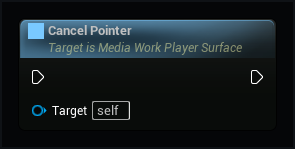
Close
Stops drawing and releases the surface. A session opened by this surface is also closed.
MWPlayerSurfaceComponent.Close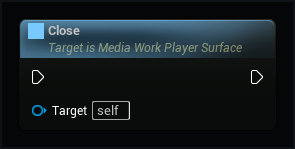
Get Output Size
The actual width and height of the complete player texture.
MWPlayerSurfaceComponent.GetOutputSize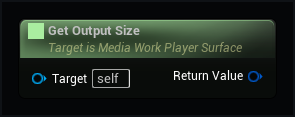
Get Player Id
The ID of the player used by this surface and its buttons.
MWPlayerSurfaceComponent.GetPlayerId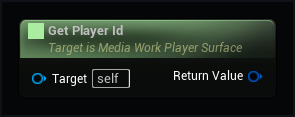
Move Pointer
Moves the pointer over the texture. UV starts at 0,0 in the top-left and ends at 1,1 in the bottom-right.
MWPlayerSurfaceComponent.MovePointer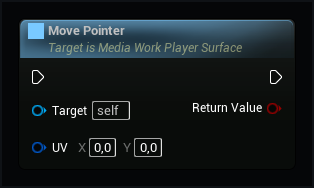
Open Player
Opens a saved player and draws its video, frame and controls into one live texture.
MWPlayerSurfaceComponent.OpenPlayer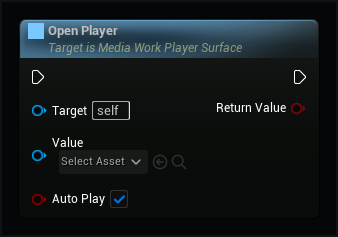
Pointer Down
Presses the primary button at these texture coordinates. Pair it with Pointer Up, including after a drag.
MWPlayerSurfaceComponent.PointerDown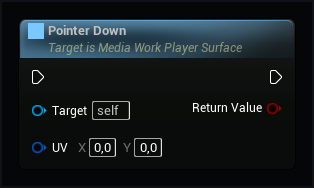
Pointer Up
Releases the primary button. A slider drag may finish outside the texture; a button released outside is cancelled.
MWPlayerSurfaceComponent.PointerUp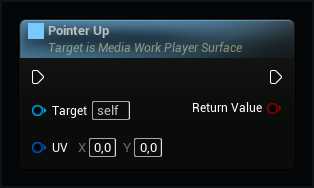
Redraw
Draws a new player frame now. Normally the component updates it automatically.
MWPlayerSurfaceComponent.Redraw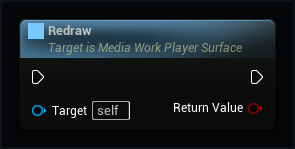
Send Control Key
Sends a keyboard or gamepad key to this player's controls only.
MWPlayerSurfaceComponent.SendControlKey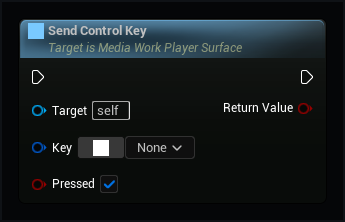
Set High Precision Output
Chooses smoother 16-bit output or smaller 8-bit output without restarting the video.
MWPlayerSurfaceComponent.SetHighPrecisionOutput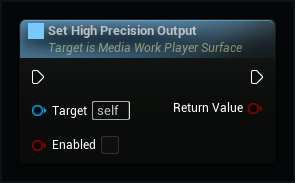
Set Output Quality
Sets the longest texture side in pixels and the redraw rate. Zero frames per second updates every game frame.
MWPlayerSurfaceComponent.SetOutputQuality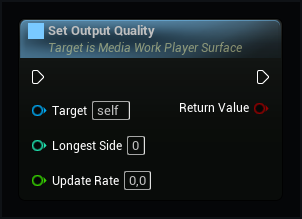
Set Player Title
Sets optional text above this player's video. Empty text removes the heading and its space.
MWPlayerSurfaceComponent.SetPlayerTitle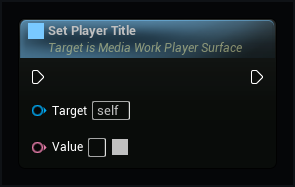
Set Show Controls
Shows or hides the controls in this texture without changing playback.
MWPlayerSurfaceComponent.SetShowControls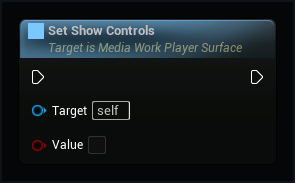
Set Show Subtitles
Shows or hides subtitles in the player texture without changing playback.
MWPlayerSurfaceComponent.SetShowSubtitles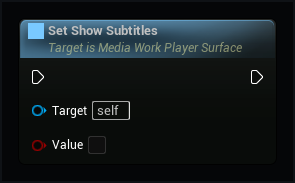
Set Style
Changes this surface's frame and buttons without restarting the video.
MWPlayerSurfaceComponent.SetStyle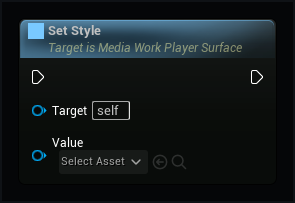
Set Video Aspect Ratio
Sets a picture width divided by height. Zero restores automatic video proportions.
MWPlayerSurfaceComponent.SetVideoAspectRatio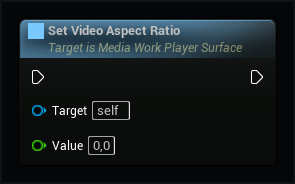
Set Video Framing
Changes the picture size and position inside this surface. The frame and its buttons stay in place.
MWPlayerSurfaceComponent.SetVideoFraming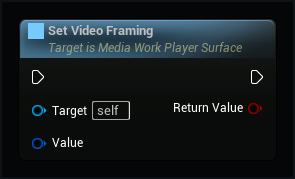
Use Session
Draws and controls an existing session. Closing this surface will leave that session running.
MWPlayerSurfaceComponent.UseSession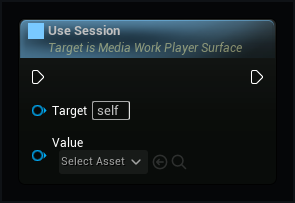
MWPlayerWidget · 9
Close Player
Closes only the playback session created by this widget.
MWPlayerWidget.ClosePlayer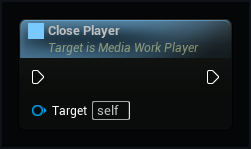
Open Media
Opens a media asset and connects its sound to this widget's game world.
MWPlayerWidget.OpenMedia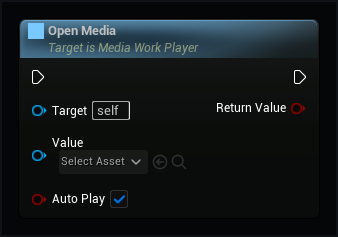
Open Playlist
Opens an audio playlist with its saved title, list and theme settings.
MWPlayerWidget.OpenPlaylist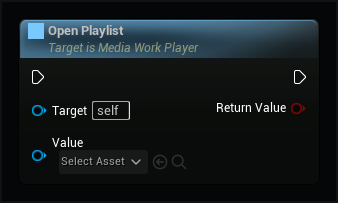
Set Audio Style
Changes the audio theme without restarting playback or changing the video theme.
MWPlayerWidget.SetAudioStyle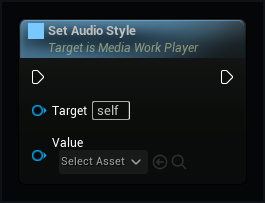
Set Display Title
Sets optional text above the video. Empty text removes the heading and its space.
MWPlayerWidget.SetDisplayTitle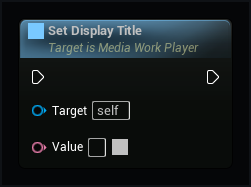
Set Player Style
Changes the video theme without restarting playback or changing the audio theme.
MWPlayerWidget.SetPlayerStyle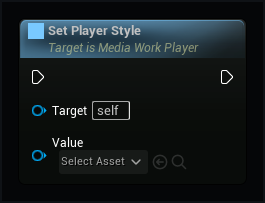
Set Show Subtitles
Shows or hides subtitles in this widget immediately, without changing other views of the same session.
MWPlayerWidget.SetShowSubtitles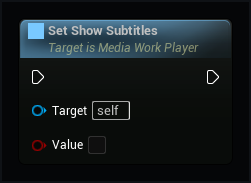
Set Video Framing
Changes the picture inside this frame without moving the buttons or restarting playback.
MWPlayerWidget.SetVideoFraming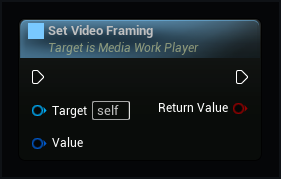
Use Session
Connects an existing session. Closing the widget will not close a session owned elsewhere.
MWPlayerWidget.UseSession