Install from Fab
Add Media Work All In One to your Fab Library using the same Epic account as the Epic Games Launcher. It supports Unreal Engine 5.3–5.8 on Windows 64-bit.
- Close Unreal Editor. In Epic Games Launcher open Unreal Engine > Library > Fab Library. Find Media Work All In One and choose Install to Engine for your project's version.
- Open your project. Enable Media Work All In One in Edit > Plugins and restart if asked.
- Open Tools > Pautinka > Media Work. Pick an included demo under Video player and press Play to check the picture and sound.
Import, replace and save files
Use From Content Browser for an existing asset or From disk to bring a local file into the project. For a shipped game, import the source and keep it in the project with the saved player or texture.
- Import local MP3 audio, or supported MP4 and MOV video. For a straightforward MP4 export, use H.264 video and AAC audio.
- Select the source in the tab for the result you need. Preview it, make your changes and choose Save asset.
- When you have an updated file, right-click the source asset in the Content Browser and choose Reimport. Check the new picture and sound using the same saved player.
The extension tells you the container. If a clip fails, check its video and audio encoding. Use a supported local file and preview it before building.
Put live video and sound in a material
The material displays the moving picture. Media Work plays the audio track from the same playback session, so play, pause and seeking keep picture and sound together.
- Open Video to texture. Choose a clip, preview it and save the texture asset.
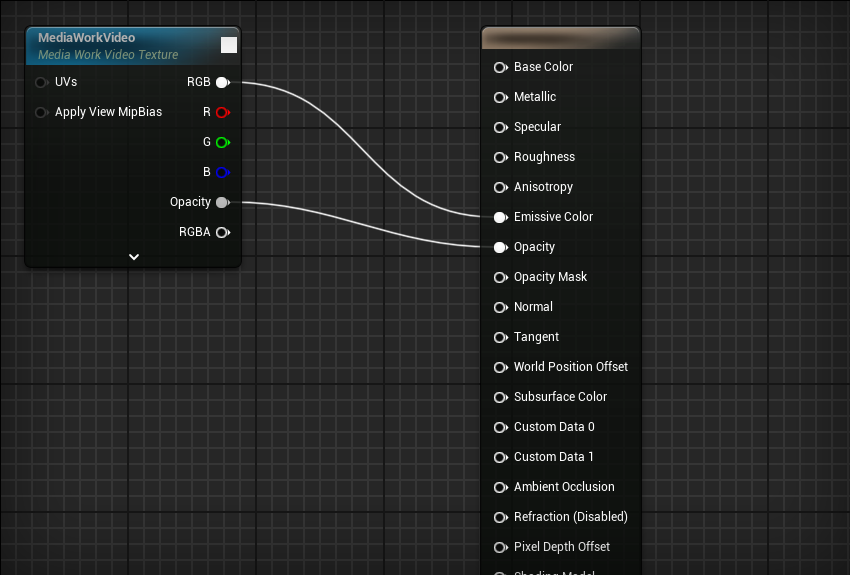
- In the Material Editor add Media Work Video Texture. For a self-lit screen, set Shading Model to Unlit and connect RGB to Emissive Color.
- Create a material instance. Set MediaWorkVideo to your saved video texture, then apply the instance to the mesh.
- For manual playback, call Start on the video texture in Blueprint. Use the session or controller for play, pause, stop, seek and volume. To put the same live picture in a widget, use a UI material with the texture.
Transparent MOV and edge masks
- Choose a MOV with an alpha channel. A ProRes 4444 export with alpha enabled is a tested starting point. Preview the clip over a contrasting surface.
- In a Translucent material connect RGB for the picture and Opacity to the material's Opacity input. An opaque screen only needs RGB.
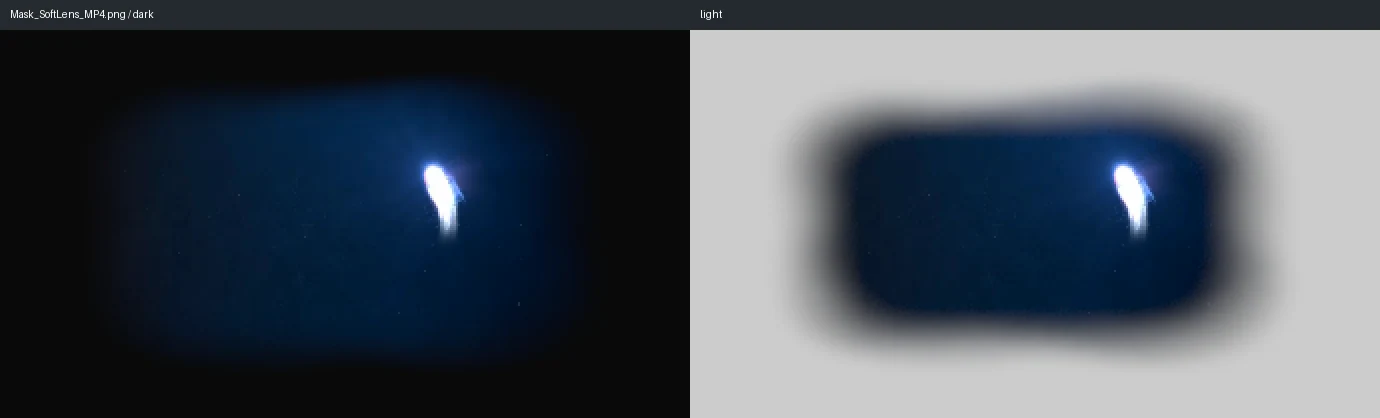
- For a soft edge, pick one of the 50 masks in Video to texture. Use Red for a grayscale image and Alpha for a PNG with a transparent border. White or full alpha keeps the picture. Black or zero alpha hides it.
- Paint your own mask with a solid center and a fade that reaches zero before the outside edge. The mask combines with the clip's own transparency. Edge masks belong to the standalone video texture.

Show a complete video player
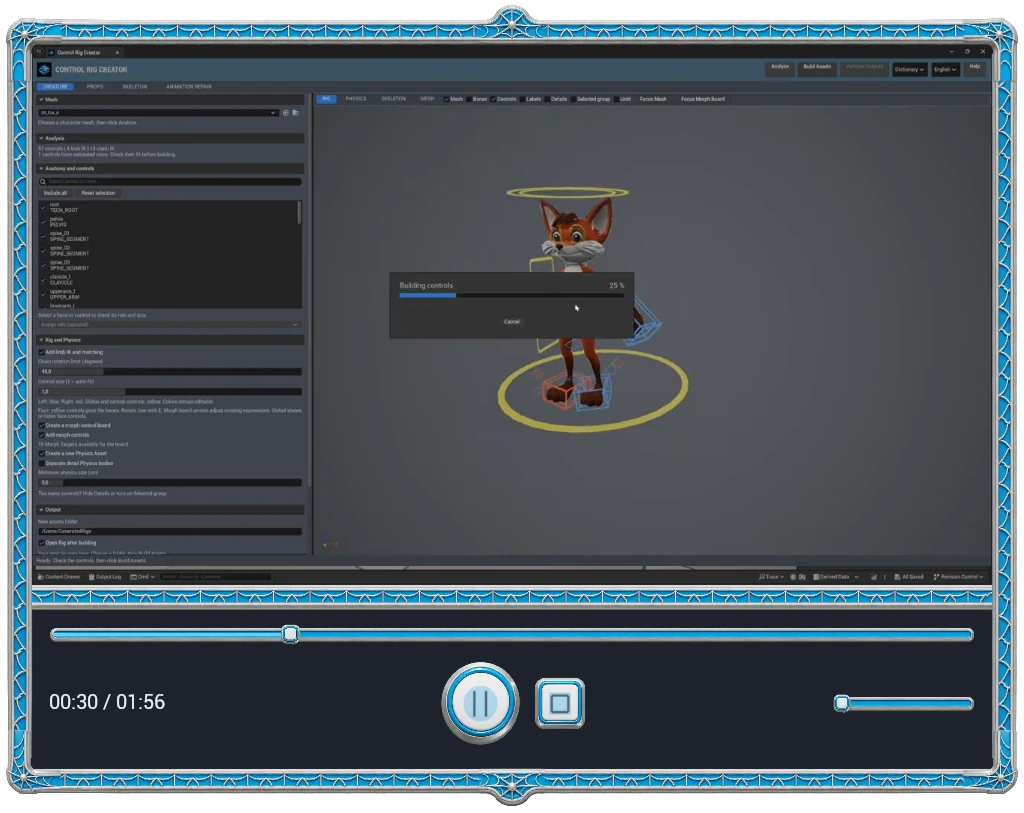
- In Video player choose a clip, style and output. Screen displays the player in the viewport, Plane puts it on a flat surface in the level, and Texture draws the player for a material of your choice.
- Leave aspect ratio on Auto to follow the clip, or set a width-to-height ratio. Adjust the picture's scale and position inside the frame independently. Fill in the title only if you want one.
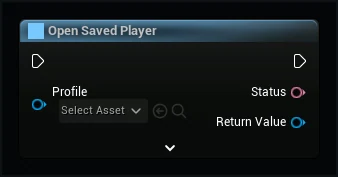
- Save the player and call Open Saved Player in Blueprint. Keep the returned player handle to access its surface, texture and session or to close it.
- For a custom material, set a texture parameter to the output returned by Get Output Texture. Include controls when you want the buttons drawn in the output.
Connect buttons and control one player
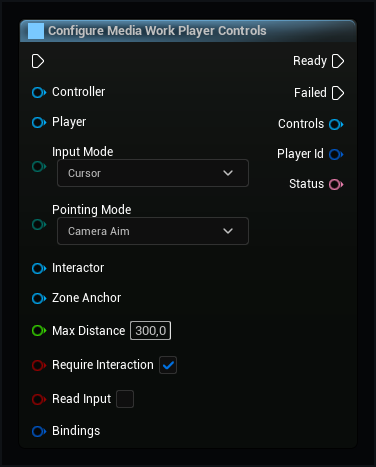
- For a plane or texture, pass the opened player's surface to Configure Media Work Player Controls. Set cursor or button input, choose the character or actor and set the maximum distance.
- A plane can use the pointing ray. For your own mesh material, send the pointer position with Update Pointer UV. Its X and Y run from 0 to 1 across the texture. Forward press and release so buttons and sliders respond.
- To place controls elsewhere in your UI, add Media Work Controls and bind it to the session or the player ID. Pick Minimal, Standard or Full and choose the button art.
- Test two screens. Pause one, then walk out of range while dragging the timeline. The other screen should keep playing and the held control should release when you leave.
Build an audio playlist
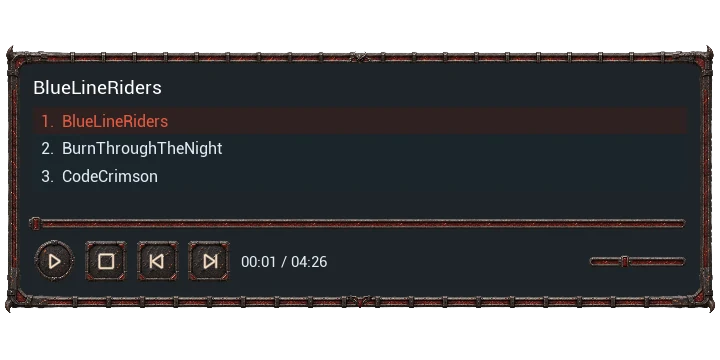
- In Audio player add local MP3 tracks or imported sources. Use the track list or Previous and Next to choose a track.
- Set repeat or shuffle, adjust volume and try the six EQ bands from bass to treble. Reset the EQ to start from a flat sound.
- Choose an audio style. Show or hide the track title and playlist separately, then save the playlist.
- Add Media Work Player to a Widget Blueprint and call Open Playlist on it with the saved asset. Use the session's track commands for your own controls.
Draw your own skin and buttons
- Duplicate a Media Work player style asset and, if needed, its separate button style assets. Keep a working preset open as a reference.
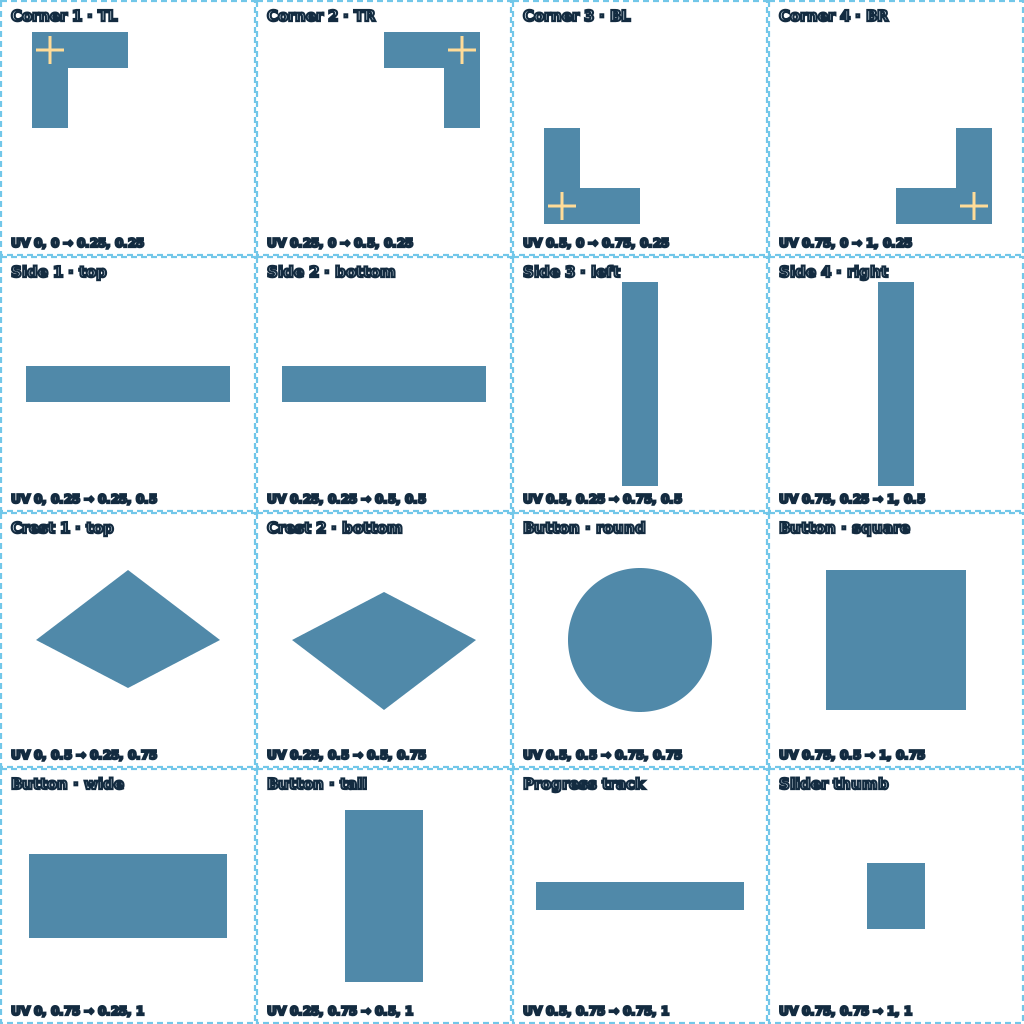
- Use the editable SVG guide in your graphics editor. Draw four corners, four straight edges, optional top and bottom ornaments, button bodies, a progress track and a slider thumb. Keep the area outside each shape transparent and leave room for its full silhouette. Hide the guide before exporting RGBA PNG.
- Import the PNG in Unreal. In Frame, assign the corner and side parts in the marked order. With an atlas, set each part's UV Min and UV Max by dividing its pixel coordinates by the atlas width and height. Assign the two button styles, track and handle separately.
- Fit the joints using Corner Anchors, Corner Arm Widths and Side Profiles. Corner Offsets are percentages of Corner Size. Negative X moves left and negative Y moves up. Extend Join Overlap under the corners if a seam is visible. Keep the visible ornament inside the transparent canvas.
- For button colors, keep the original artwork, tint it all, or recolor a selected area. Use white in the color mask for the part you want to tint. Preview wide, square and tall video plus a compact audio layout on light and dark backgrounds before saving.
Add subtitles
- Import SRT, VTT, ASS, SSA, TTML, DFXP or SBV. Open the subtitle asset to check timing and the text it contains.
- In Video player choose the subtitle track and turn on subtitles. If a track offers languages, pick the one you want.
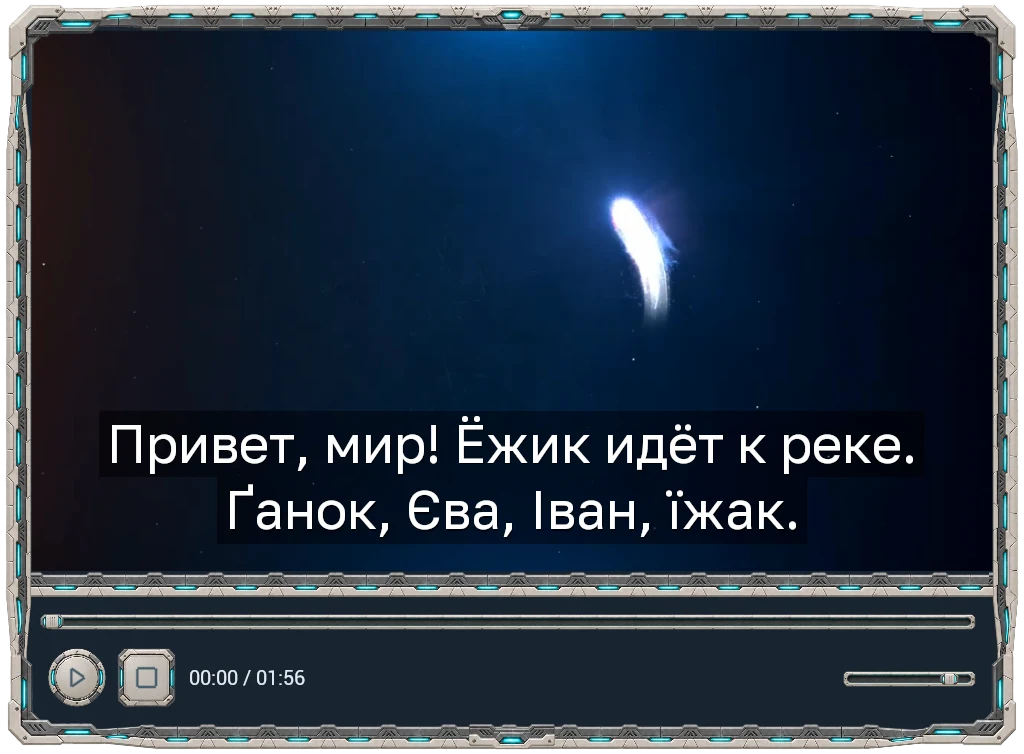
- Choose a font that contains the required characters. For Cyrillic, try the included Golos Text font. Use the timing offset to correct an early or late line, then save the player.
Apply video effects
- Open Video Effects, choose your source and select a preset. Compare it with the original while it plays.
- Adjust the available strength, color or other settings. With a transparent clip, keep Preserve Alpha on if you want the background to remain visible.
- Save the effect. To use it from Blueprint, choose the saved effect, connect it to the playback session and use its output texture in your material.


Send a camera view to a texture
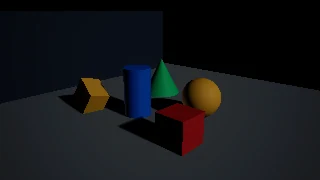
- Open Camera and select a scene camera. Check that its view contains the objects you want to show.
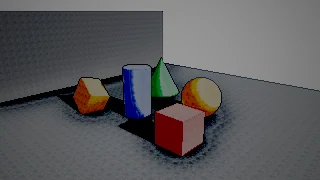
- Choose output size, update rate and an optional effect, then save the setup. A lower update rate can suit a small security monitor.
- Use a Media Work Camera Texture component in your level or Blueprint. Choose the camera and saved settings. Connect Get Output Texture to a texture parameter, or use Apply to Material.
Choose output quality
Direct video output follows the decoded source. Turn on processing to change the output size, filtering or alpha. The complete player has separate texture resolution and redraw controls.
- Pick a size that fits the screen's use in the game. A small monitor often needs fewer pixels than a full-screen player.
- Use smooth filtering when scaling video. Switch it off for sharp pixel art. Choose 16-bit output for smoother fades or 8-bit to reduce texture memory.
- Adjust update rate on the processed texture, full player or camera separately. Check the picture and sound in the intended view after changing it.
Package a Windows game
- Save the media assets, materials, profiles and styles your levels or Blueprints use. Keep project references to assets you load at runtime and check that the cook includes them.
- Package the game for Windows 64-bit. The player runs in the game. The editor tools are used to prepare the saved assets.
- Open the standalone build and check the first frame, sound, seeking, transparency and buttons. If media opens in the editor only, check whether its source and dependencies are included in the packaged game.
Blueprint node reference
Browse the original Unreal captures by class. Expand a node to read its purpose and see the pins. Use the material graph above for the RGB and Opacity connections.
Node names, pins and reference tooltips are shown as they appear in the English Unreal interface.
No matching nodes
MWCameraCaptureComponent · 13
Apply to Material
Connects the live picture to a texture parameter. The connection follows changes in output size.
MWCameraCaptureComponent.ApplyToMaterial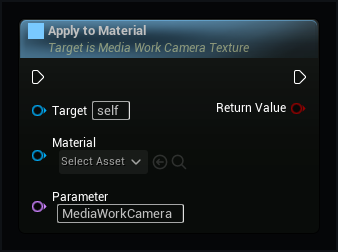
Close Camera
Stops capture and releases this camera's picture buffers and material connections.
MWCameraCaptureComponent.CloseCamera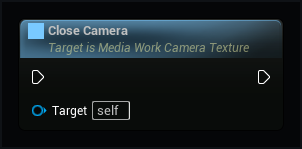
Set camera texture settings
Creates a live camera texture with the saved size, update rate and effect.
MWCameraCaptureComponent.Configure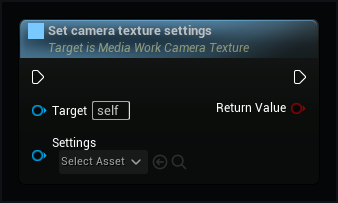
Update camera texture
Draws one new frame. Use this when automatic updates are paused.
MWCameraCaptureComponent.DrawFrame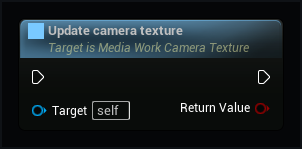
Get Output Texture
Returns the finished live texture, or no texture while the camera is unavailable.
MWCameraCaptureComponent.GetOutputTexture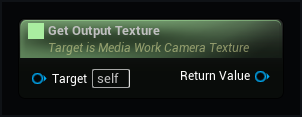
Choose source camera
Follows this camera. Leave empty to follow the player's camera during the game.
MWCameraCaptureComponent.SetCamera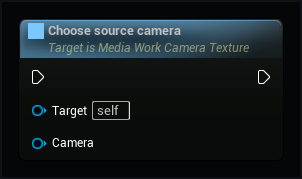
Set Effect
Chooses a scene effect without opening a second camera. An empty choice restores the camera picture.
MWCameraCaptureComponent.SetEffect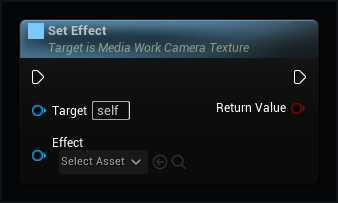
Set Effect Color
Changes a named color or pattern placement in an effect part. Other cameras keep their own settings.
MWCameraCaptureComponent.SetEffectColor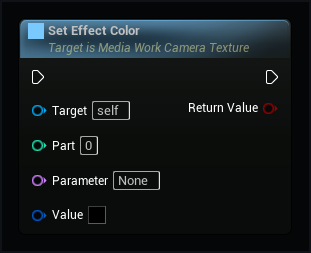
Set Effect Strength
Sets how strongly the selected effect changes the picture, from zero to one.
MWCameraCaptureComponent.SetEffectStrength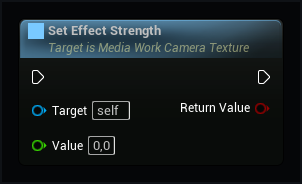
Set Effect Value
Changes a named value in an effect part. Parts count from zero. Invalid names or values return false.
MWCameraCaptureComponent.SetEffectValue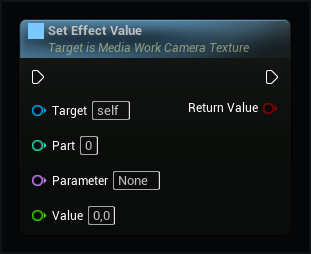
Set Output Size
Changes the exact output size. Unsupported sizes are rejected, without silently choosing a smaller picture.
MWCameraCaptureComponent.SetOutputSize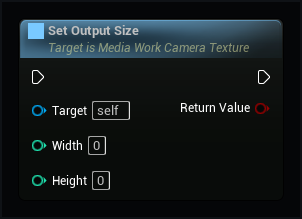
Pause camera updates
Keeps the last frame without rendering the scene again until updates resume.
MWCameraCaptureComponent.SetPaused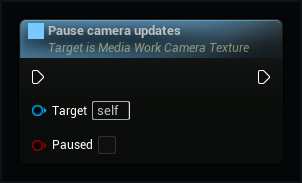
Set Update Rate
Sets automatic updates per second, from 1 to 120. Pausing still keeps the last frame.
MWCameraCaptureComponent.SetUpdateRate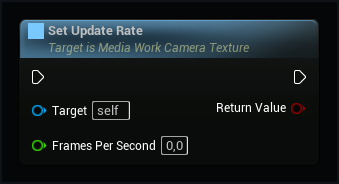
MWEffectPlayer · 10
Apply to Material
Connects the processed picture and its transparency to a texture parameter. The connection follows changes of effect and output size.
MWEffectPlayer.ApplyToMaterial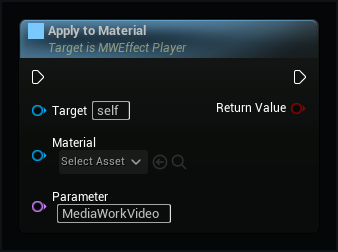
Close
Releases this effect's picture buffers and material connections. The shared player and its sound continue playing.
MWEffectPlayer.Close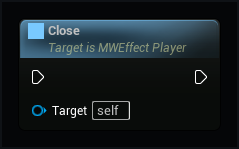
Get Player Id
The ID of the shared player used by this effect.
MWEffectPlayer.GetPlayerId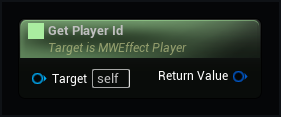
Preserve Alpha
Keeps the original video's transparency. Turn off only when you want a solid rectangular picture.
MWEffectPlayer.PreserveAlpha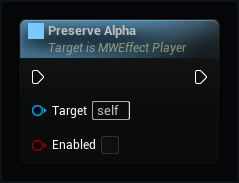
Draw video effect
Processes the current video frame and returns the finished texture.
MWEffectPlayer.Render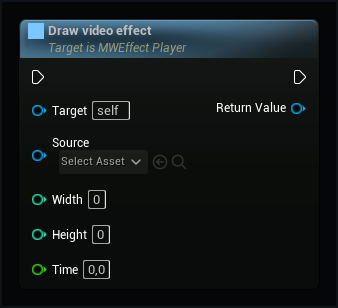
Change effect color
Changes a color in a pass of the selected effect.
MWEffectPlayer.SetColor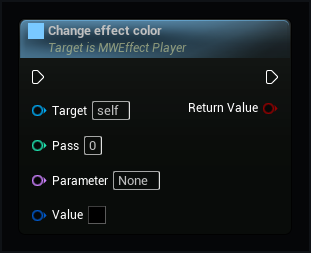
Set video effect
Applies this effect and its saved settings to the video.
MWEffectPlayer.SetEffect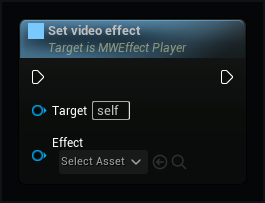
Change effect value
Changes one setting in a pass of the selected effect.
MWEffectPlayer.SetScalar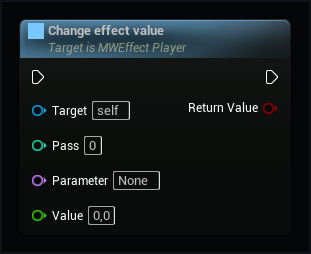
Set Strength
Sets how strongly the effect changes the picture, from zero to one.
MWEffectPlayer.SetStrength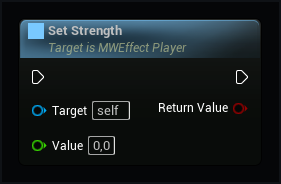
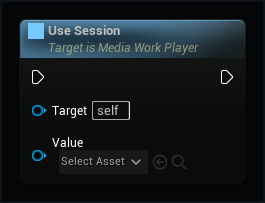
Use Session
Processes this player's live picture using its own playback clock. Sound and controls keep using the same player. An optional texture can supply its masked picture.
MWEffectPlayer.UseSession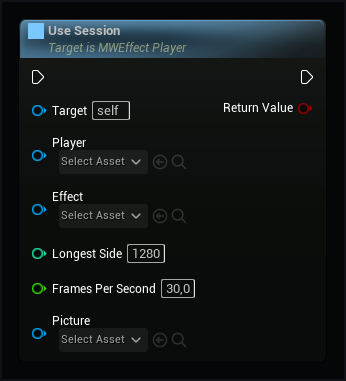
MWMaskedVideoTexture · 10
Apply video to material
Connects this live texture to a texture parameter in a material.
MWMaskedVideoTexture.ApplyToMaterial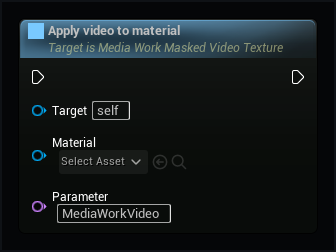
Close player surface
Stops drawing this texture.
MWMaskedVideoTexture.CloseVideo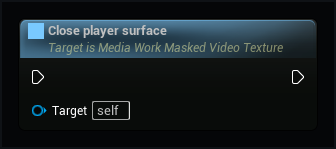
Update masked video
Draw the current video frame and its edge fade into this texture.
MWMaskedVideoTexture.DrawFrame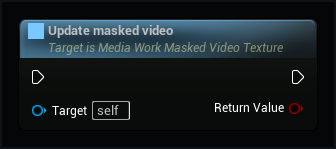
Player ID
This session has its own unique ID. Use it to address only this player.
MWMaskedVideoTexture.GetPlayerId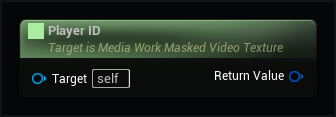
Change edge fade
Apply a saved mask to this video texture. An empty choice restores the original video transparency.
MWMaskedVideoTexture.SetMask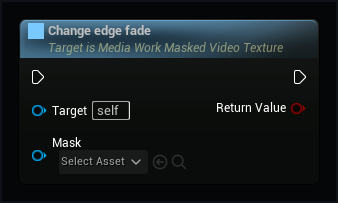
Use edge fade
Switch the chosen mask on or off. The original video alpha is preserved.
MWMaskedVideoTexture.SetMaskEnabled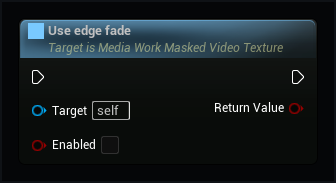
Reveal the faint edge
Zero preserves the painted fade. Higher values reveal more of its faint outer edge without cutting off the gradient.
MWMaskedVideoTexture.SetMaskSoftness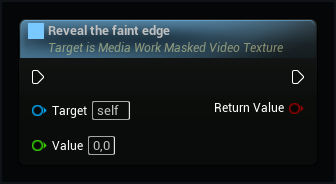
Set picture framing
Moves or scales the picture inside the video texture.
MWMaskedVideoTexture.SetVideoFraming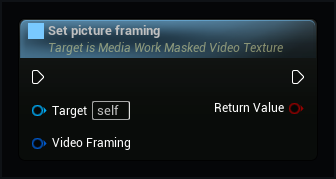
Start video texture
Starts live video directly in this texture.
MWMaskedVideoTexture.Start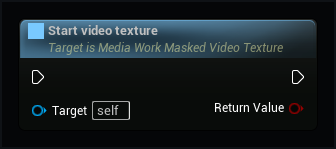
Use existing session
Shows video from an existing playback session.
MWMaskedVideoTexture.UseSession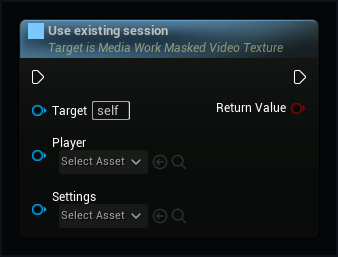
MWMediaController · 12
Close source
Closes this player’s source and sound. Its ID and texture remain available for reopening.
MWMediaController.Close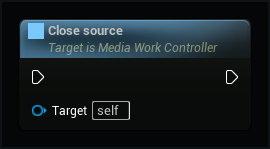
Finished video texture
Connect this texture to your material. It includes the chosen edge fade.
MWMediaController.GetOutputTexture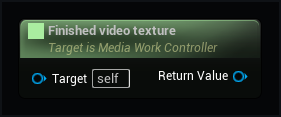
Player ID
This session has its own unique ID. Use it to address only this player.
MWMediaController.GetPlayerId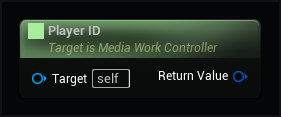
Open media
Opens a saved media asset and connects its sound to this game world.
MWMediaController.OpenMedia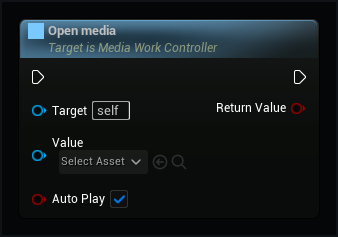
Pause
Pauses playback and keeps its position.
MWMediaController.Pause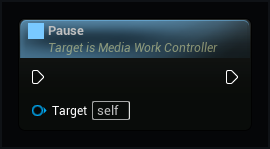
Play
Starts or resumes the current track.
MWMediaController.Play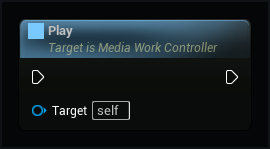
Seek
Moves to a time in seconds. Returns false when the source cannot seek.
MWMediaController.Seek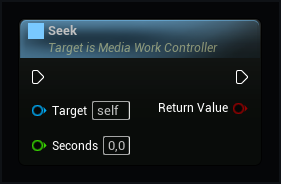
Set picture framing
Resizes and moves only this controller’s video inside its fixed output. After the first change, get Output Texture again and assign it to your material or UI: framing may create a processed output. The sound and session stay the same.
MWMediaController.SetVideoFraming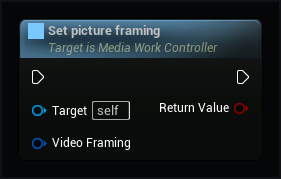
Change edge fade
Apply a saved mask to this video texture. An empty choice restores the original video transparency.
MWMediaController.SetVideoMask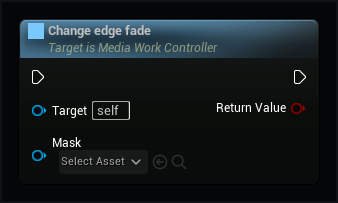
Set volume
Sets this player's volume from 0 for silent to 1 for full volume.
MWMediaController.SetVolume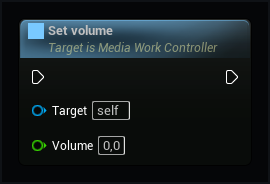
Stop
Stops playback and returns to the beginning. The source stays selected.
MWMediaController.StopPlayback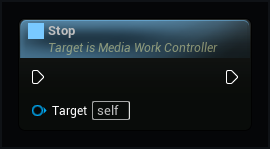
Play or pause
Pauses a playing track or resumes a paused track.
MWMediaController.TogglePlayback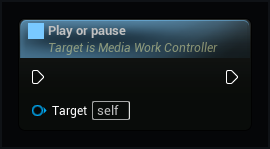
MWMediaSession · 33
Can seek
Reports whether the source can jump to a chosen time.
MWMediaSession.CanSeek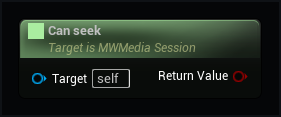
Change track
Use 1 for the next track, -1 for the previous track and 0 to restart the current track.
MWMediaSession.ChangeTrack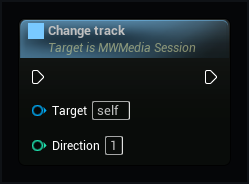
Close source
Stops playback and releases the decoder and sound. Reopen Source can open it again.
MWMediaSession.Close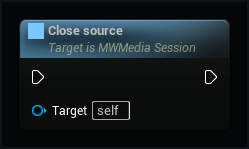
Find player by ID
Finds only the matching player in this game world. An unknown ID returns no player. Connect the result to Play, Pause or another command.
MWMediaSession.FindPlayerById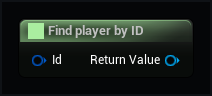
Source duration
Returns the length in seconds, or zero while it is unknown.
MWMediaSession.GetDuration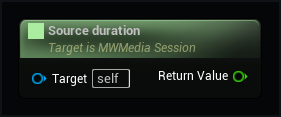
Get six-band gains
Six bands from bass to treble. Zero keeps the original sound; positive values boost and negative values reduce the band. Each track keeps the chosen settings. A band can only affect frequencies present in the recording.
MWMediaSession.GetEqualizer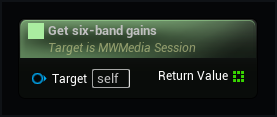
Does playlist repeat
Tells you whether the playlist starts over.
MWMediaSession.GetPlaylistRepeat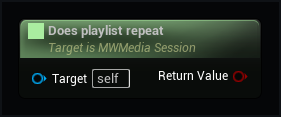
Is shuffled
Tells you whether the playlist plays in shuffled order.
MWMediaSession.GetPlaylistShuffle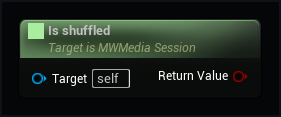
Playback position
Returns the current time in seconds for a clock or progress bar.
MWMediaSession.GetPosition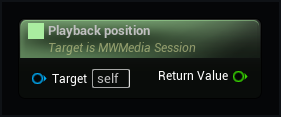
Get current subtitle lines
Returns the lines at this player’s real playback time. Use them in your own UI. Hidden, stopped or invalid subtitles return empty text.
MWMediaSession.GetSubtitleText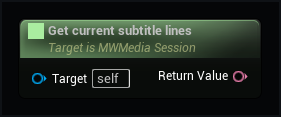
Track count
The number of tracks in this playlist.
MWMediaSession.GetTrackCount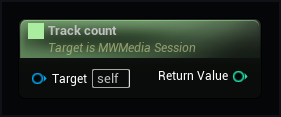
Playlist track index
Returns the selected row from zero, or -1 for a single source.
MWMediaSession.GetTrackIndex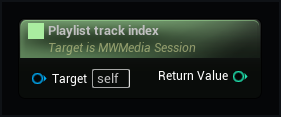
Track name
The name of a playlist row. Use -1 for the current track.
MWMediaSession.GetTrackTitle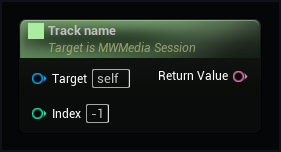
Get volume
Returns this player's loudness from 0 to 1.
MWMediaSession.GetVolume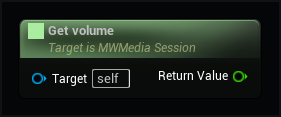
Reopen source
Reopens the selected source after closing it or after an error.
MWMediaSession.Open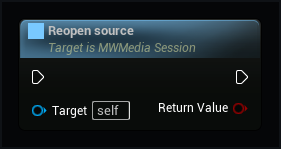
Open media
Opens a saved media asset and connects its sound to this game world.
MWMediaSession.OpenMedia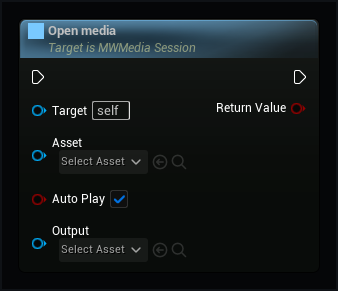
Open playlist
Starts a saved playlist. Replace any missing tracks before playing.
MWMediaSession.OpenPlaylist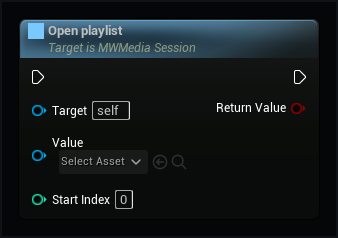
Pause
Pauses playback and keeps its position.
MWMediaSession.Pause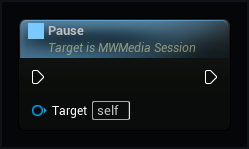
Play
Starts or resumes the current track.
MWMediaSession.Play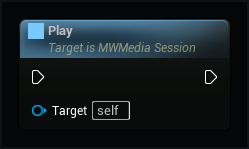
Reset equalizer
Returns all six gains to zero without restarting the track or changing its volume.
MWMediaSession.ResetEqualizer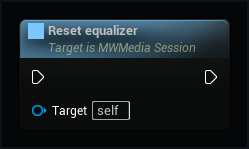
Seek
Moves to a time in seconds. Returns false when the source cannot seek.
MWMediaSession.Seek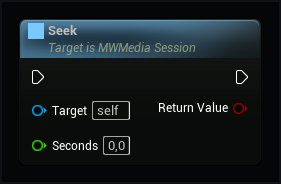
Play playlist row
Plays the chosen playlist row. The first row is zero.
MWMediaSession.SelectTrack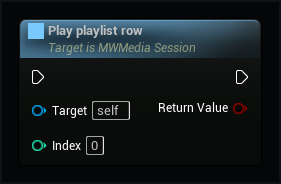
Set equalizer
Sets 60, 150, 400, 1000, 2500 and 8000 Hz from -12 to +12 dB. Missing band values become zero.
MWMediaSession.SetEqualizer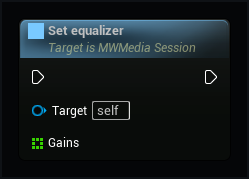
Set one equalizer band
Changes one gain from -12 to +12 dB. Band zero is 60 Hz, then 150, 400, 1000, 2500 and 8000 Hz. Other bands stay as they are. Returns false for an invalid band or value.
MWMediaSession.SetEqualizerBand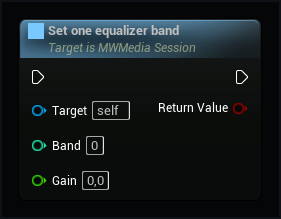
Set repeat
Repeats the current source at its end. Playlists have their own repeat setting.
MWMediaSession.SetLooping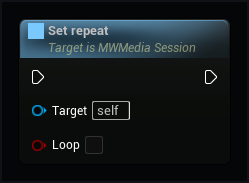
Set playlist repeat
Starts a new pass after the last track. Turn off to stop when this pass ends.
MWMediaSession.SetPlaylistRepeat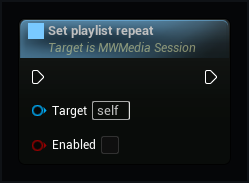
Set shuffled order
Changes the order of upcoming tracks. Each track plays once per pass, and the selected track starts first. Previous returns through the tracks you have heard.
MWMediaSession.SetPlaylistShuffle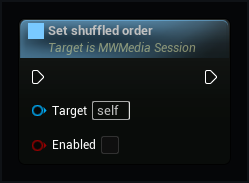
Set subtitle language
Choose a language found in this file. The default uses the language saved in the source.
MWMediaSession.SetSubtitleLanguage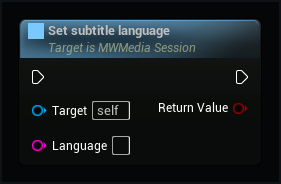
Set subtitle visibility
Shows or hides captions in views sharing this session. Video, sound and position keep playing as before.
MWMediaSession.SetSubtitlesEnabled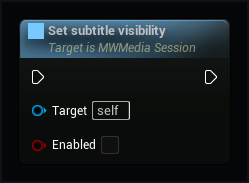
Set subtitle track
Choose imported subtitles from Content. Players can share this file and keep their own appearance.
MWMediaSession.SetSubtitleTrack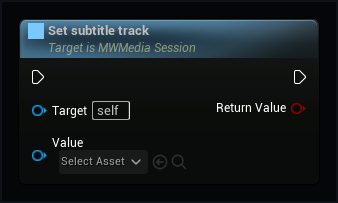
Set volume
Sets this player's volume from 0 for silent to 1 for full volume.
MWMediaSession.SetVolume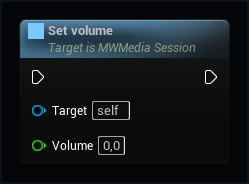
Stop
Stops playback and returns to the beginning. The source stays selected.
MWMediaSession.StopPlayback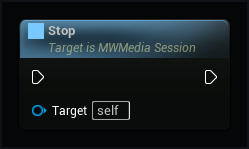
Play or pause
Pauses a playing track or resumes a paused track.
MWMediaSession.TogglePlayback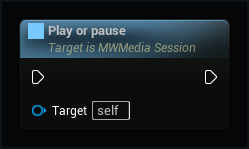
MWSubtitleAsset · 5
Get saved subtitle language
Returns the subtitle language used by default.
MWSubtitleAsset.GetDefaultLanguage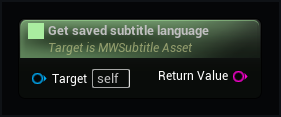
Get subtitle languages
Lists the subtitle languages in this asset.
MWSubtitleAsset.GetLanguages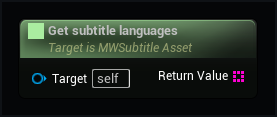
Get subtitle lines at time
Returns the lines at the given time, with the saved offset and language.
MWSubtitleAsset.GetTextAtTime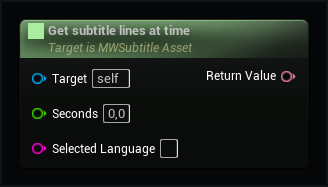
Read subtitle file
Imports text and timing. Set the font and appearance here. ASS drawings, animation and karaoke need an ordinary timed-text export first.
MWSubtitleAsset.ImportFile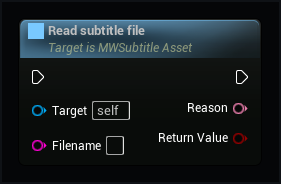
Check subtitles and font
Checks timing, appearance, language and letters. If something cannot be used, returns false and explains why.
MWSubtitleAsset.Validate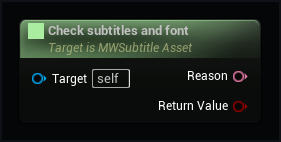
MWSubtitleFontAsset · 1
Check font letters
Checks every letter against this font. Returns false and names the first missing character; it does not substitute another font.
MWSubtitleFontAsset.SupportsText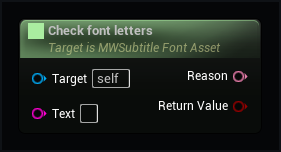
MWVideoTexture · 3
Apply video to material
Connects this live texture to a texture parameter in a material.
MWVideoTexture.ApplyToMaterial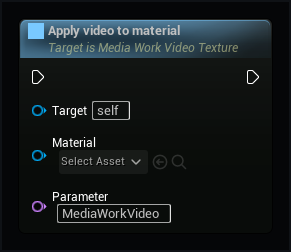
Close video texture
Stops the video and releases its playback resources.
MWVideoTexture.CloseVideo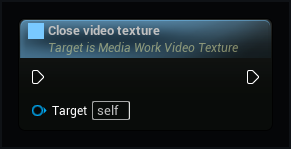
Start video texture
Starts live video directly in this texture.
MWVideoTexture.Start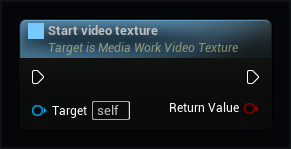
MWMediaControlsWidget · 5
Bind Player Id
Connects only to the player with this ID in this world. An unknown ID disconnects the panel and returns false.
MWMediaControlsWidget.BindPlayerId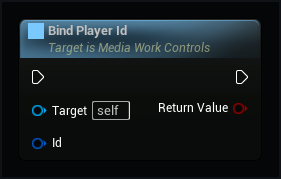
Set Button Styles
Replaces the play and secondary button artwork for this panel only. Choose a theme first.
MWMediaControlsWidget.SetButtonStyles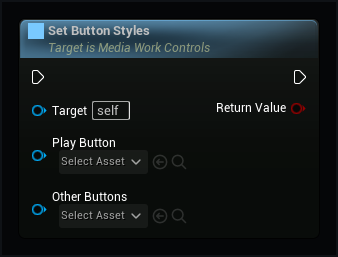
Set Preset
Changes how many controls this panel shows without restarting playback.
MWMediaControlsWidget.SetPreset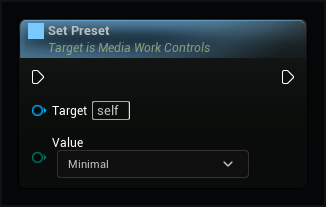
Set Style
Changes this panel's theme without changing another panel or restarting playback.
MWMediaControlsWidget.SetStyle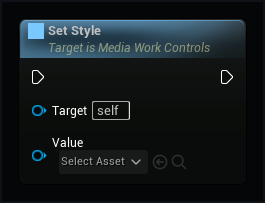
Use Session
Connects this panel to an existing player's picture and sound. It does not open another player.
MWMediaControlsWidget.UseSession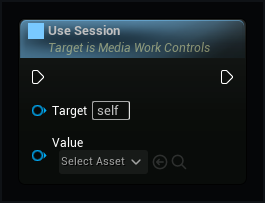
MWPlayerInteractionComponent · 11
Begin Interaction
Enters control mode if the character is within range.
MWPlayerInteractionComponent.BeginInteraction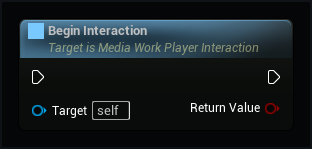
Can Control
Whether this input controller can currently operate the selected player.
MWPlayerInteractionComponent.CanControl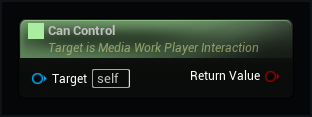
End Interaction
Leaves control mode and cancels held buttons or an unfinished seek.
MWPlayerInteractionComponent.EndInteraction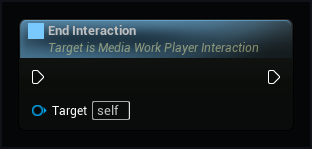
Get Player Id
The ID of the one player selected by this input controller.
MWPlayerInteractionComponent.GetPlayerId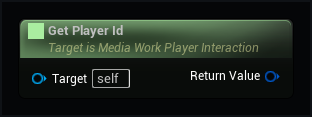
Is in Range
Whether the character is within the configured distance of the selected player.
MWPlayerInteractionComponent.IsInRange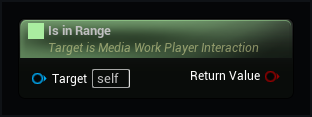
Press Pointer
Presses the selected player's button at the current pointer position, within the allowed distance.
MWPlayerInteractionComponent.PressPointer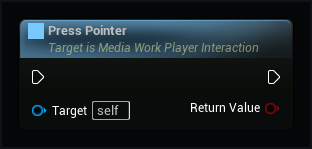
Release Pointer
Releases a held player button or finishes a slider drag. Leaving the interaction zone cancels the action.
MWPlayerInteractionComponent.ReleasePointer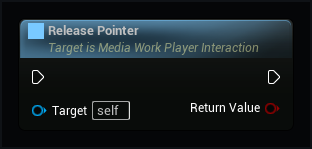
Send Command
Sends a playback command to this player only, while the character is in range and control mode is active.
MWPlayerInteractionComponent.SendCommand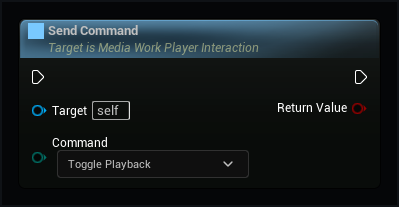
Send Control Key
Sends a navigation or activation key to the selected player's on-screen controls.
MWPlayerInteractionComponent.SendControlKey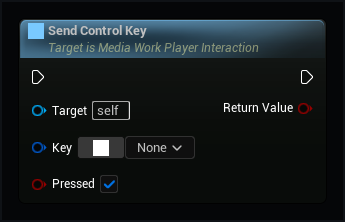
Update Pointer Ray
Traces a world ray to the selected player plane. Other blocking objects stop the ray.
MWPlayerInteractionComponent.UpdatePointerRay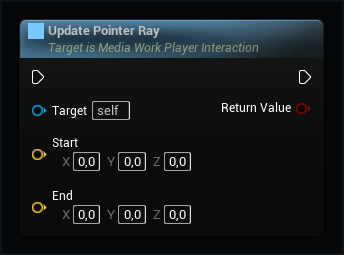
Update Pointer UV
Moves over a player displayed in your own material. Supply its actual UV coordinates; distance is still checked.
MWPlayerInteractionComponent.UpdatePointerUV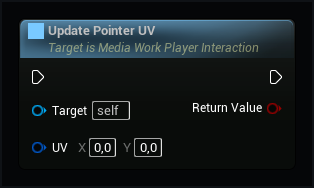
MWPlayerInteractionLibrary · 1
Configure Media Work Player Controls
Selects one player for this controller, chooses cursor or buttons, and sets the required interaction distance. Calling it again changes the selected player.
MWPlayerInteractionLibrary.ConfigurePlayerControls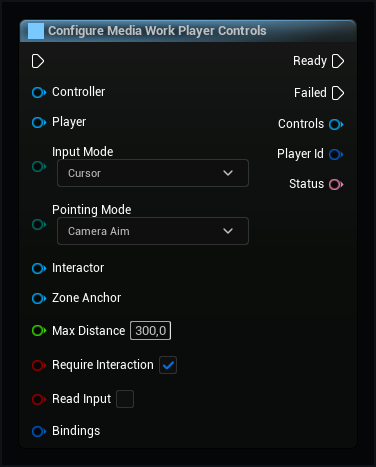
MWPlayerOutput · 8
Close
Closes this output and releases its screen, plane, texture and playback session.
MWPlayerOutput.Close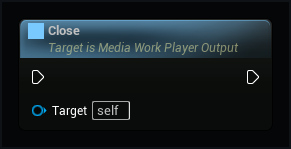
Get Output Texture
Returns the complete live player texture for texture and plane outputs.
MWPlayerOutput.GetOutputTexture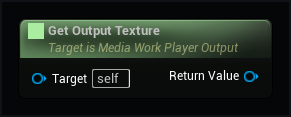
Get Plane
Returns the plane created for a saved plane output.
MWPlayerOutput.GetPlane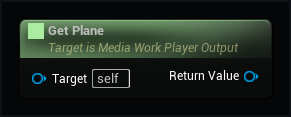
Get Player Id
Returns the ID used to control only this player.
MWPlayerOutput.GetPlayerId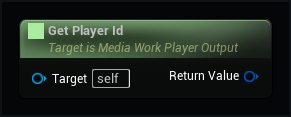
Get Screen Player
Returns the screen widget when the saved output is the game screen.
MWPlayerOutput.GetScreenPlayer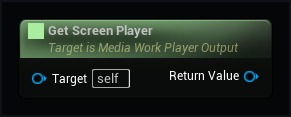
Get Session
Returns this output's playback session, shared by its picture, sound and controls.
MWPlayerOutput.GetSession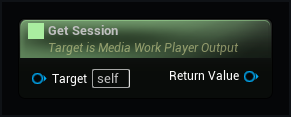
Get Status
Shows opening progress or the reason why this output could not play.
MWPlayerOutput.GetStatus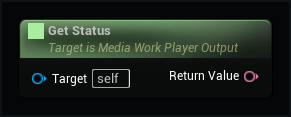
Get Surface
Returns the surface component used to send pointer and key input to a player texture or plane.
MWPlayerOutput.GetSurface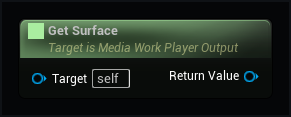
MWPlayerOutputLibrary · 1
Open Saved Player
Opens the saved player on the game screen, on a plane or as a complete texture, according to its output setting. Keep the returned object to control and close this player.
MWPlayerOutputLibrary.OpenSavedPlayer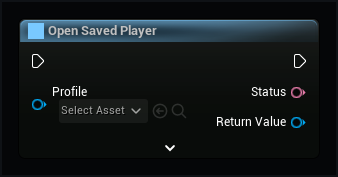
MWPlayerPlane · 5
Open Player
Opens a saved player on this plane with its picture, frame, buttons and sound.
MWPlayerPlane.OpenPlayer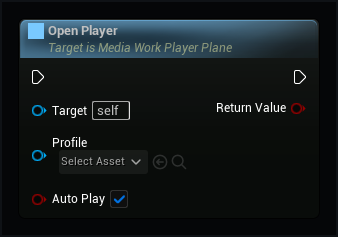
Player UVTo World
Converts texture UV coordinates into a world point on this plane.
MWPlayerPlane.PlayerUVToWorld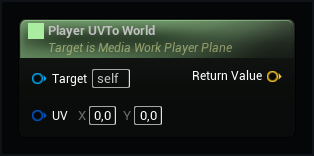
Ray to Player UV
Finds where a ray meets this plane, including beyond its edges for a held slider.
MWPlayerPlane.RayToPlayerUV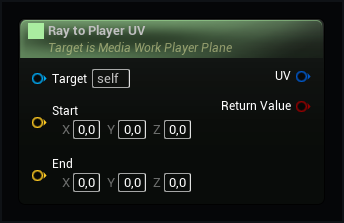
Set Plane Width
Changes plane width while preserving the displayed player's proportions.
MWPlayerPlane.SetPlaneWidth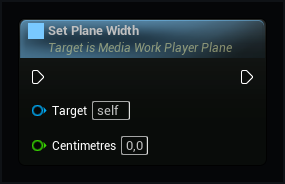
World to Player UV
Converts a point on this plane to texture UV coordinates. Points beyond its edges also return their coordinates.
MWPlayerPlane.WorldToPlayerUV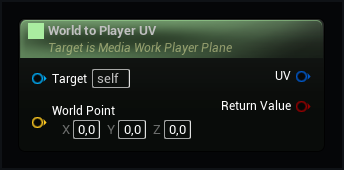
MWPlayerRenderTexture · 1
Apply to Material
Connects the complete player picture, frame and buttons to a material texture parameter.
MWPlayerRenderTexture.ApplyToMaterial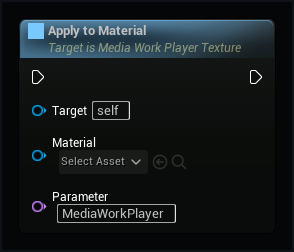
MWPlayerSurfaceComponent · 20
Bind Player Id
Connects to this player's ID in the same world. An unknown ID disconnects this surface.
MWPlayerSurfaceComponent.BindPlayerId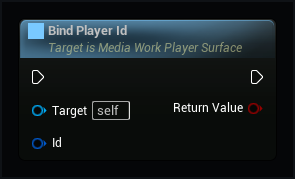
Cancel Pointer
Cancels a held button or an unfinished seek without applying it. Use this when the pointer loses control.
MWPlayerSurfaceComponent.CancelPointer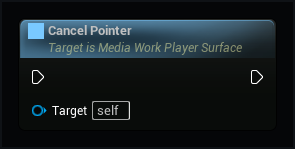
Close
Stops drawing and releases the surface. A session opened by this surface is also closed.
MWPlayerSurfaceComponent.Close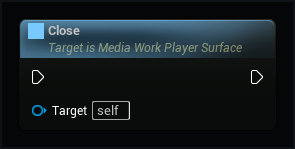
Get Output Size
The actual width and height of the complete player texture.
MWPlayerSurfaceComponent.GetOutputSize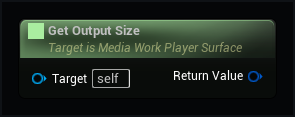
Get Player Id
The ID of the player used by this surface and its buttons.
MWPlayerSurfaceComponent.GetPlayerId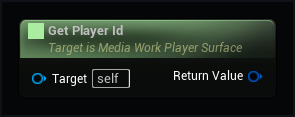
Move Pointer
Moves the pointer over the texture. UV starts at 0,0 in the top-left and ends at 1,1 in the bottom-right.
MWPlayerSurfaceComponent.MovePointer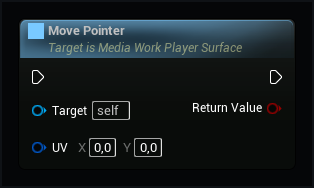
Open Player
Opens a saved player and draws its video, frame and controls into one live texture.
MWPlayerSurfaceComponent.OpenPlayer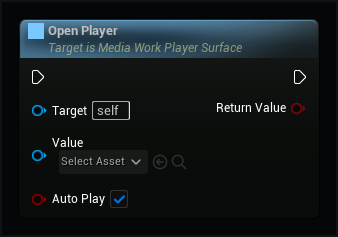
Pointer Down
Presses the primary button at these texture coordinates. Pair it with Pointer Up, including after a drag.
MWPlayerSurfaceComponent.PointerDown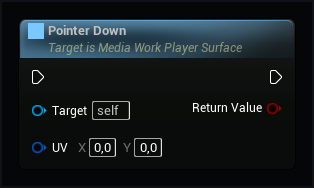
Pointer Up
Releases the primary button. A slider drag may finish outside the texture; a button released outside is cancelled.
MWPlayerSurfaceComponent.PointerUp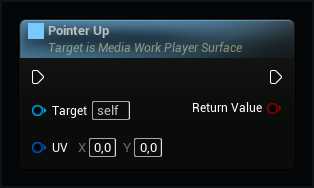
Redraw
Draws a new player frame now. Normally the component updates it automatically.
MWPlayerSurfaceComponent.Redraw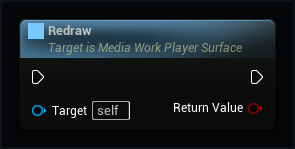
Send Control Key
Sends a keyboard or gamepad key to this player's controls only.
MWPlayerSurfaceComponent.SendControlKey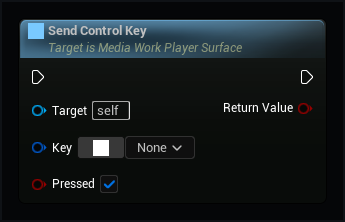
Set High Precision Output
Chooses smoother 16-bit output or smaller 8-bit output without restarting the video.
MWPlayerSurfaceComponent.SetHighPrecisionOutput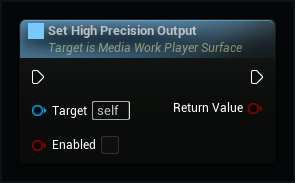
Set Output Quality
Sets the longest texture side in pixels and the redraw rate. Zero frames per second updates every game frame.
MWPlayerSurfaceComponent.SetOutputQuality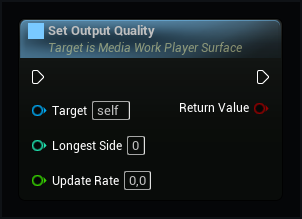
Set Player Title
Sets optional text above this player's video. Empty text removes the heading and its space.
MWPlayerSurfaceComponent.SetPlayerTitle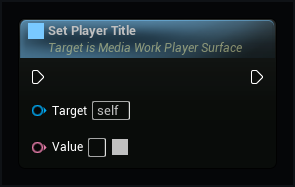
Set Show Controls
Shows or hides the controls in this texture without changing playback.
MWPlayerSurfaceComponent.SetShowControls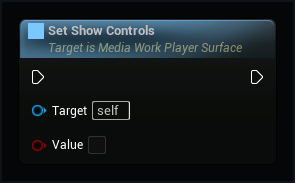
Set Show Subtitles
Shows or hides subtitles in the player texture without changing playback.
MWPlayerSurfaceComponent.SetShowSubtitles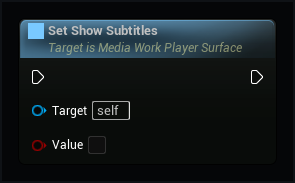
Set Style
Changes this surface's frame and buttons without restarting the video.
MWPlayerSurfaceComponent.SetStyle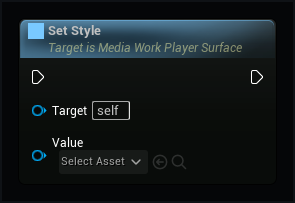
Set Video Aspect Ratio
Sets a picture width divided by height. Zero restores automatic video proportions.
MWPlayerSurfaceComponent.SetVideoAspectRatio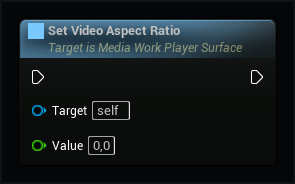
Set Video Framing
Changes the picture size and position inside this surface. The frame and its buttons stay in place.
MWPlayerSurfaceComponent.SetVideoFraming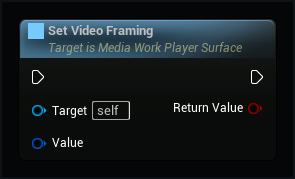
Use Session
Draws and controls an existing session. Closing this surface will leave that session running.
MWPlayerSurfaceComponent.UseSession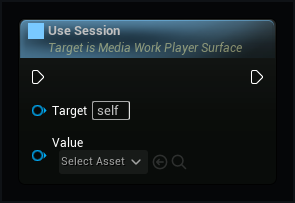
MWPlayerWidget · 9
Close Player
Closes only the playback session created by this widget.
MWPlayerWidget.ClosePlayer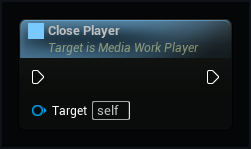
Open Media
Opens a media asset and connects its sound to this widget's game world.
MWPlayerWidget.OpenMedia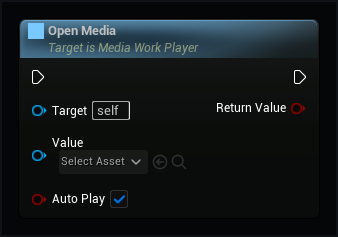
Open Playlist
Opens an audio playlist with its saved title, list and theme settings.
MWPlayerWidget.OpenPlaylist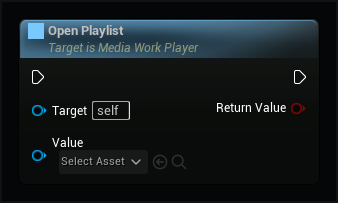
Set Audio Style
Changes the audio theme without restarting playback or changing the video theme.
MWPlayerWidget.SetAudioStyle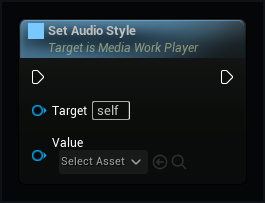
Set Display Title
Sets optional text above the video. Empty text removes the heading and its space.
MWPlayerWidget.SetDisplayTitle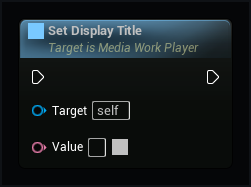
Set Player Style
Changes the video theme without restarting playback or changing the audio theme.
MWPlayerWidget.SetPlayerStyle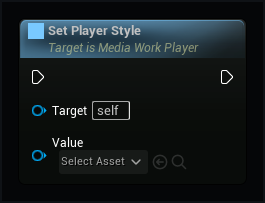
Set Show Subtitles
Shows or hides subtitles in this widget immediately, without changing other views of the same session.
MWPlayerWidget.SetShowSubtitles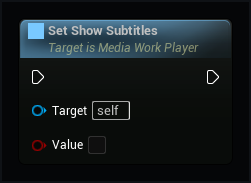
Set Video Framing
Changes the picture inside this frame without moving the buttons or restarting playback.
MWPlayerWidget.SetVideoFraming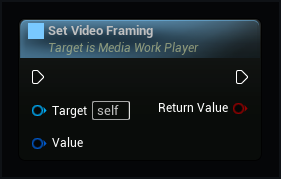
Use Session
Connects an existing session. Closing the widget will not close a session owned elsewhere.
MWPlayerWidget.UseSession